2. Questions
- 2.1 Creating a question
- 2.2 Navigating and editing questions
- 2.3 Question options
- 2.4 Deleting a question
2.1 Creating a question
Prerequisites:
- You are logged into the Redouble AI system
- You have a project open
- Documents for analysis are attached to the project
Steps:
- Below the title of your project, press the "+" button to add a question

- In the "Add New Question" dialog box, fill in the following fields:
- Question Title — enter the question name, which must be unique to the project.
- Research Prompt — enter a detailed description of what needs to be found or analyzed in the input documents.

- Click the "Create Question" button or press Enter

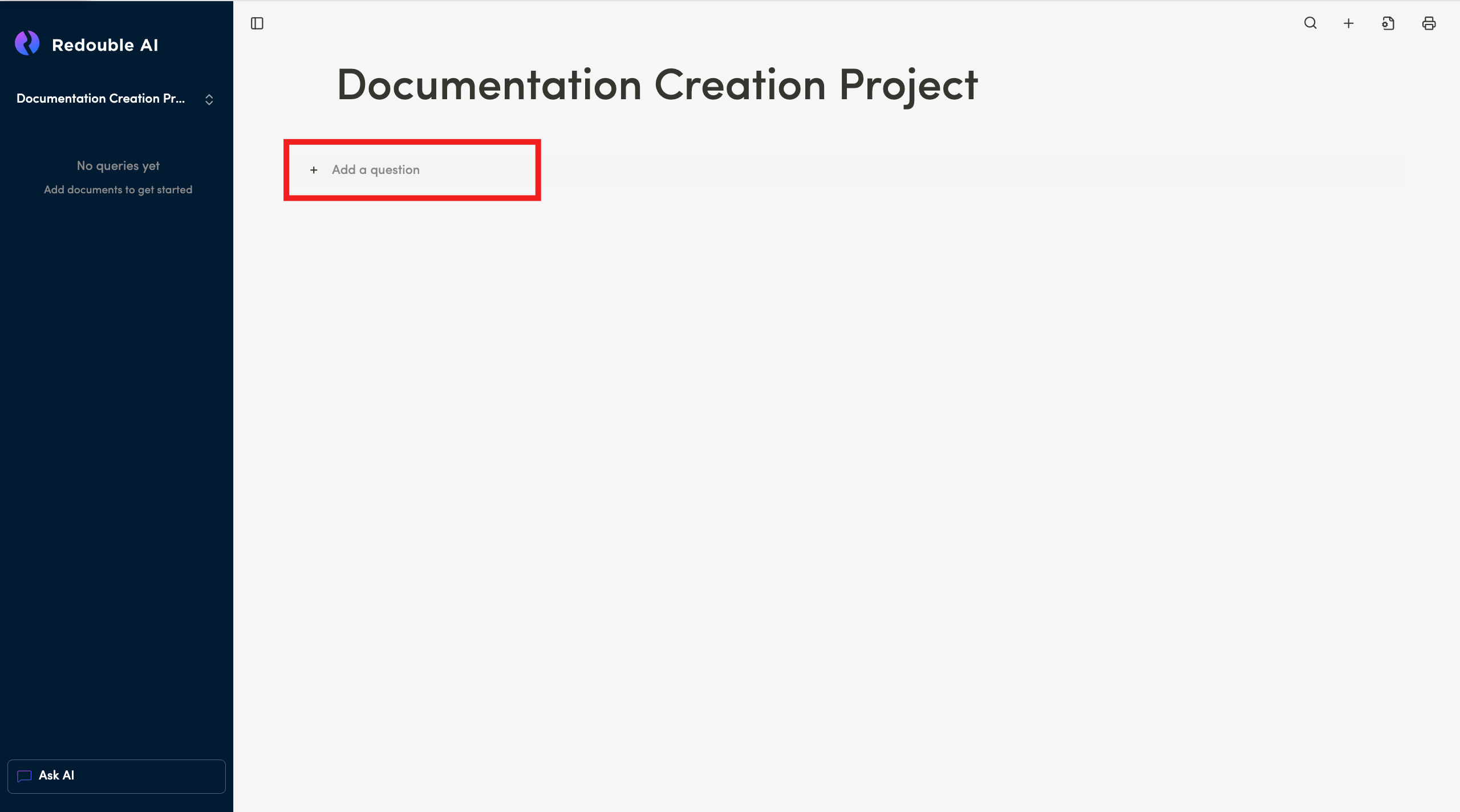
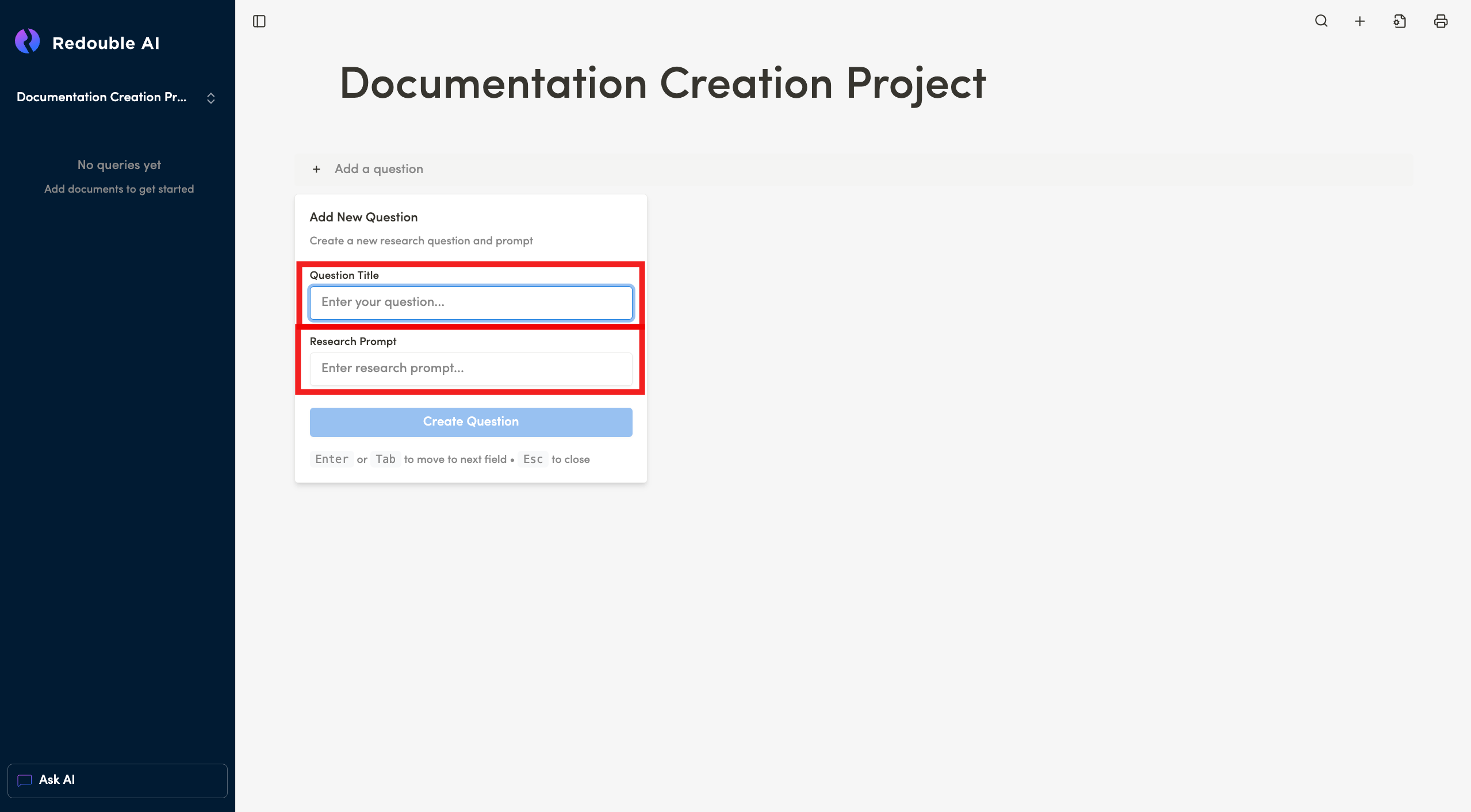
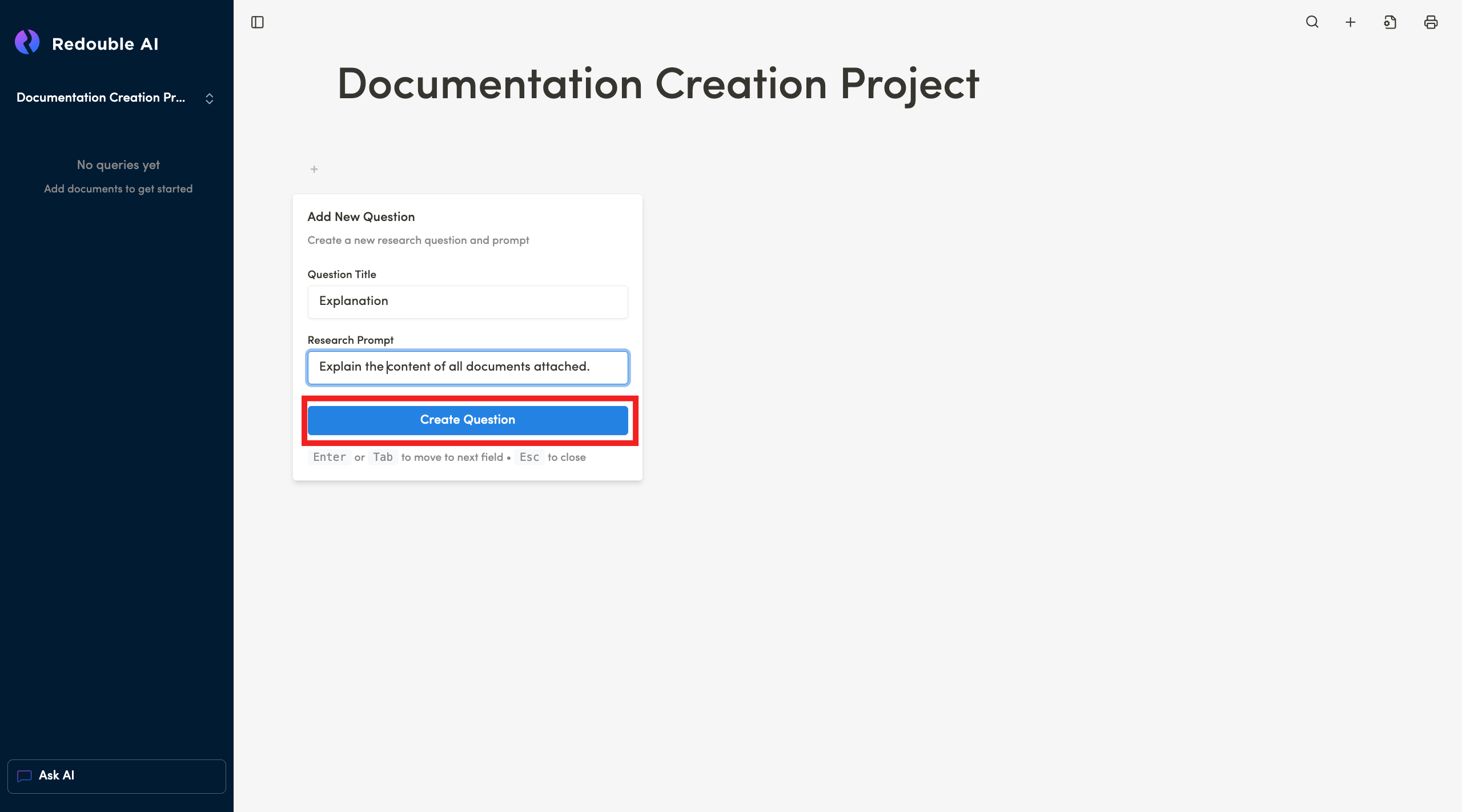
Result: The question is created and appears in the left sidebar. The system automatically starts analyzing the attached documents according to the specified prompt and generates an answer based on the content of the attached files.
2.2 Navigating and editing questions
Prerequisites:
- You are logged into the Redouble AI system
- At least two questions exist in the project in question
Viewing the answer to a question
Steps:
Result: You are viewing the detailed answer to the selected question.
Creating a subquestion
Steps:
Result: You created a subquestion.
Editing AI-generated content
Steps:
- Go to a specific question
- Edit existing paragraphs by adding/ deleting text by hand.
- You also can press "+" or type "/" to:
- Add subheadings
- Add media content (video, picture, audio, file)
- Add basic blocks (quote, toggle list, numbered list, bullet list, check list, paragraph, code block)
- Add advanced elements (table)
- Add other elements (emojis)
- You can reposition paragraphs by dragging them with the drag handle ("⠿")
- To delete a paragraph, click on the drag handle and select "Delete"
Result: You have successfully edited the answer to a question.
2.3 Question options
Prerequisites:
- You are logged into the Redouble AI system
- You have a project open with at least one question
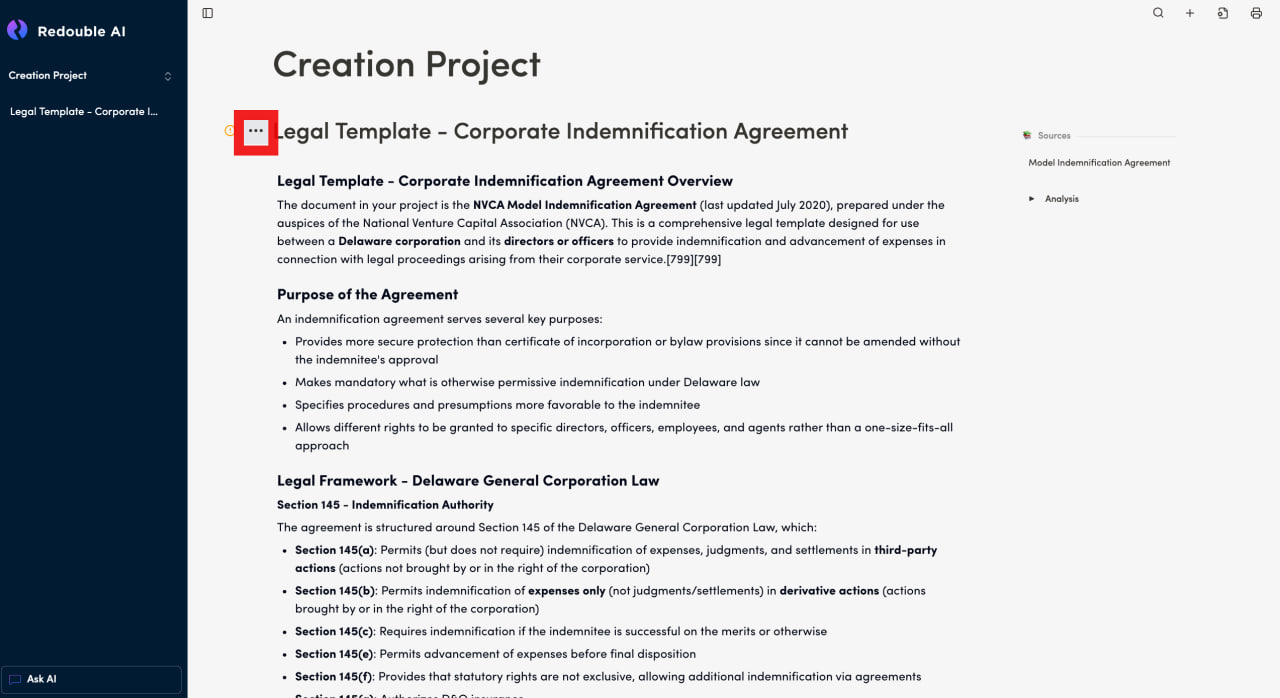
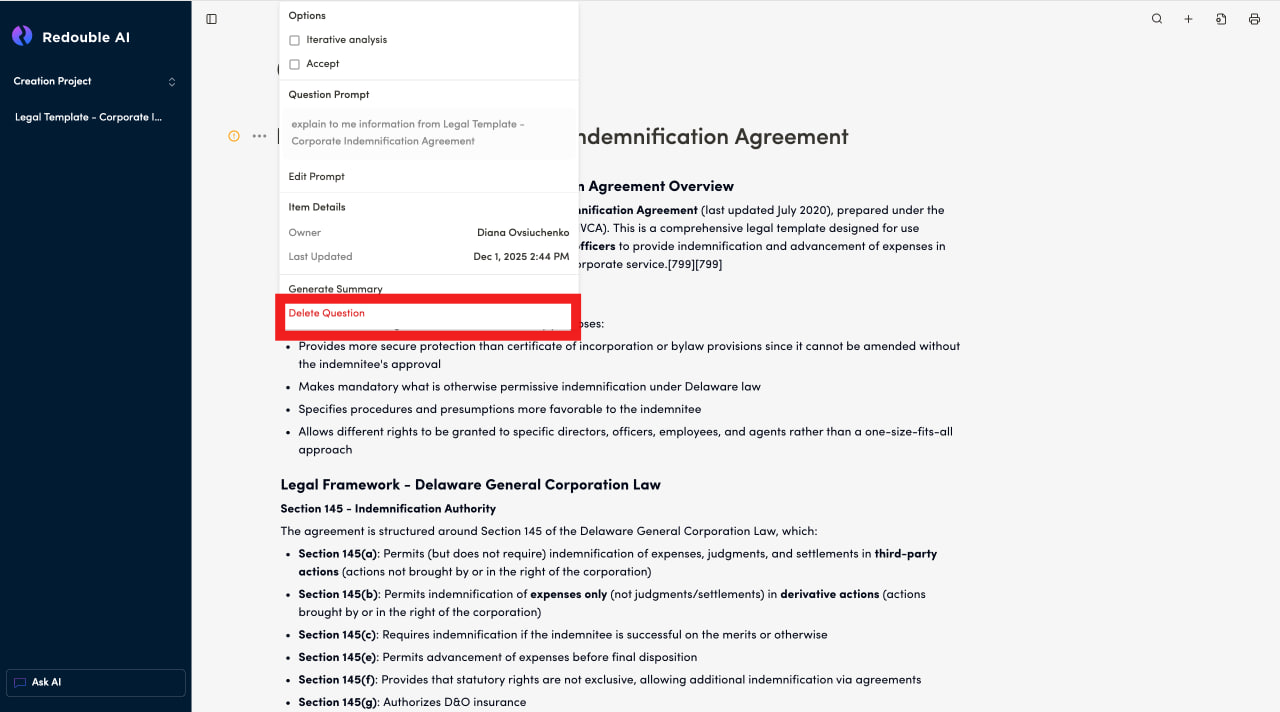
- Click the three-dot "Document options" button on the left side of the heading/ question you would like to work on
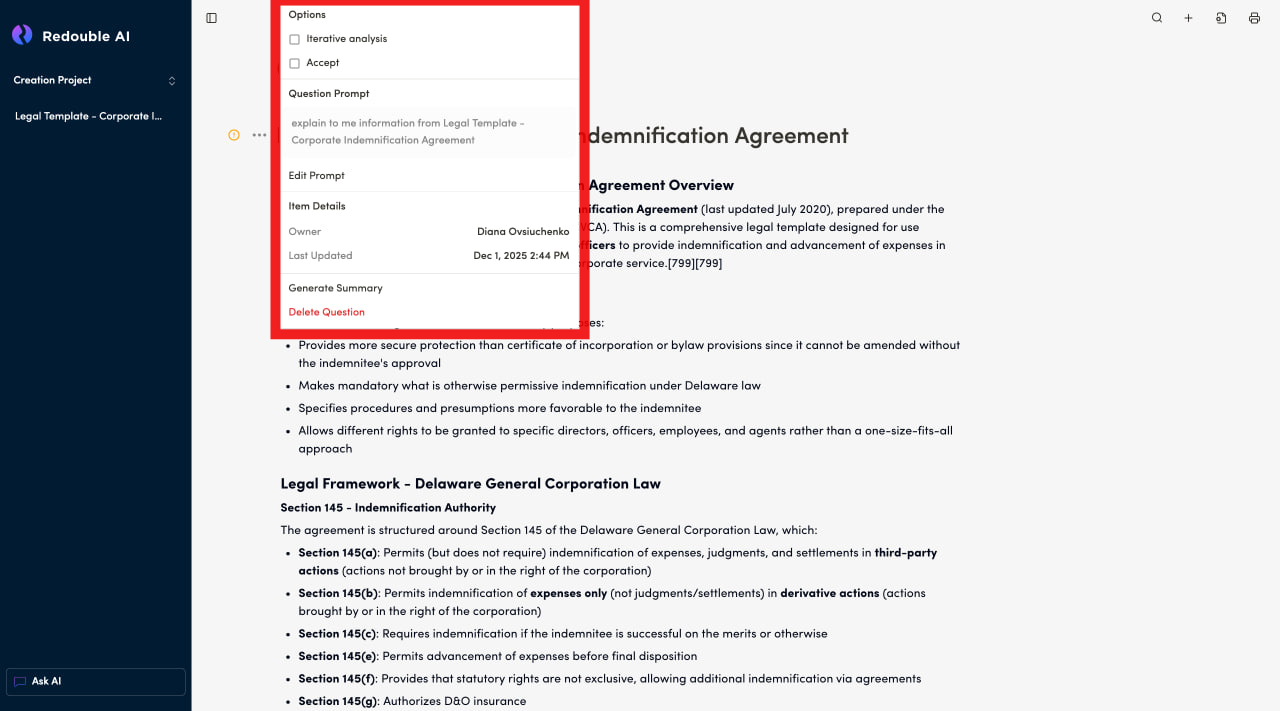
Iterative analysis
- Type: Checkbox
- Purpose: Enables step-by-step document analysis for deeper research
- Default: Disabled
Accept
- Type: Checkbox
- Purpose: Automatically accepts the generated answer without manual confirmation
- Default: Disabled
Prompt display
- Shows the current research prompt text displayed in a gray text block
- Example: "find the sections in documents that mention healthcare and explain them one by one"
Edit Prompt button
- Allows you to modify the prompt text
- When the prompt is changed, the next regeneration will use the new text
- Click to open the prompt editor
Steps to edit:
- Click "Edit Prompt"
- Make necessary changes to the text
- Save the changes
- The updated prompt will be used to generate future answers
Owner
- Displays the name of the user who created the question
- Example: Dr. John Smith
- Purpose: Track question authorship for collaboration and accountability
Last updated
- Shows the date and time of the last update
- Format: MM/DD/YYYY (e.g., 10/14/2025 for October 14th, 2025)
- Updated when:
- An answer is regenerated
- A prompt is edited
- Any options are changed
- The answer is manually edited
Generate summary
How it works:
- Click "Generate Summary"
- The system analyzes the full answer
- The system extracts key points and main conclusions
- And presents a concise summary
2.4 Deleting a question
Prerequisites:
- You are logged into the Redouble AI system
- You have a project open with at least one question
- You have the permission to delete questions
Steps:
- View the question you would like to delete
- Click the "Document options" button to the left of the question title

- In the context menu, click on "Delete Question"

- Confirm that you would like to proceed with deleting the question in the dialog box

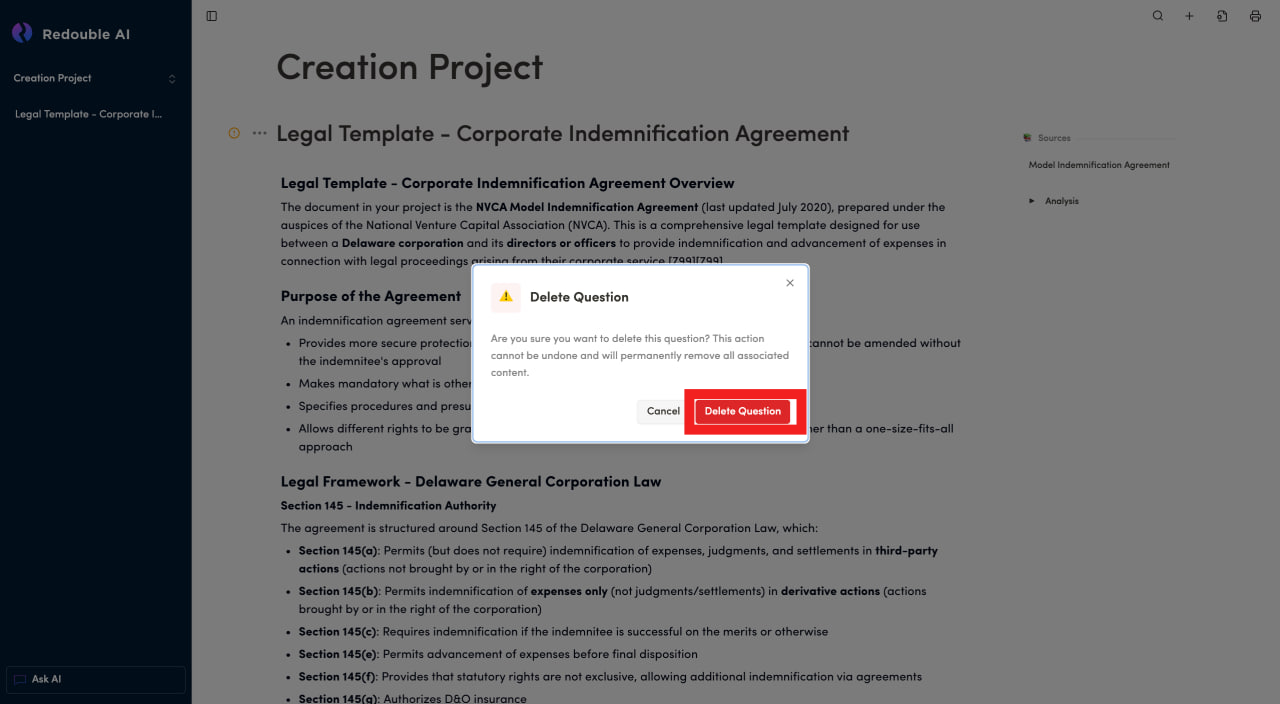
Result: The question is deleted from the project and is no longer displayed in the project dropdown list.