3. Settings
3.1 General
Preconditions:
- You are logged into the Redouble AI system
- You have at least one project
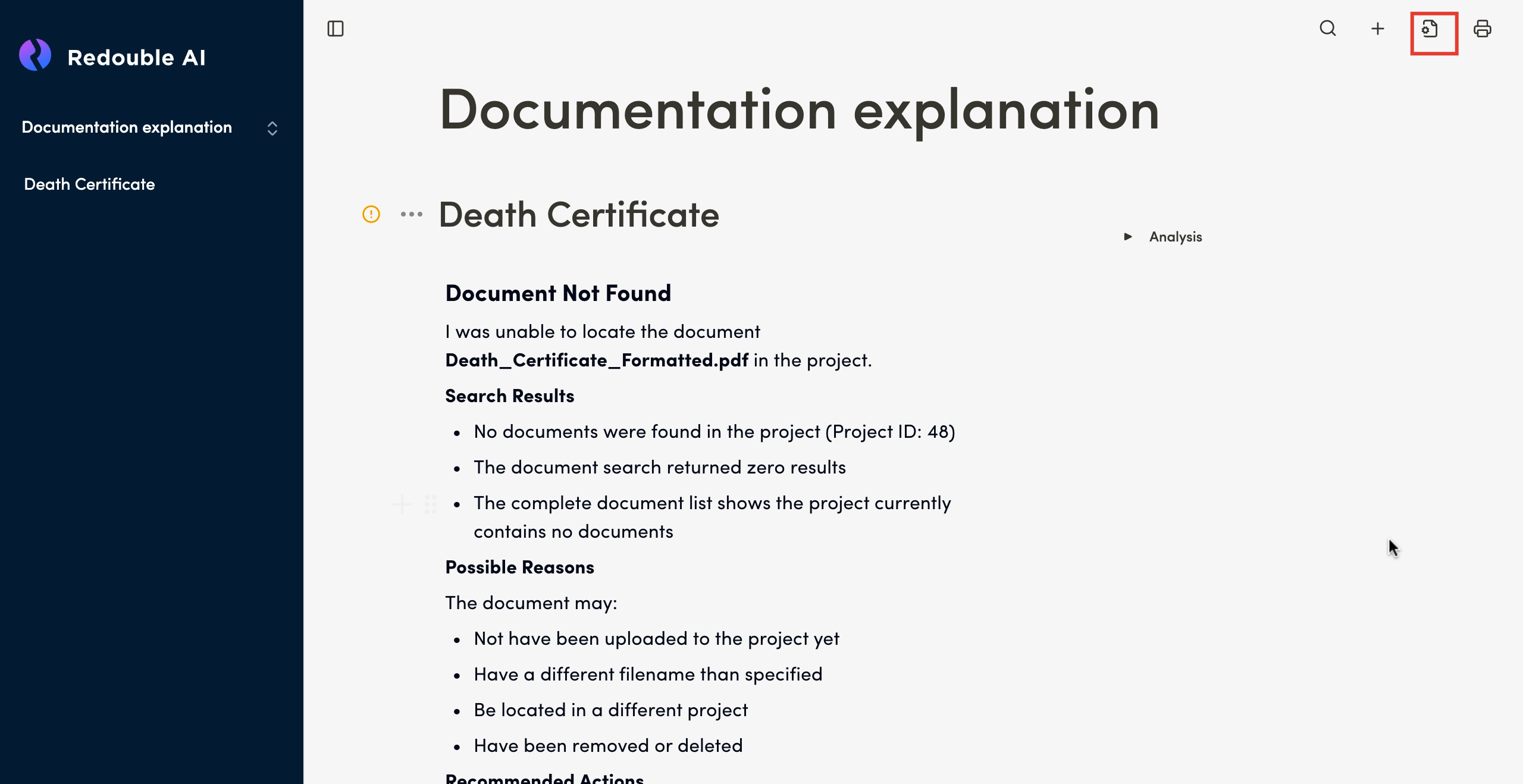
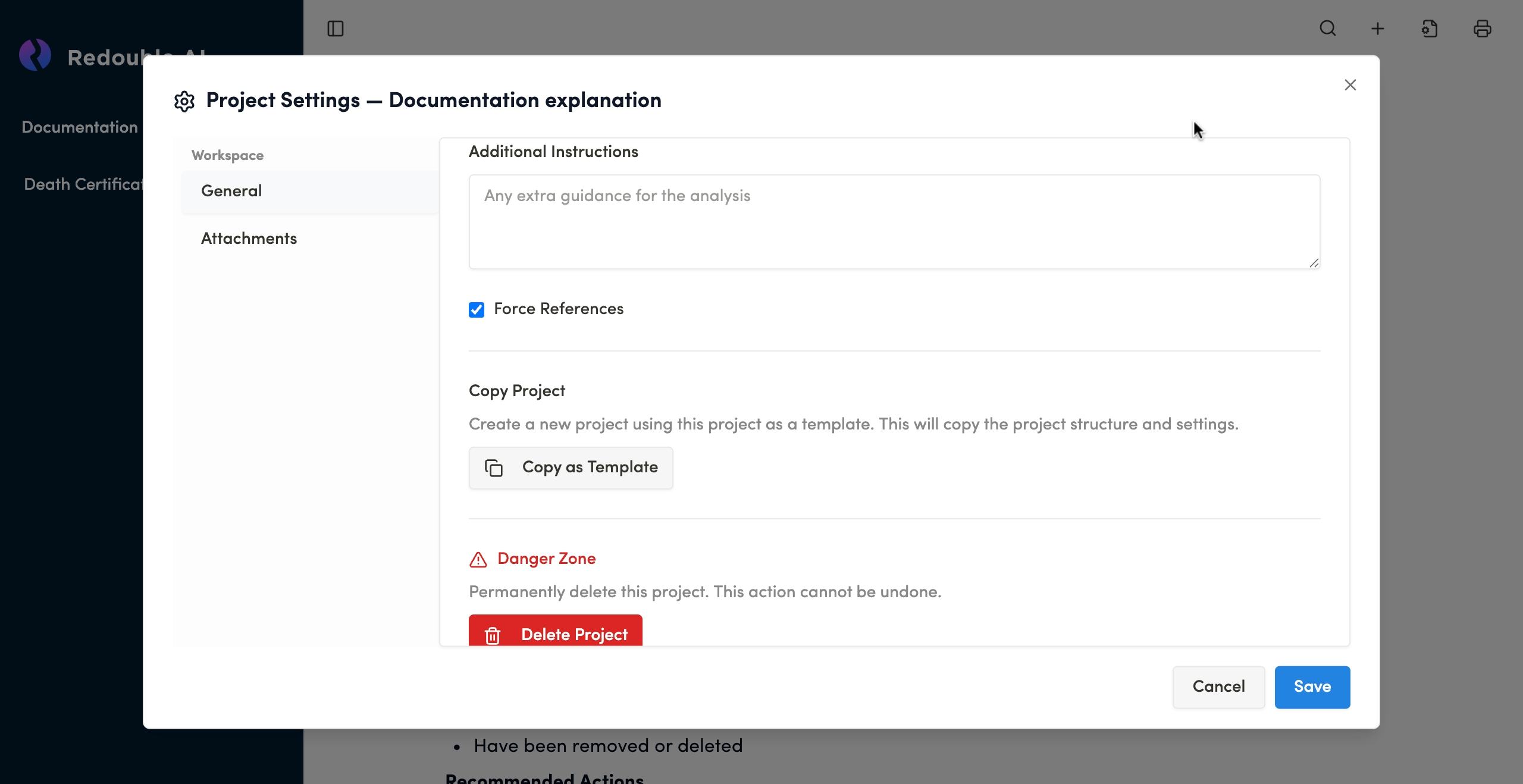
- Click on the "Document settings" icon and select "General" in the "Workspace" list
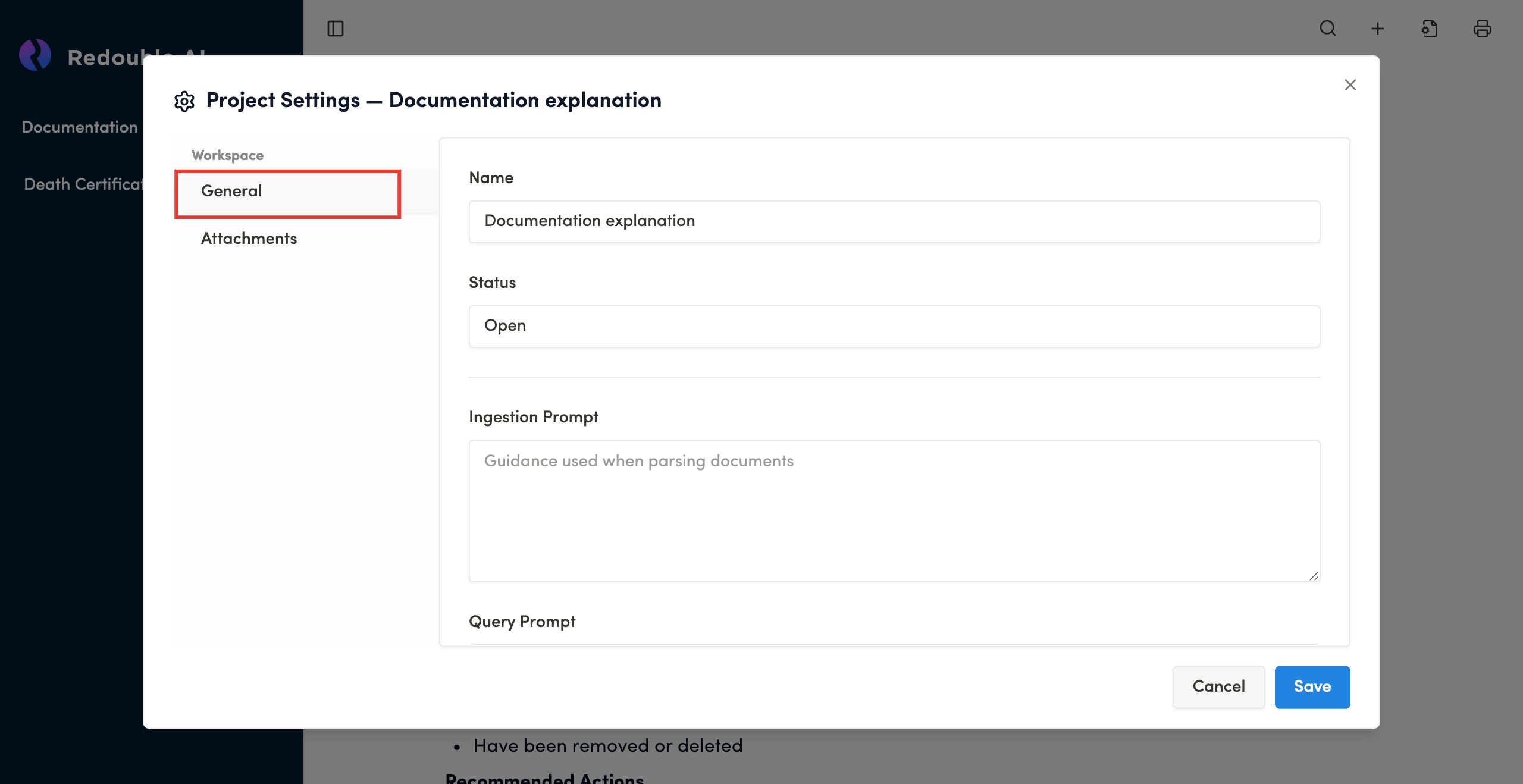
Name
Field Type: Text input
Purpose: Sets the project name for identification and organization
The project name helps you identify and organize multiple projects within your workspace. Choose a unique descriptive name that reflects the project's content or purpose.
Status
Field Type: Text input
Options: Open/Closed
Purpose: Indicates the state of the project
- Open: The project is actively being worked on and available for document uploads and queries
- Closed: The project has been completed or archived (read-only state)
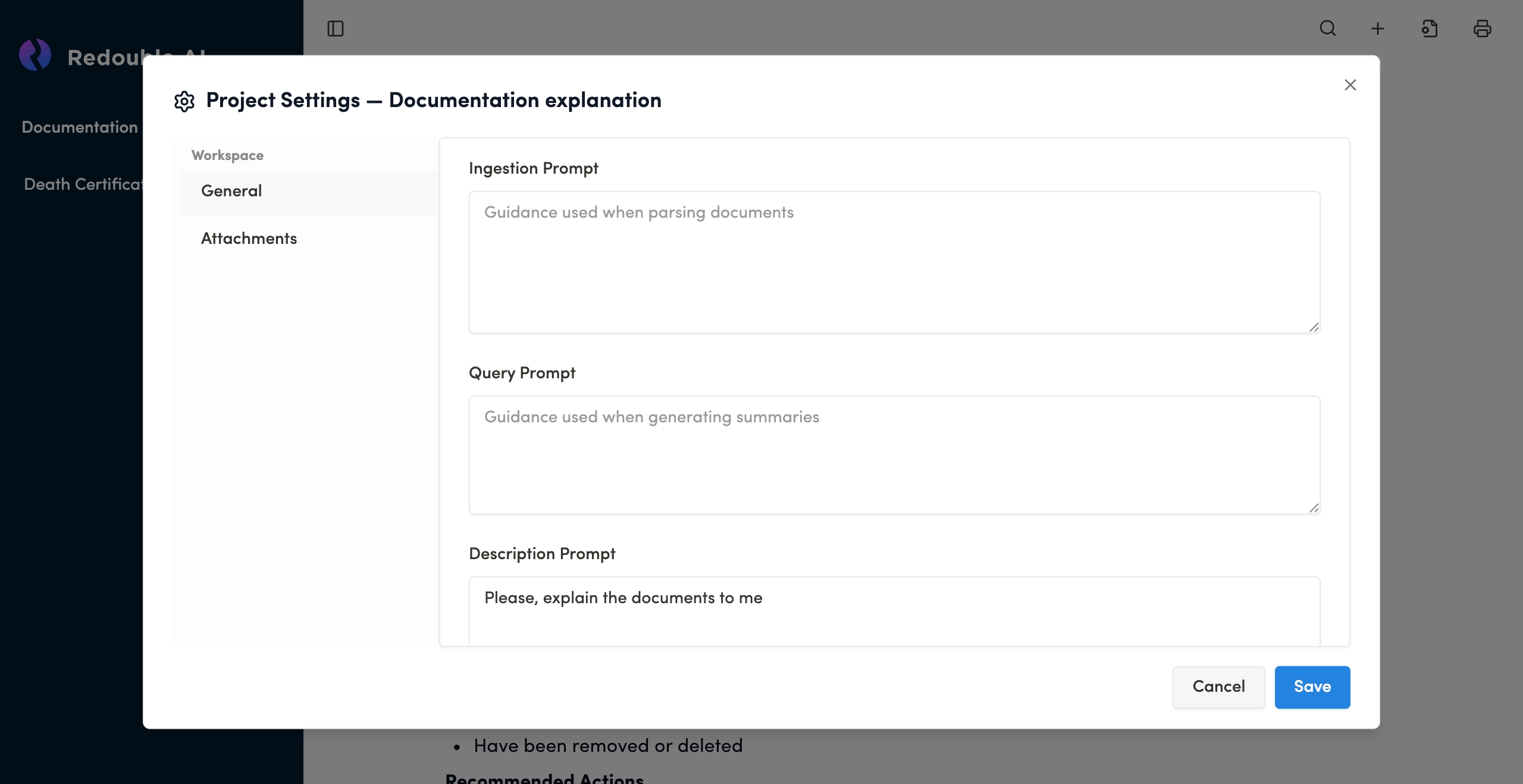
Ingestion Prompt
Field Type: Multi-line text area
Purpose: Provides guidance to the AI when initially parsing and analyzing uploaded documents.
Query Prompt
Field Type: Multi-line text area
Purpose: Guides the AI when generating responses to specific questions or creating document summaries.
Description Prompt
Field Type: Multi-line text area
Purpose: Defines the high-level role and overall instructions for the entire project.
Additional instructions
Field Type: Multi-line text area
Purpose: Provides guidance for specific analysis requirements or edge cases.
Force references
Field Type: Checkbox
Default State: Checked
Purpose: Ensures that all AI-generated responses rely on input document previously uploaded into the project.
Copying a project
For more detailed information view 1.6 Copy Project
Deleting a project
For more detailed information view 1.5 Deleting the project
3.2 Attachments
The Attachments tab manages all documents available for AI analysis within a given project. You can also use this tab to upload new documents.
Preconditions:
- You are logged into the Redouble AI system
- You have at least one project
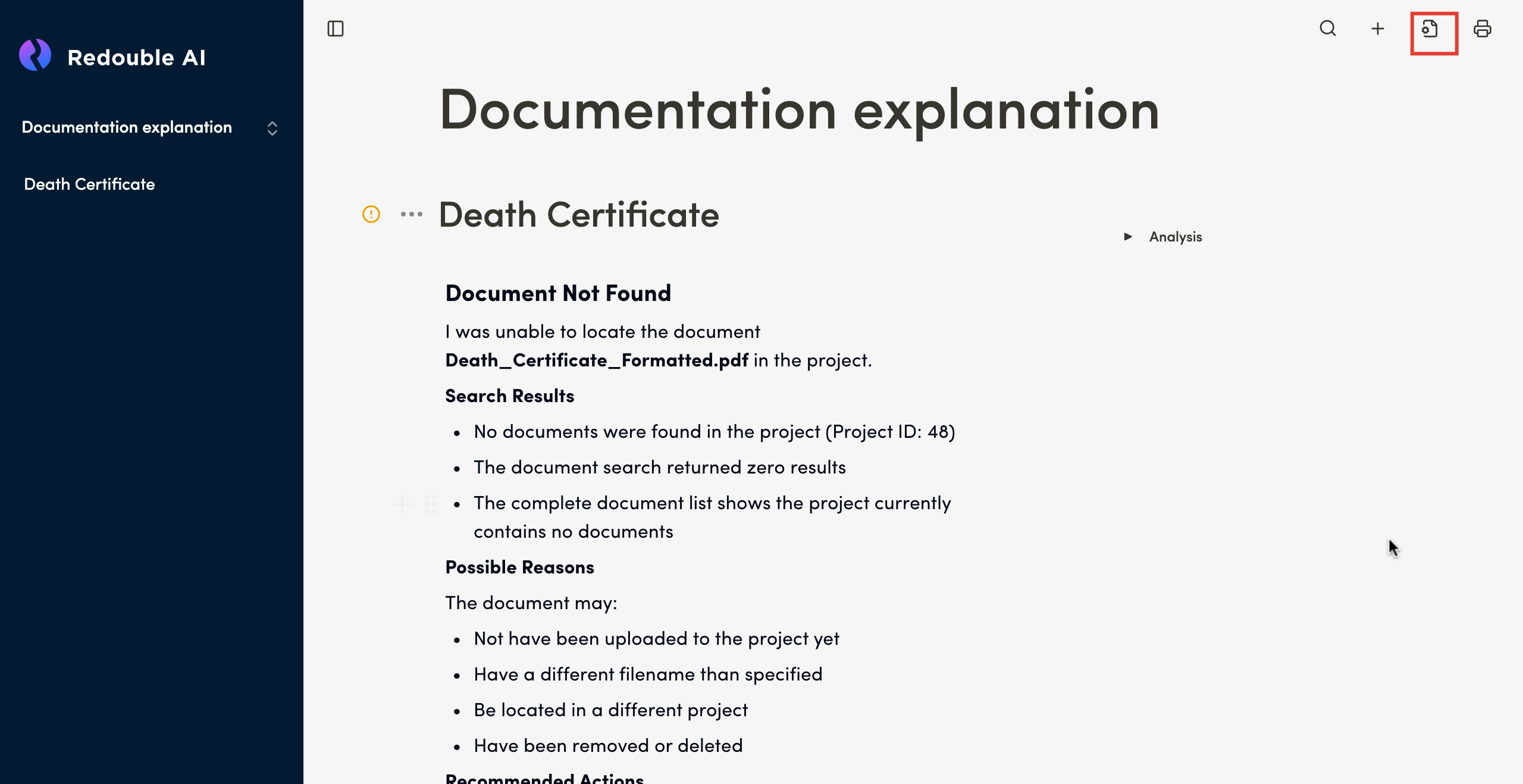
- Click on the "Document settings" icon and select "Attachments" in the "Workspace" list
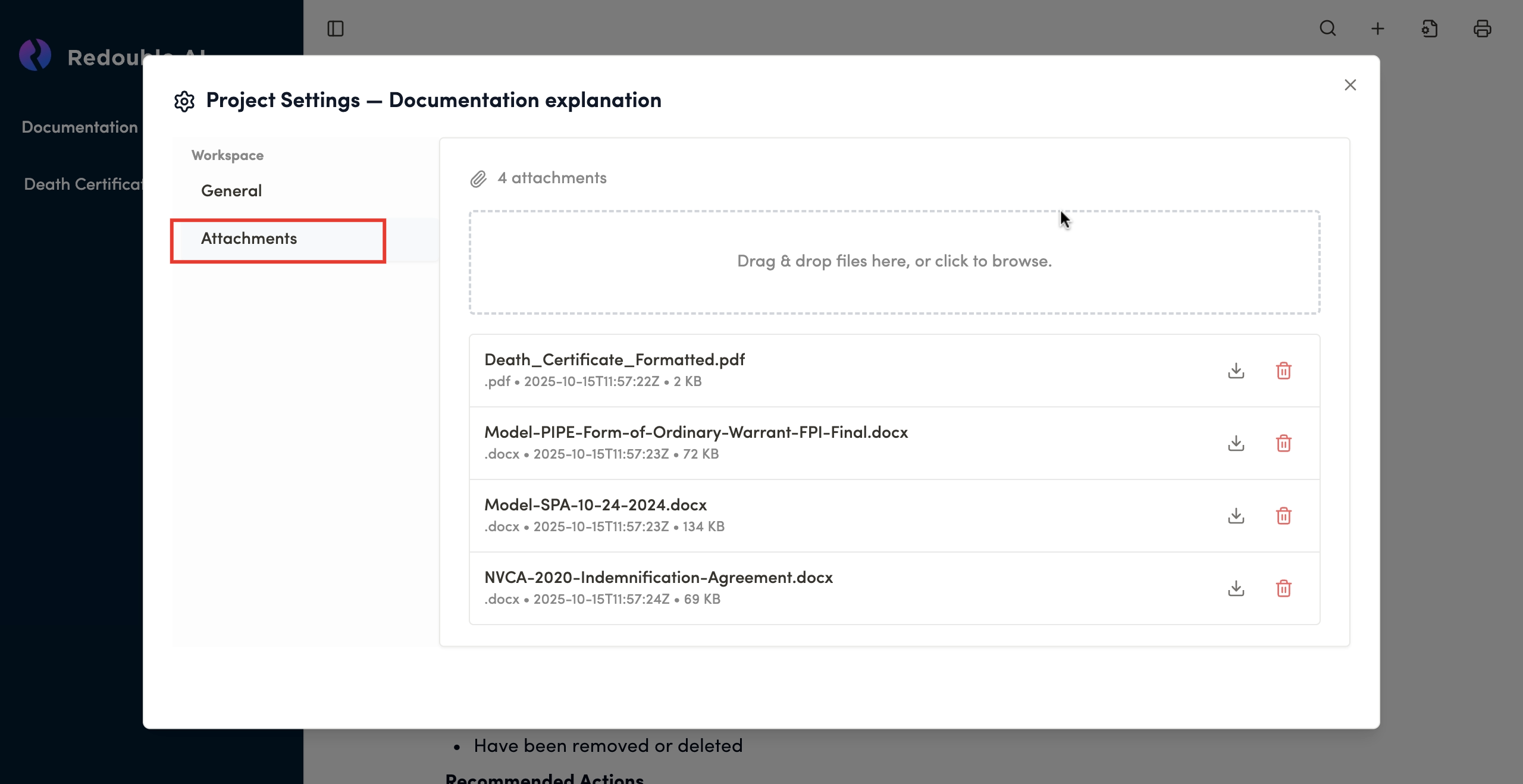
Upload interface
Feature: Drag-and-drop file upload area
Alternative: Click to browse your file system
Visual indicator: Displays the total attachment count
The system supports the upload of a broad range of file types/ extensions. For example:
- Text files (.docx, .rtf., etc.)
- Tabular data files (.xlsx, .csv, etc.)
- Image files (.jpeg, .png, etc.)
- Other file types (.pdf, .json, etc.)
File size recommendations:
- Individual files: Under 50MB for optimal processing
- Total project size: No hard limit, but larger projects may take longer to process
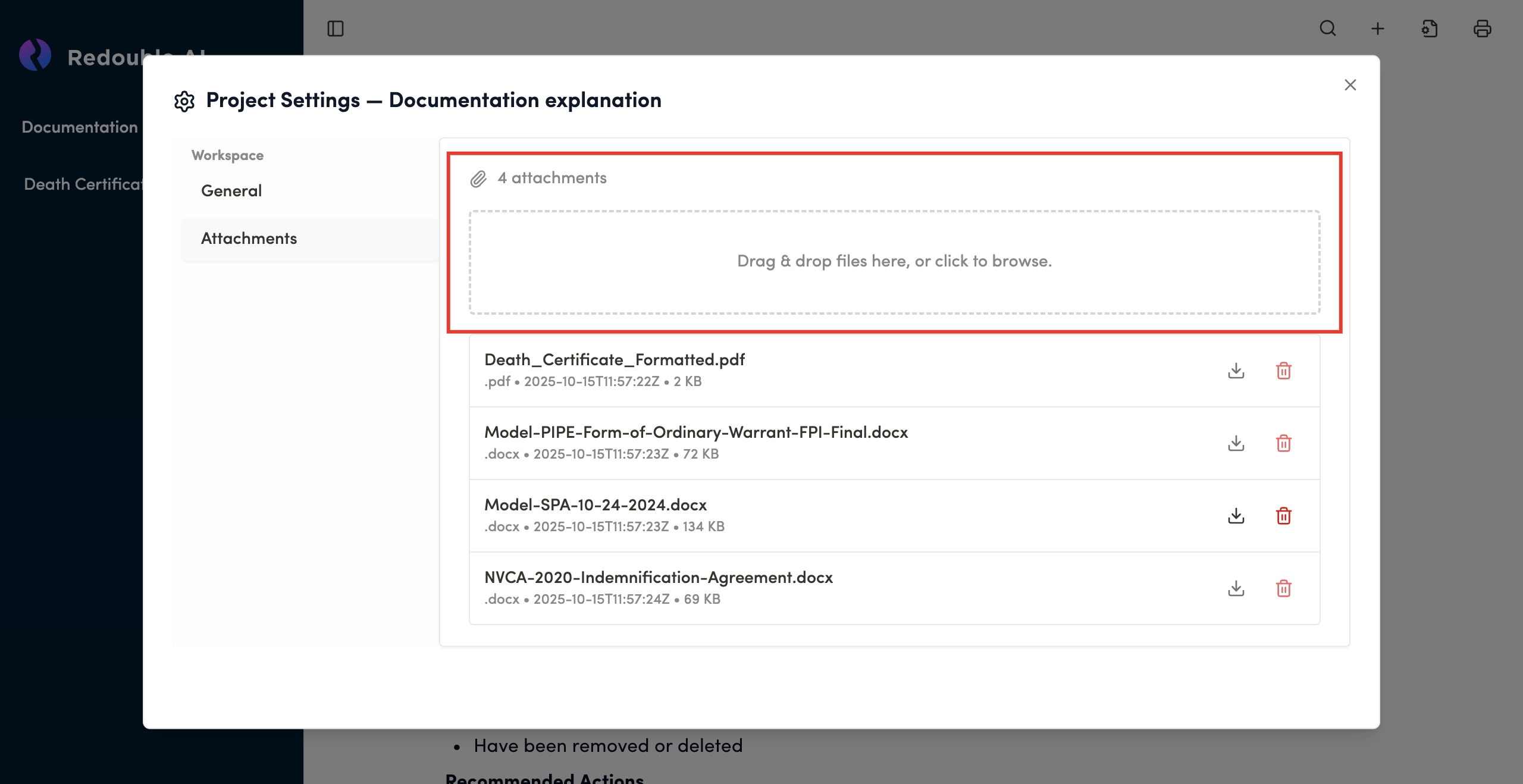
Document list
Each uploaded document is displayed with the following information:
File name: Original filename as uploaded
File type: Extension indicator (.docx, .pdf, etc.)
Upload date: Timestamp of when the file was added
File size: Size in KB or MB
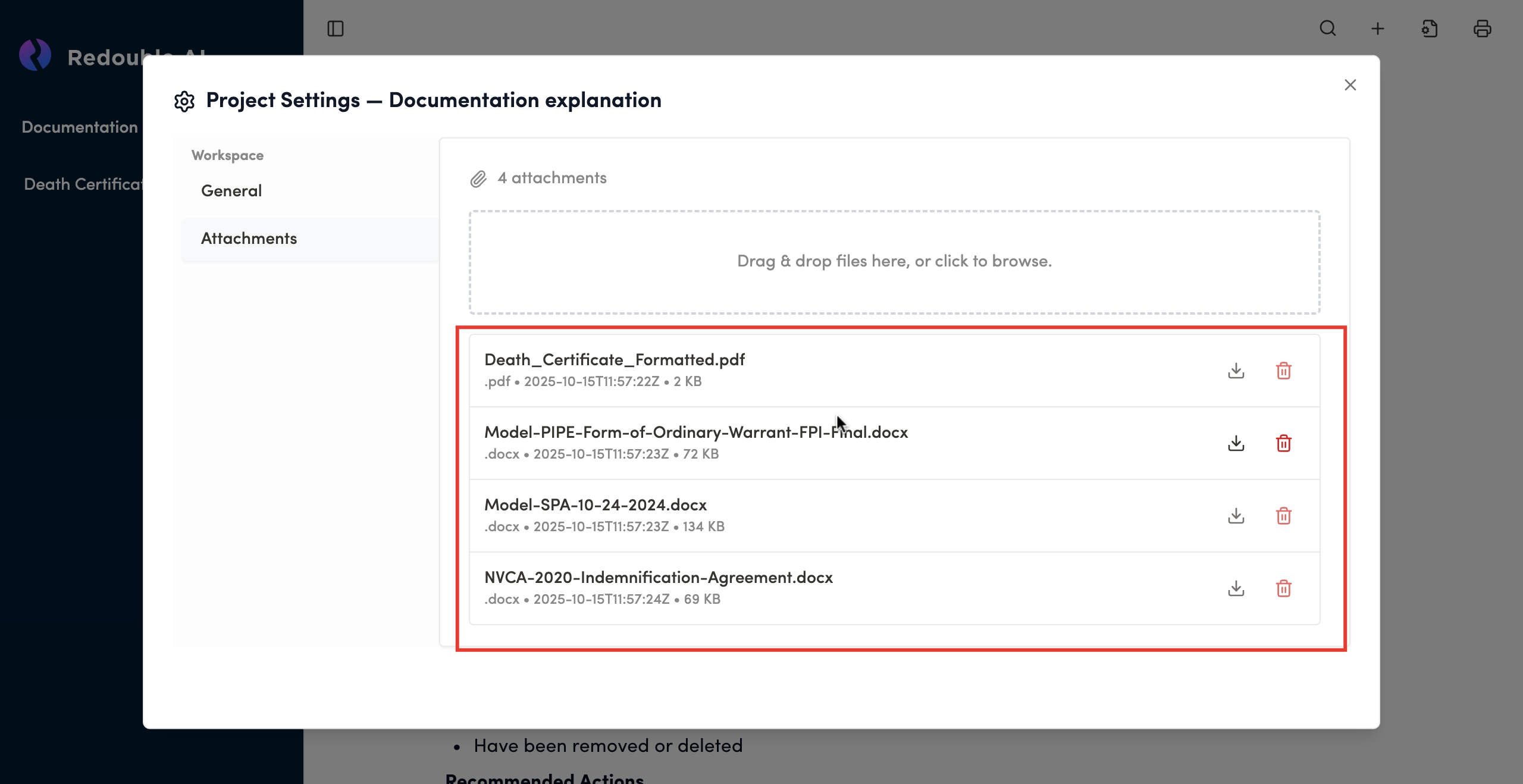
Available actions:
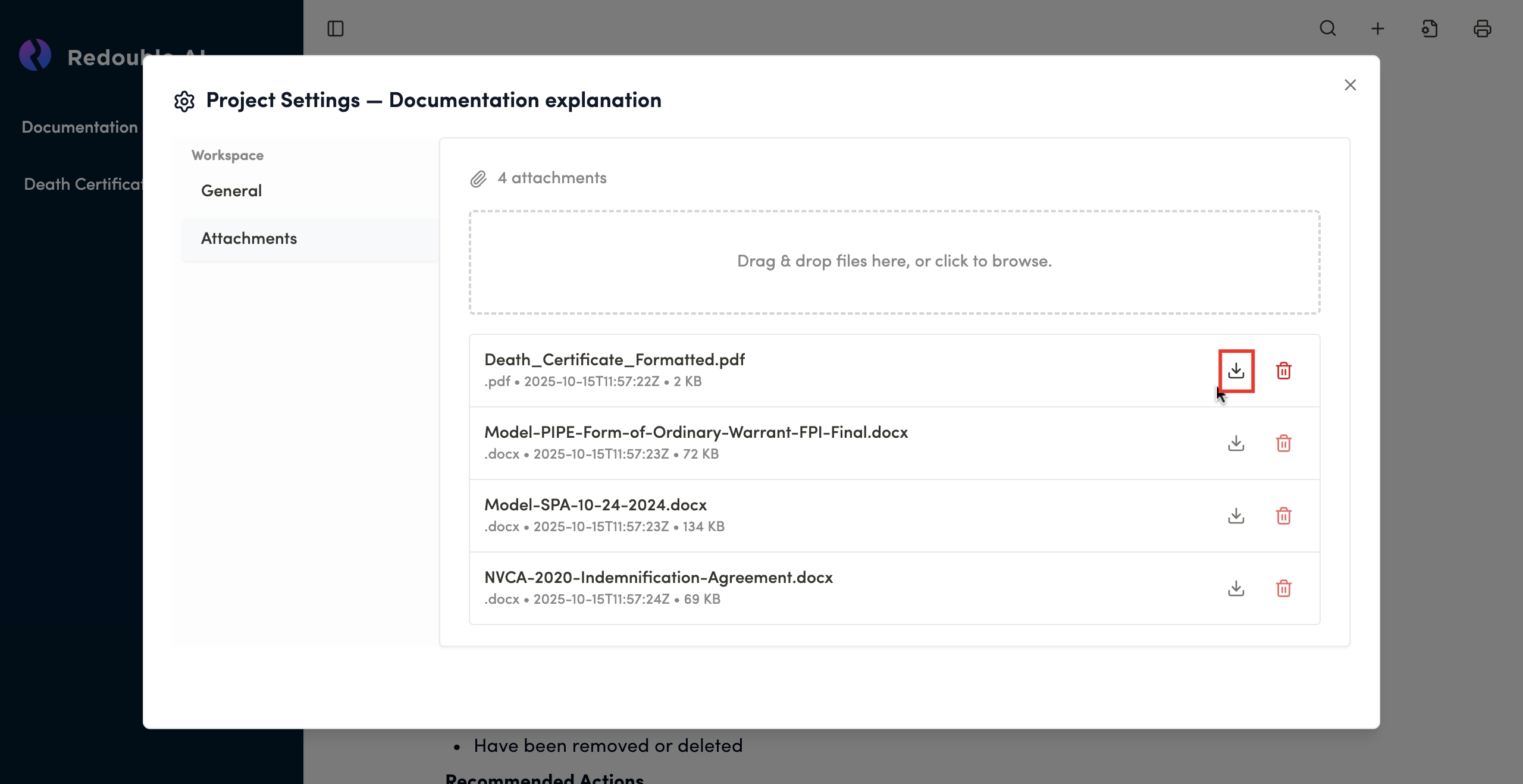
Download button
- Icon: Download arrow
- Function: Downloads a copy of the file to your local system
- Use Case: Retrieve original files for offline review or backup
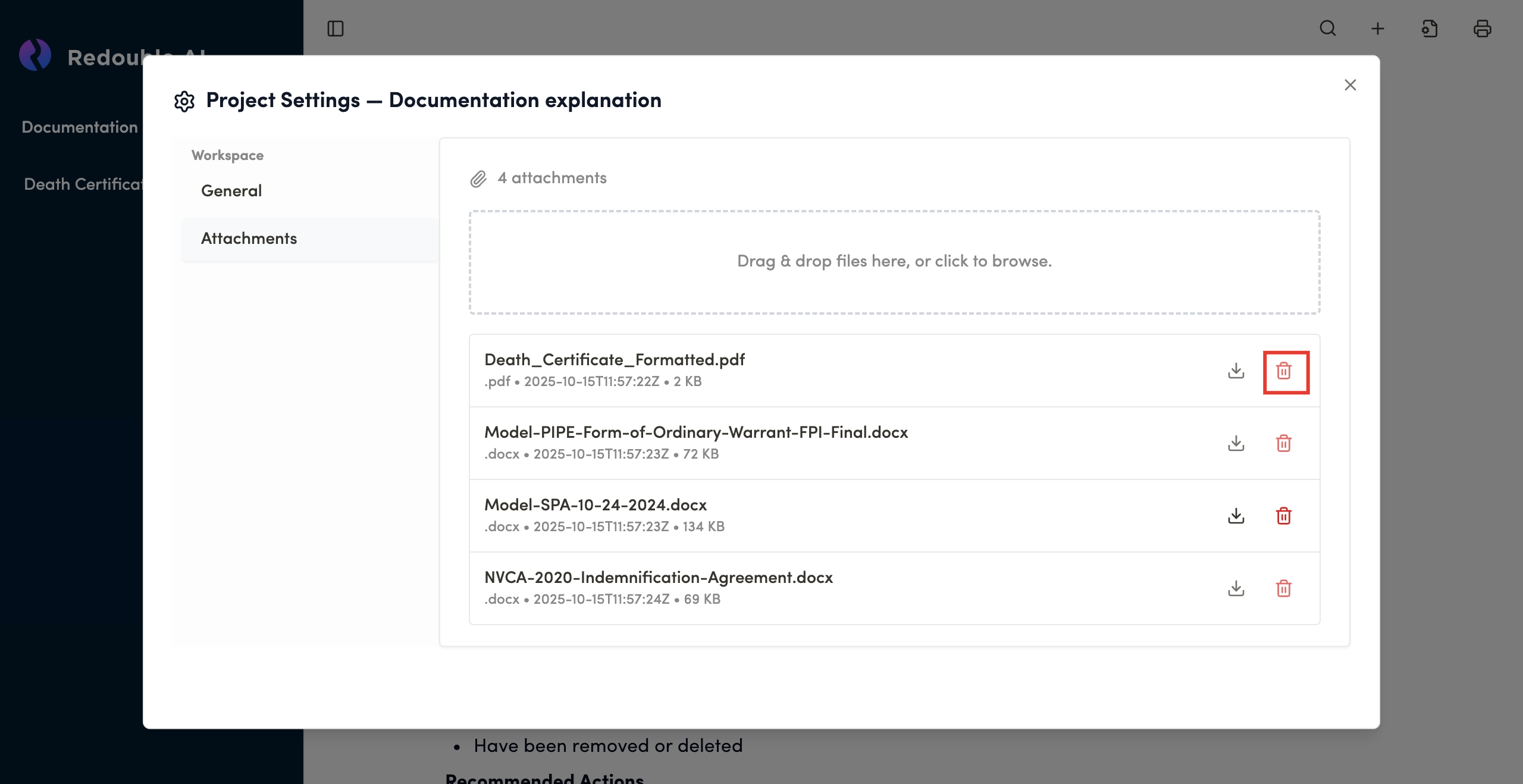
Delete button
- Icon: Trash can
- Function: Permanently removes the file from the project
- Warning: This action cannot be undone and deleted documents will no longer be available in the project
3.3 Project sharing
Preconditions:
- You are logged into the Redouble AI system
- You have at least one project
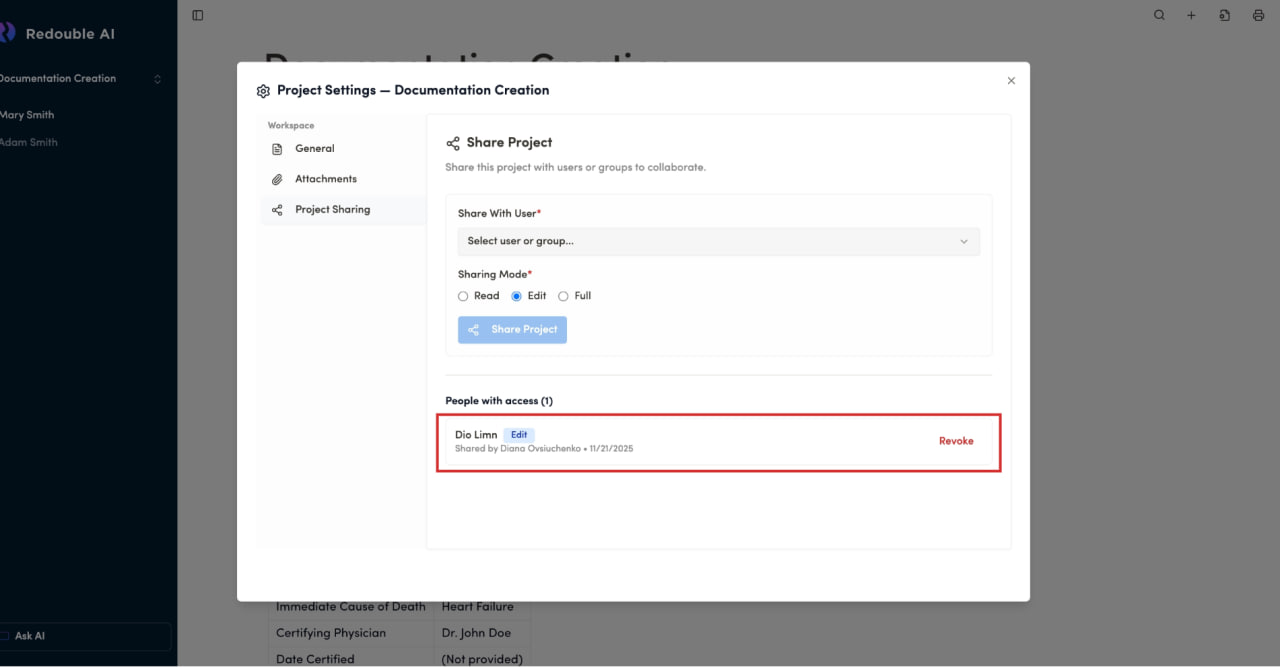
- Click on the "Document settings" icon and select "Project Sharing" in the "Workspace" list
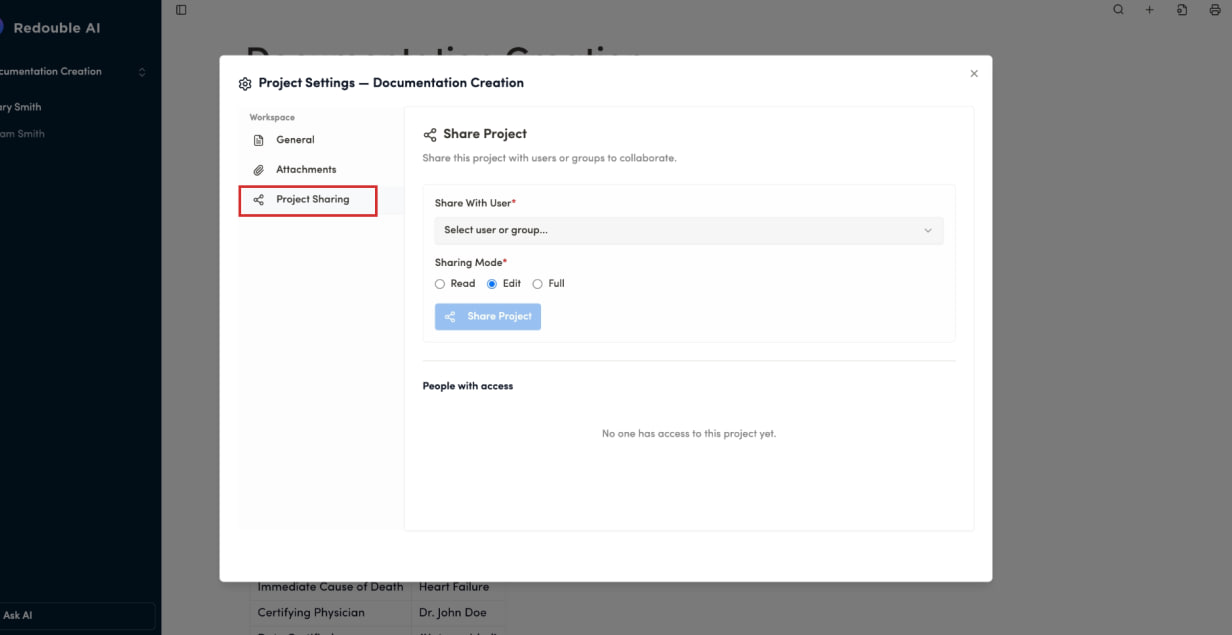
Share With User (Required)
Field Type: Dropdown selector
Purpose: Choose a specific user or group to share project with
Sharing Mode (Required)
Field Type: Horizontal list with access level options
Purpose: Allows to chose the level of access to the project:
- Read - View-only access (can see project and documents but cannot edit)
- Edit - Can view and modify project content (currently selected in your screenshot)
- Full - Complete access including project settings and management
Share Project Button
People with access Section
Purpose: Lists all users/groups who currently have access to the project. Shows their permission levels
Default state: "No one has access to this project yet" label
People with access List
Consists of list of users who have access to the project. Each item in the list consists of:
- User name
- Level of access label (Read, Edit, Full)
- Name of user who granted access
- Date when access was granted (MM/DD/YY)
- "Revoke" button
- Counter near the "People With Access" label, that indicates total number of users in the list