4. Additional features
4.1 Question status indicator
Prerequisites:
- You are logged into the Redouble AI system
- At least one question exists in the project
Not Generated
Purpose: This indicator appears when a user creates a question.
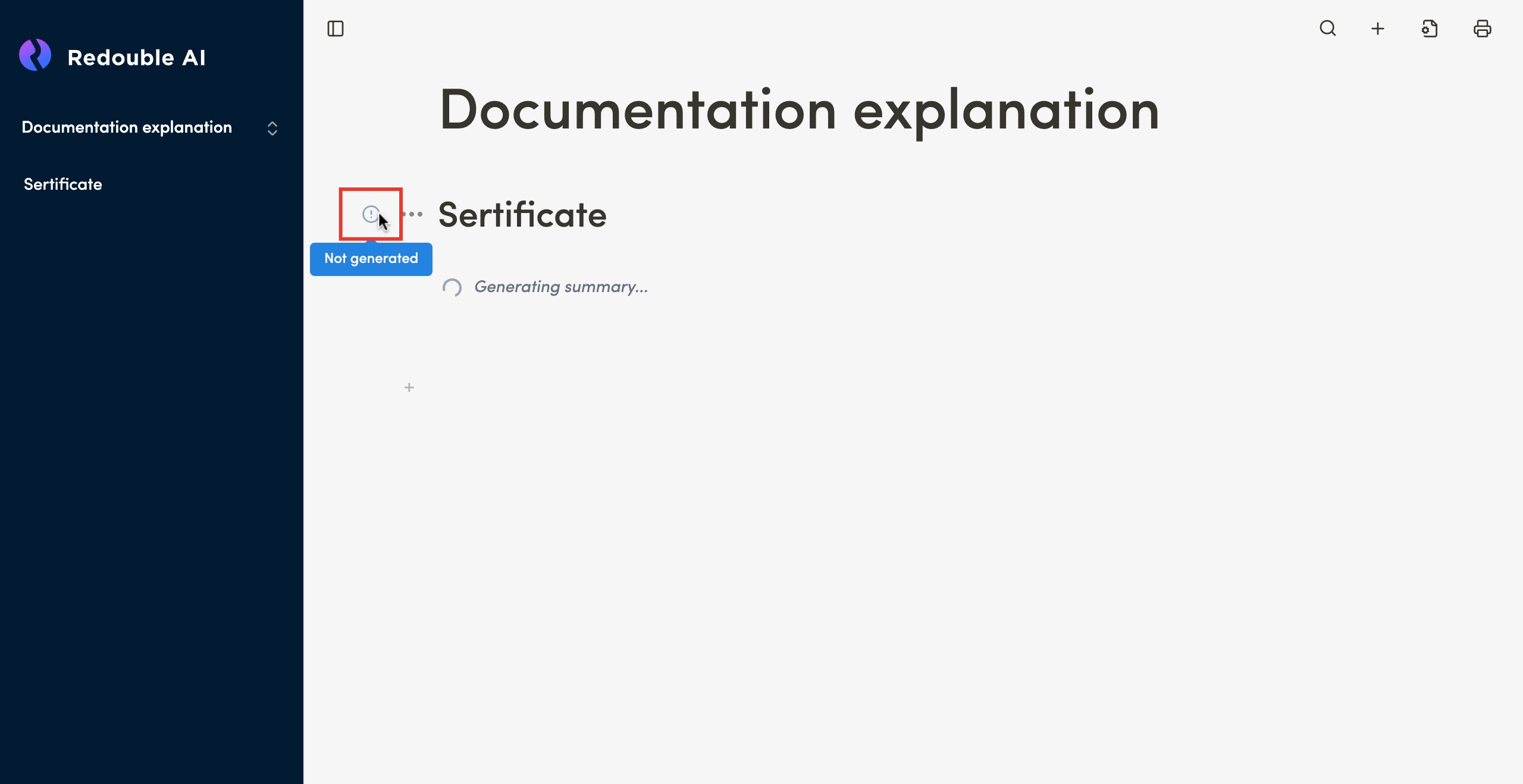
This indicator also appears on questions from a copied project.
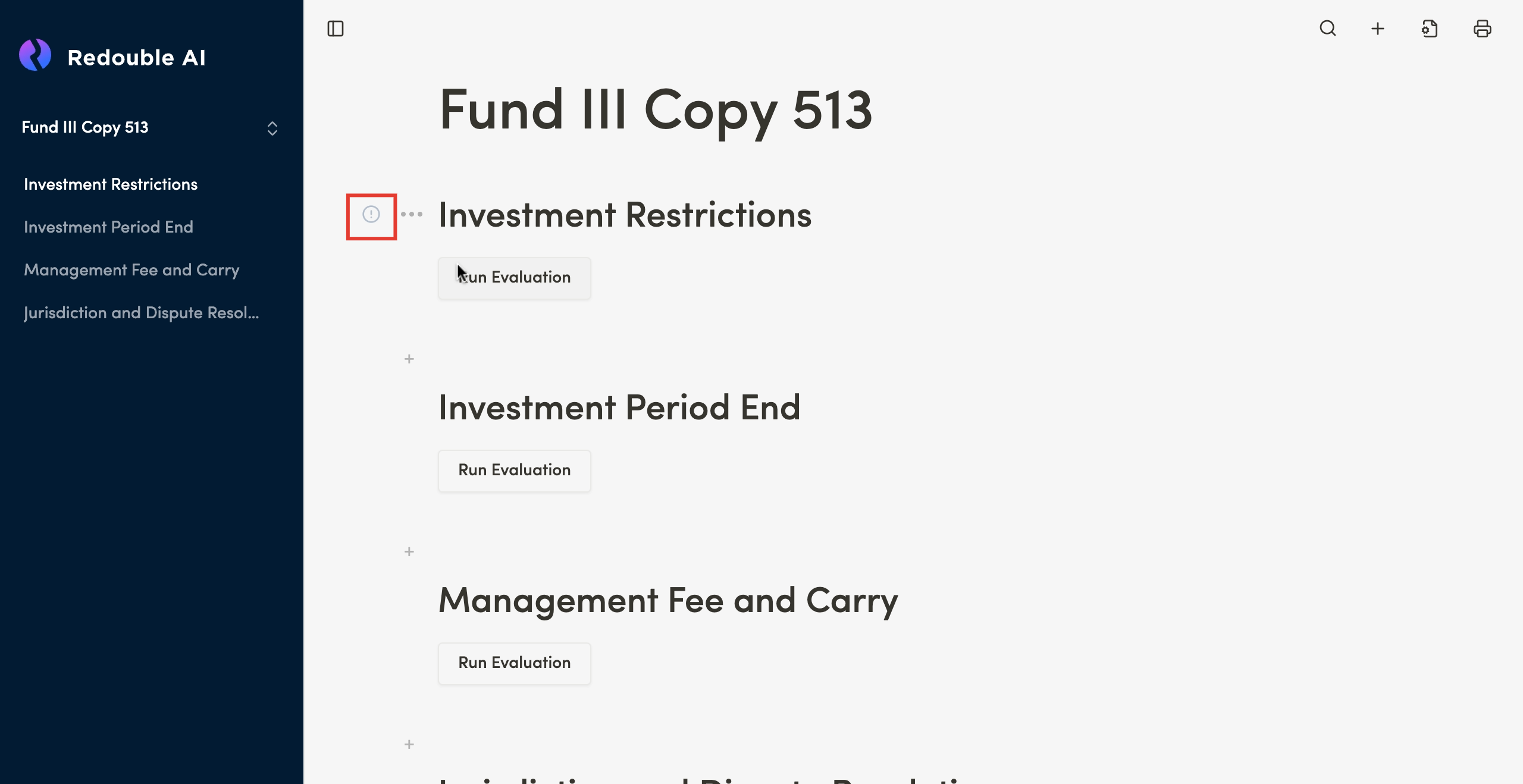
After the system completes the generation of the answer the indicator is replaced by the "AI Generated" indicator.
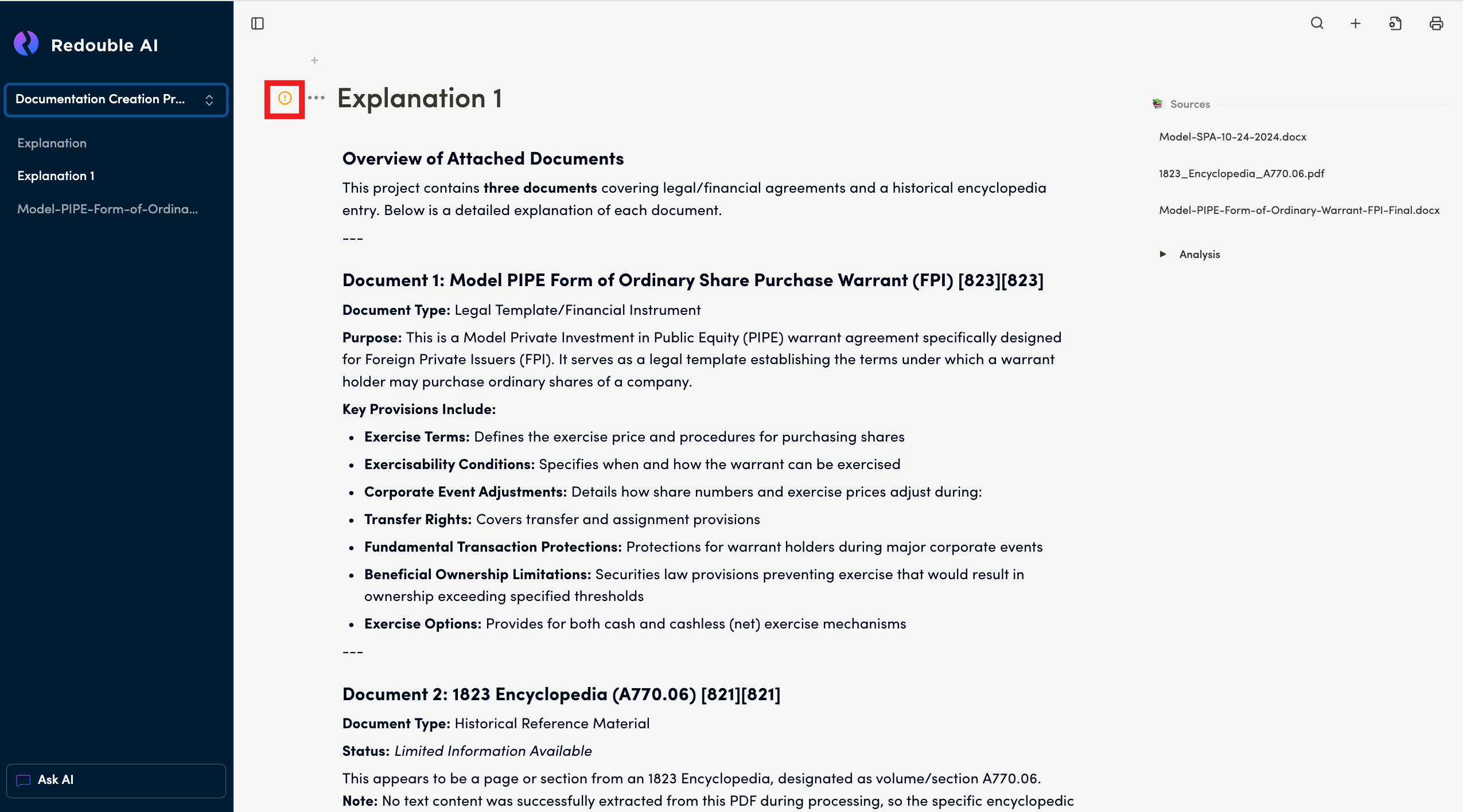
AI Generated
Purpose: This indicator appears after the completion of the answer generation and is assigned automatically. It can also appers after a user unchecks the "Accept" checkbox in Question Options.
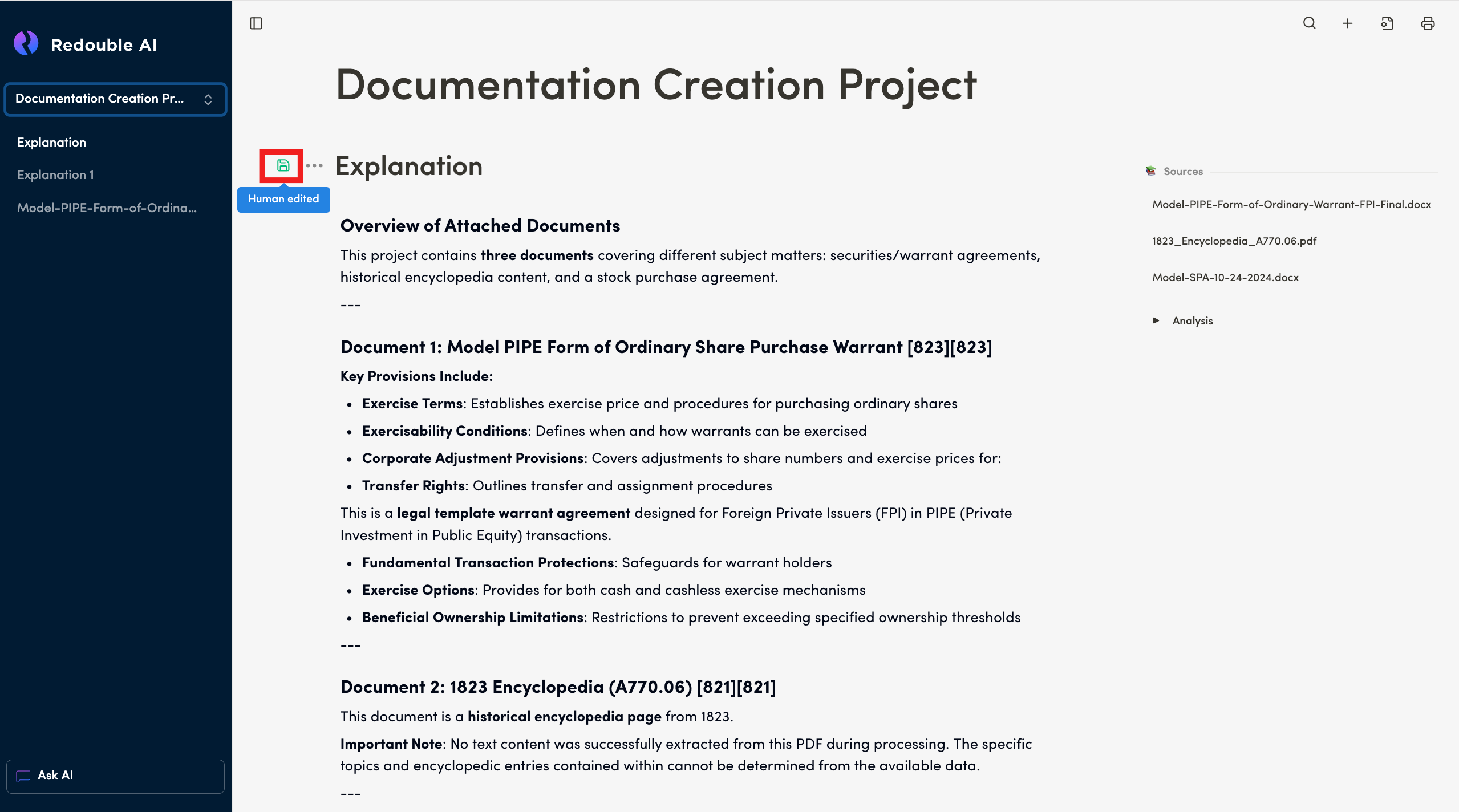
Human Edited
Purpose: This indicator appears after a user manually edits the content of an AI generated response.
Accepted
Purpose: This indicator appears after a user checks the "Accept" checkbox in Question Options.
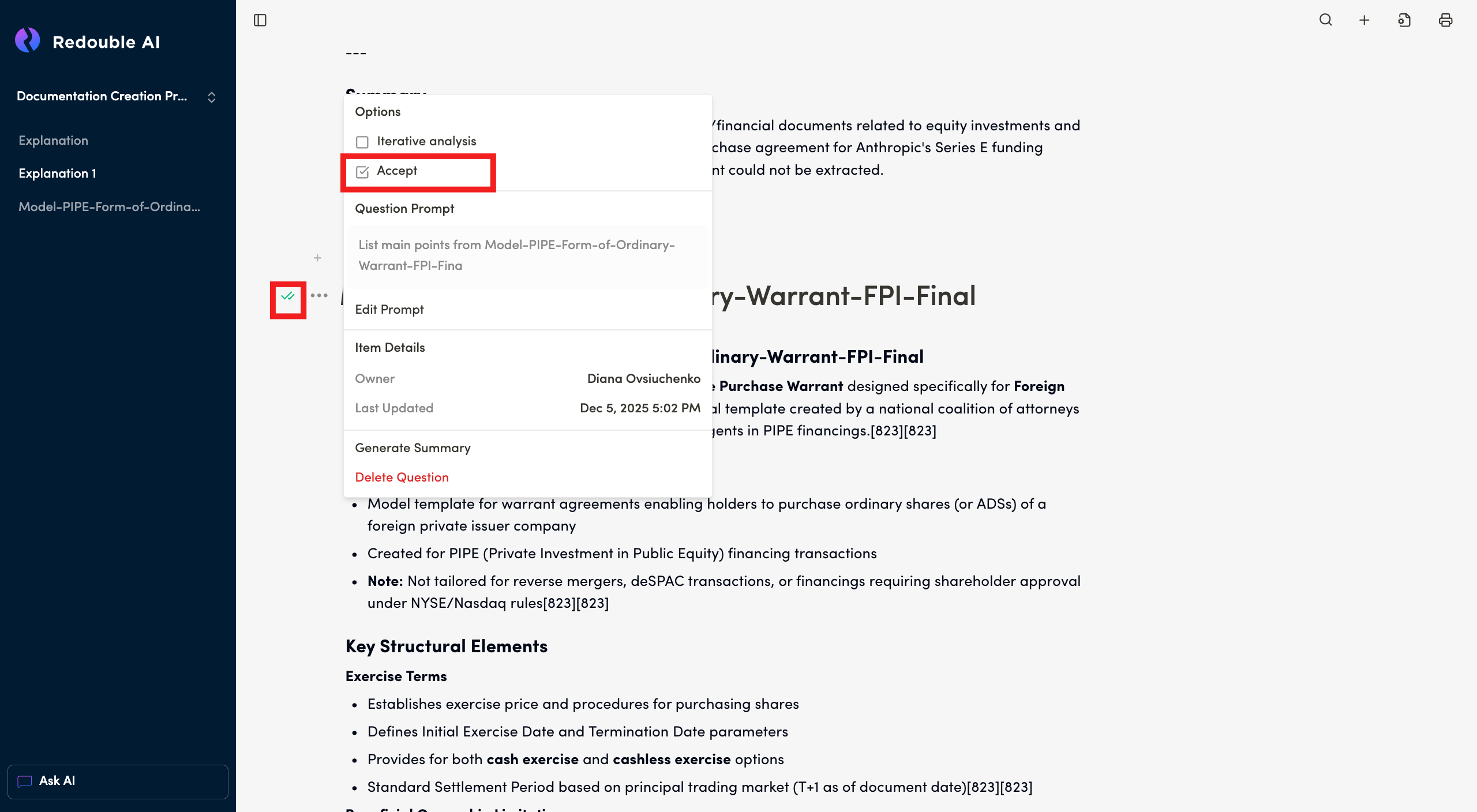
When a user unchecks the "Accept" checkbox in Question Options, the Question Status Indicator returns to its previuos state ("Human Edited" or "AI Generated").
4.2 Search content
Prerequisites:
- You are logged into the Redouble AI system
- You have at least one project
Steps:
- In the top toolbar, click the "Search" icon

- In the "Search" dialog box, type content you want to find
- See the total number of matches that have been found
- Navigate from one search result to another by using the "Next" and "Previous" buttons

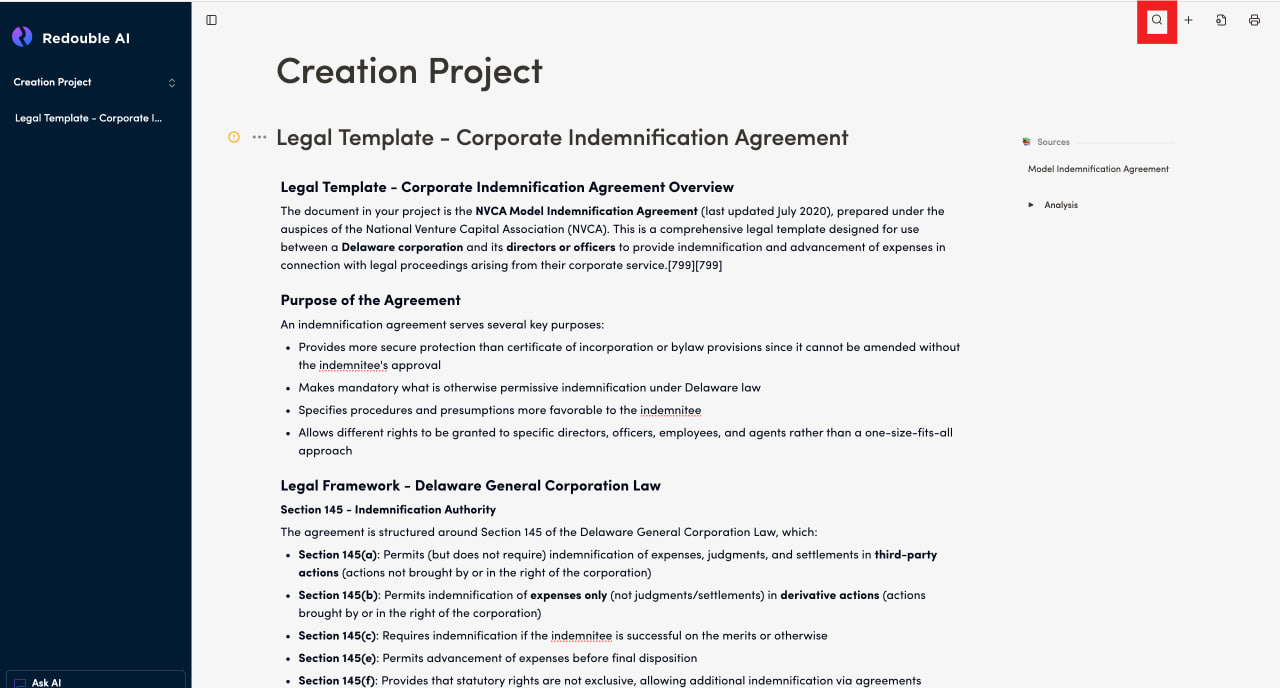
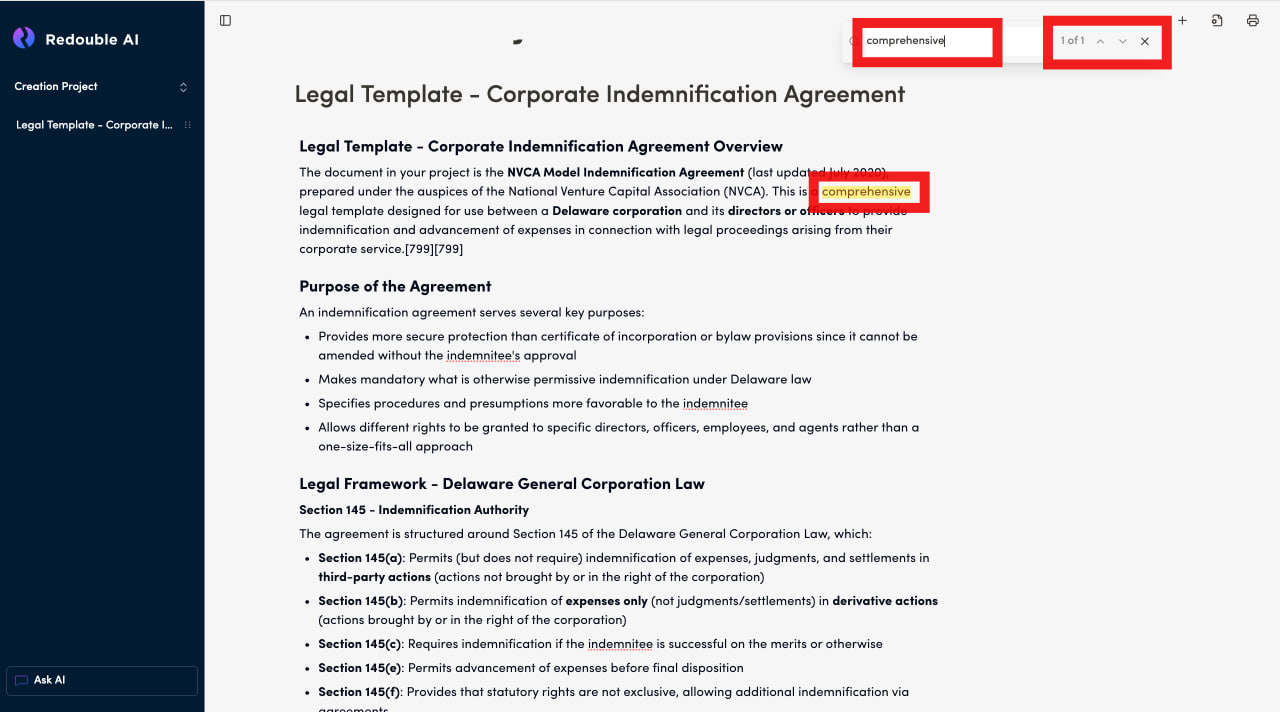
Result: A user finds the content they have been looking for.
4.3 Analysis
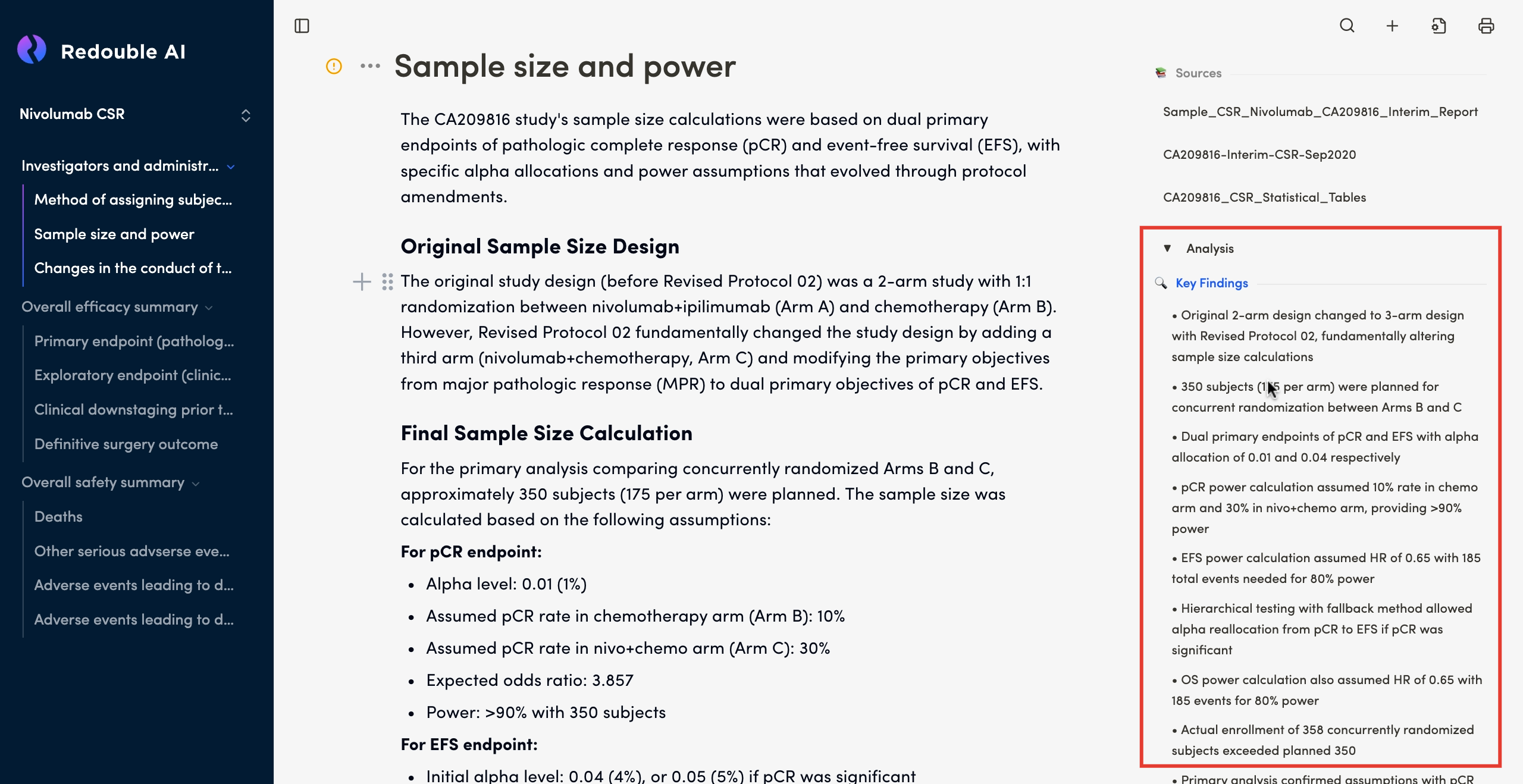
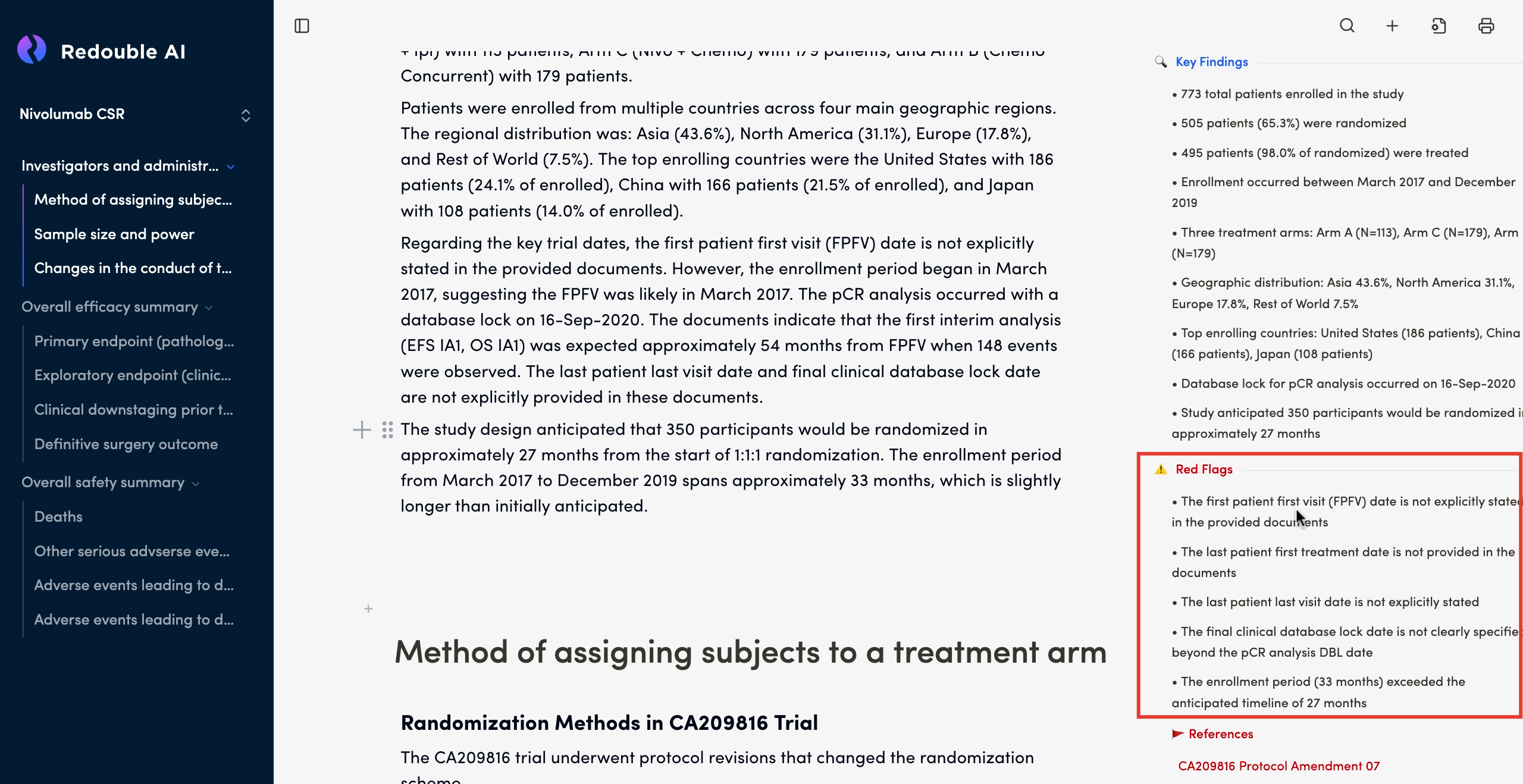
Purpose: The Analysis Section, shown on the right-hand side of the user interface, is a feature of the Redouble AI system that provides a short summary of the key points of the AI-generated response (Key Findings) and alerts the user to potential contradictions and discrepancies that the AI has spotted (Red Flags).
Appearence: Collapsible sections with color-coded headers and icons
Subsections
Key Findings
Purpose: Presents the most important conclusions and facts extracted from the documents, providing an executive summary of the AI analysis.
Red Flags
Purpose: Highlights potential contradictions and discrepancies that the AI has found in the documents for the user to review and verify. This critical section ensures users are made aware of inconsistencies or conflicting information found across different sources.
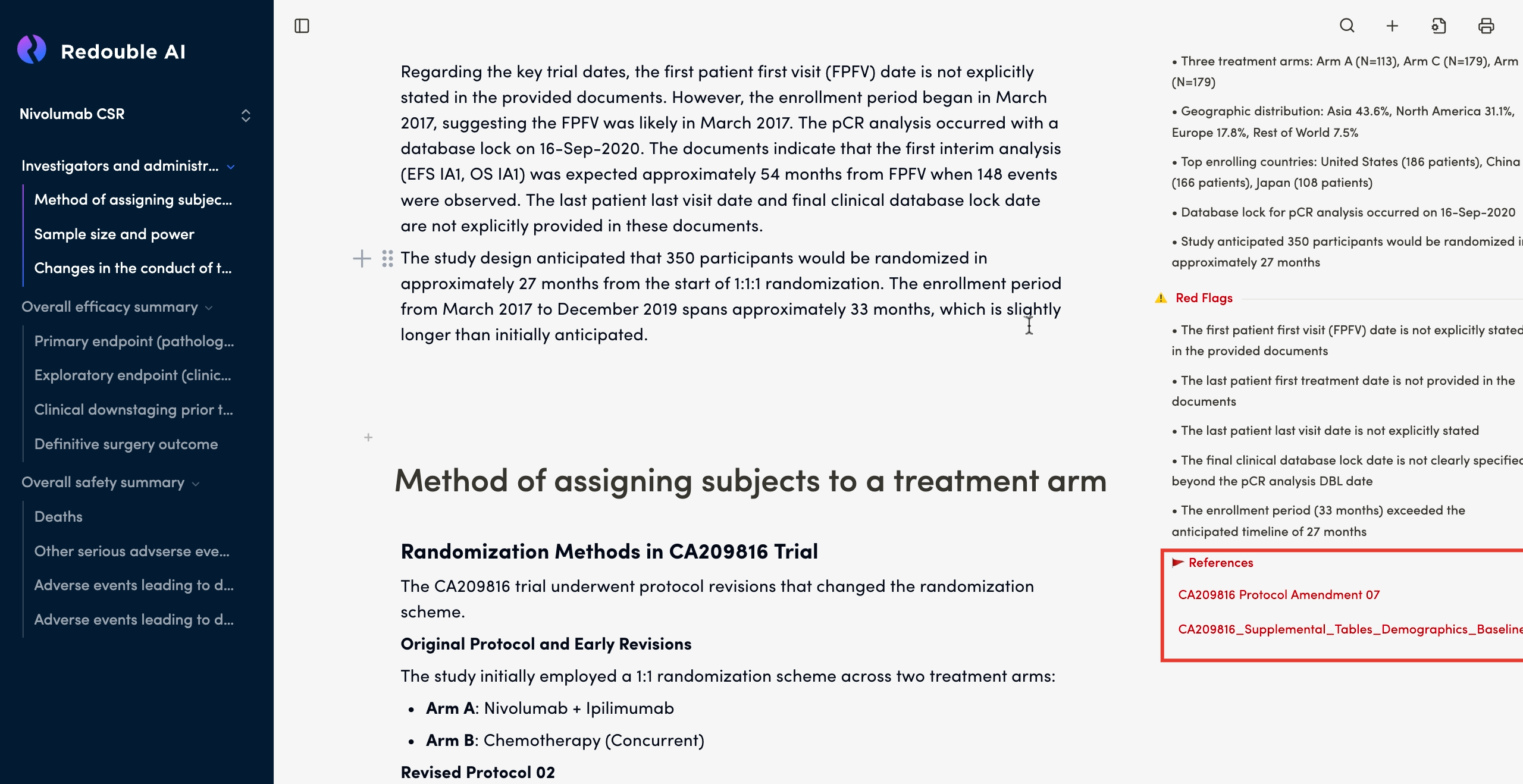
References
Purpose: Lists source documents used to generate the analysis, providing traceability and enabling verification of displayed information. Each document is shown with two names:
- Display name (shown in the list): AI-generated descriptive name for easy identification
- Original filename (shown on hover in blue): The actual name of the uploaded file
After clicking on the document Display name name, the document content will appear in a separate panel. For more detailed information please view page 5.1 View Attached Documents and 5.2 Edit Attached documents
4.4 Sources
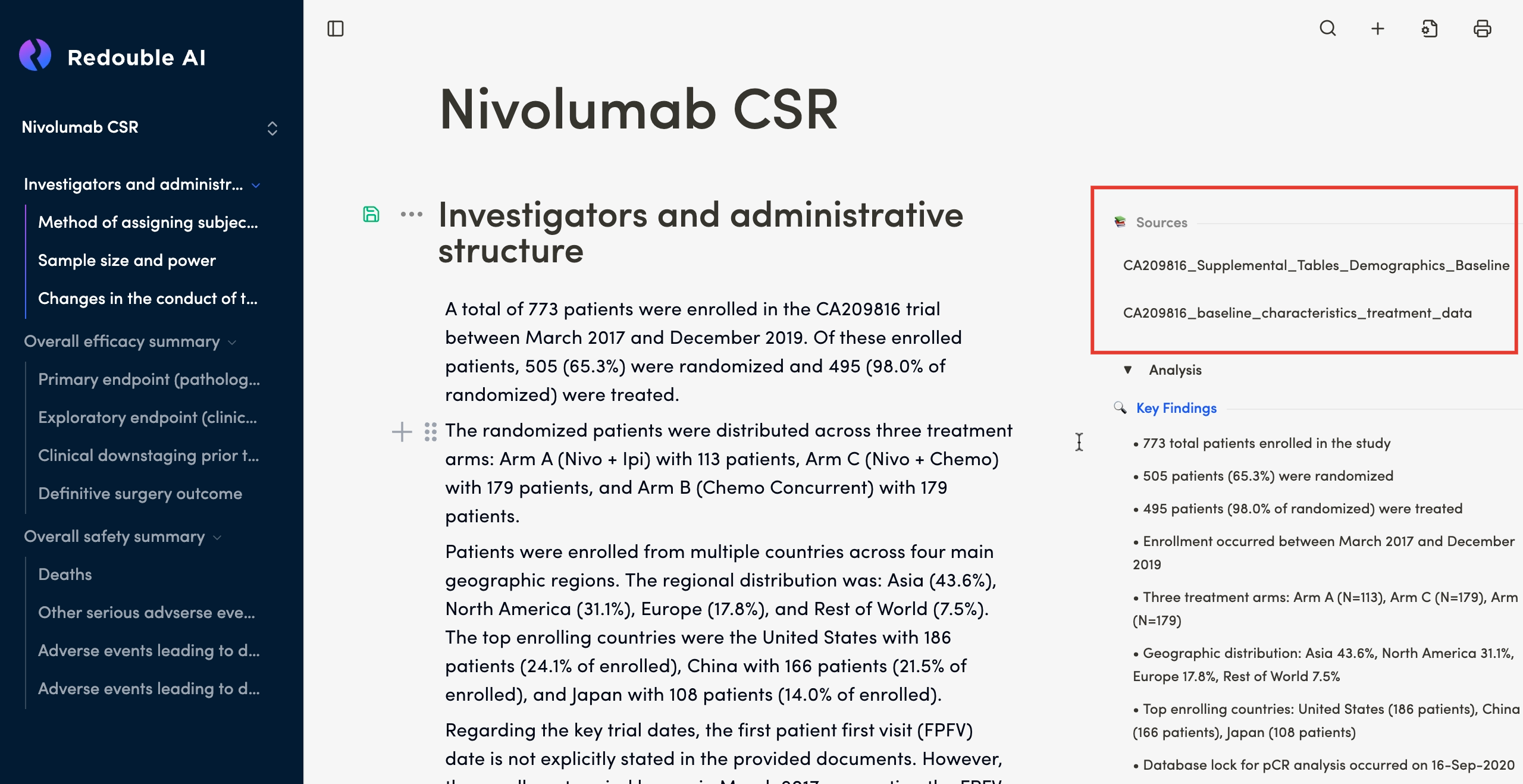
Purpose: The Sources Section is a feature of the Redouble AI system that ensures transparency and traceability in AI-generated answers. It displays all documents that contributed to the response, allowing you to verify information and access the original sources/ inputs. It is displayed at the end of an answer or in a dedicated panel on the right-hand side of the interface.
Functionality
Viewing sources
Steps:
- Generate or open an answer to a question
- Scroll to the bottom or to the side panel where the Sources are displayed
- Review the list of referenced documents
Result: You can see all documents that contributed to the answer. Each document is shown with two names:
- Display name (shown in the list): AI-generated descriptive name for easy identification
- Original filename (shown on hover in blue): The actual name of the uploaded file
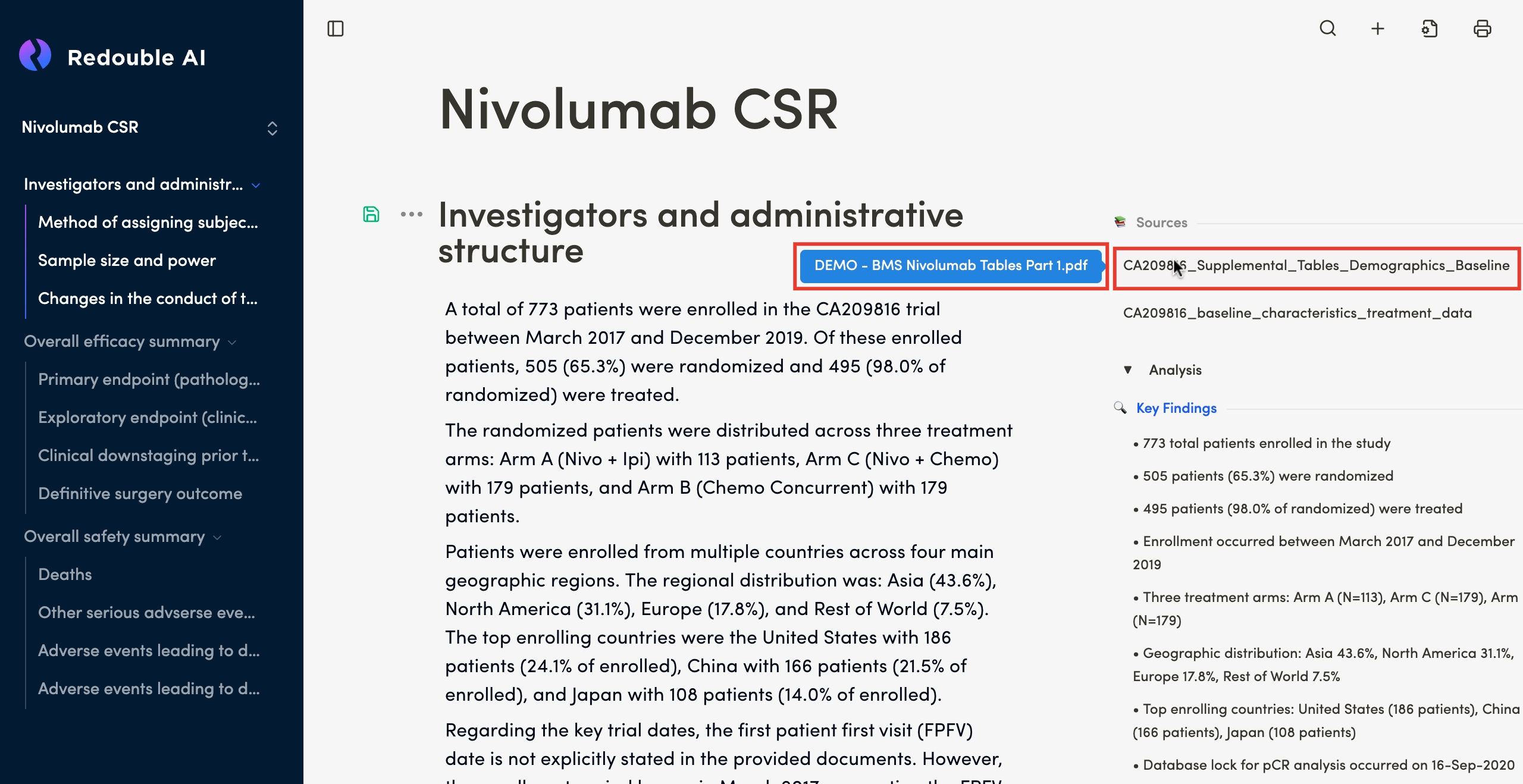
Accessing source documents
Steps:
- Locate the desired document in the Sources list
- Click on the document name in the list
- The document content will appear in a separate panel
Result: You can review the original document content. For more detailed information please view page 5.1 Edit/View Attached Documents
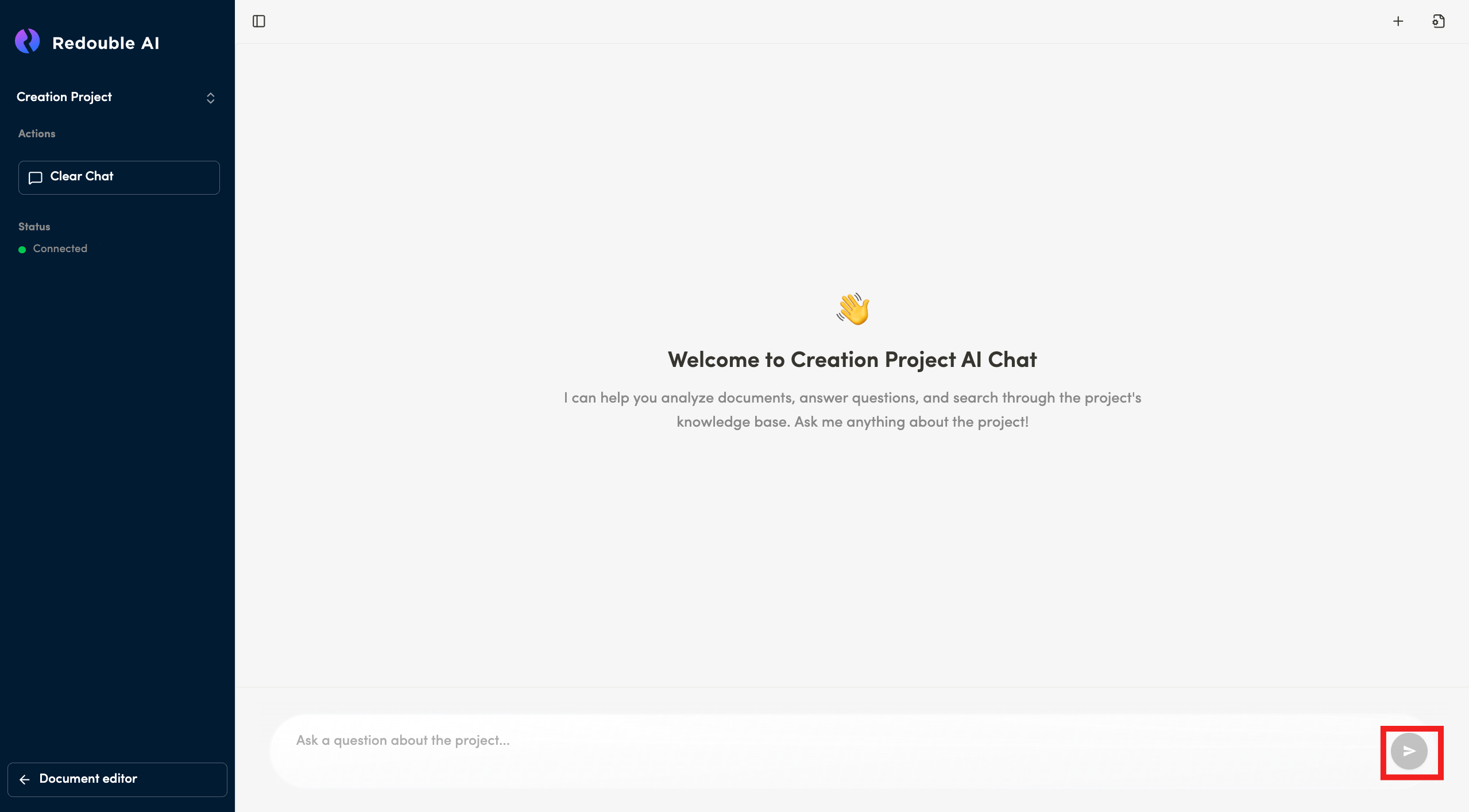
4.5 AI chat
Purpose : A conversational interface to interact with the AI assistant about your project
Access: You can access the chat from the project page by clicking "Ask AI" button
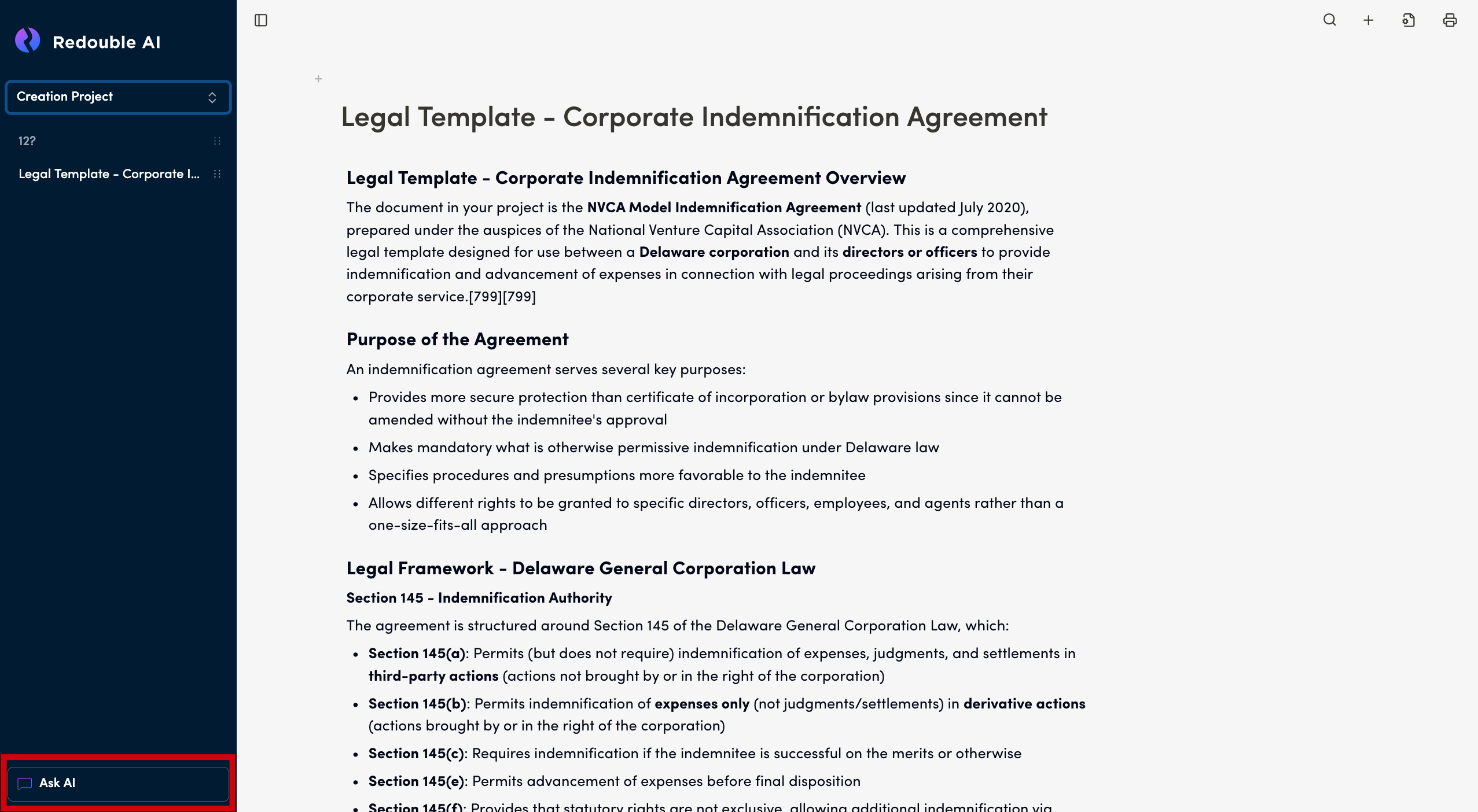
Key Components
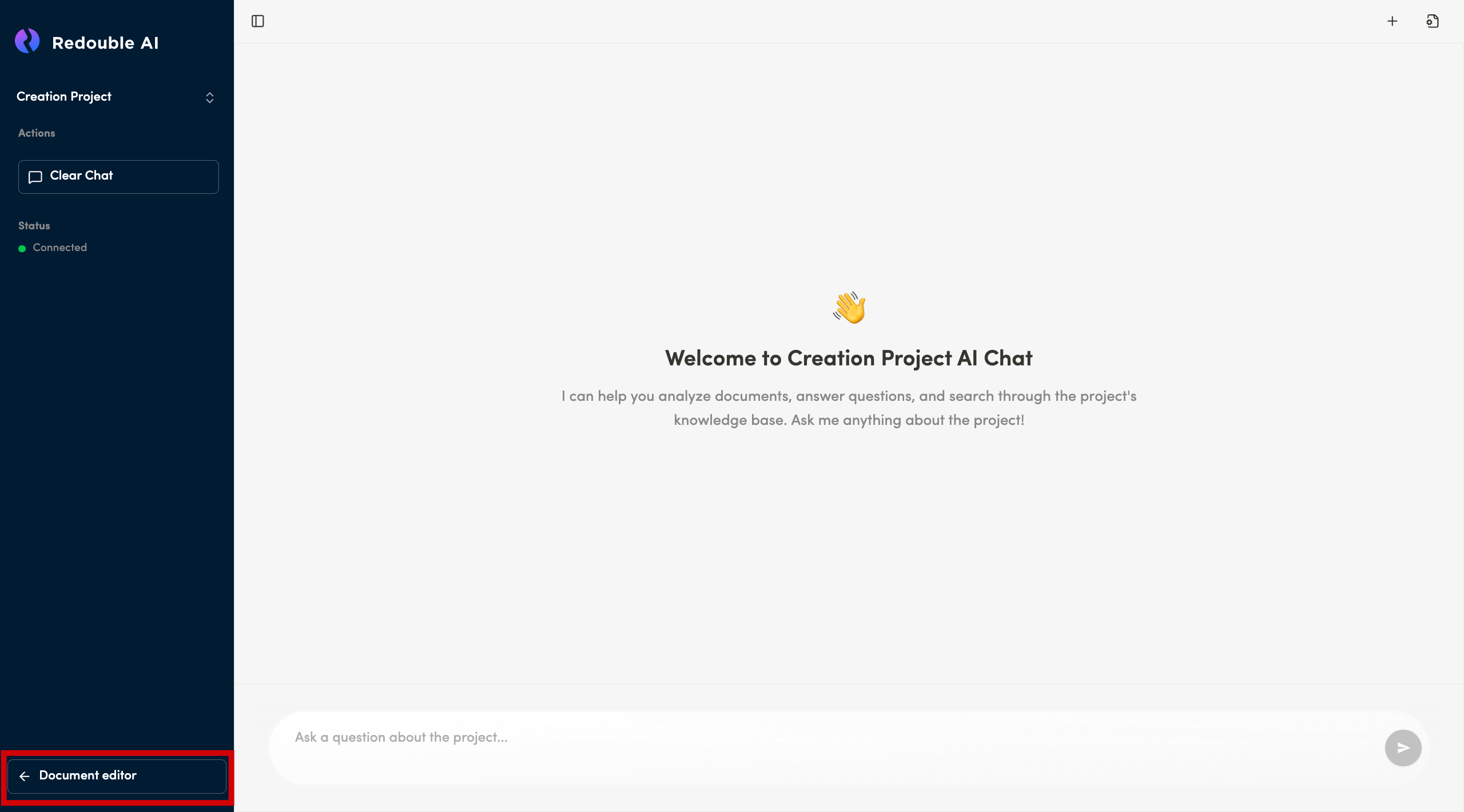
Left Sidebar
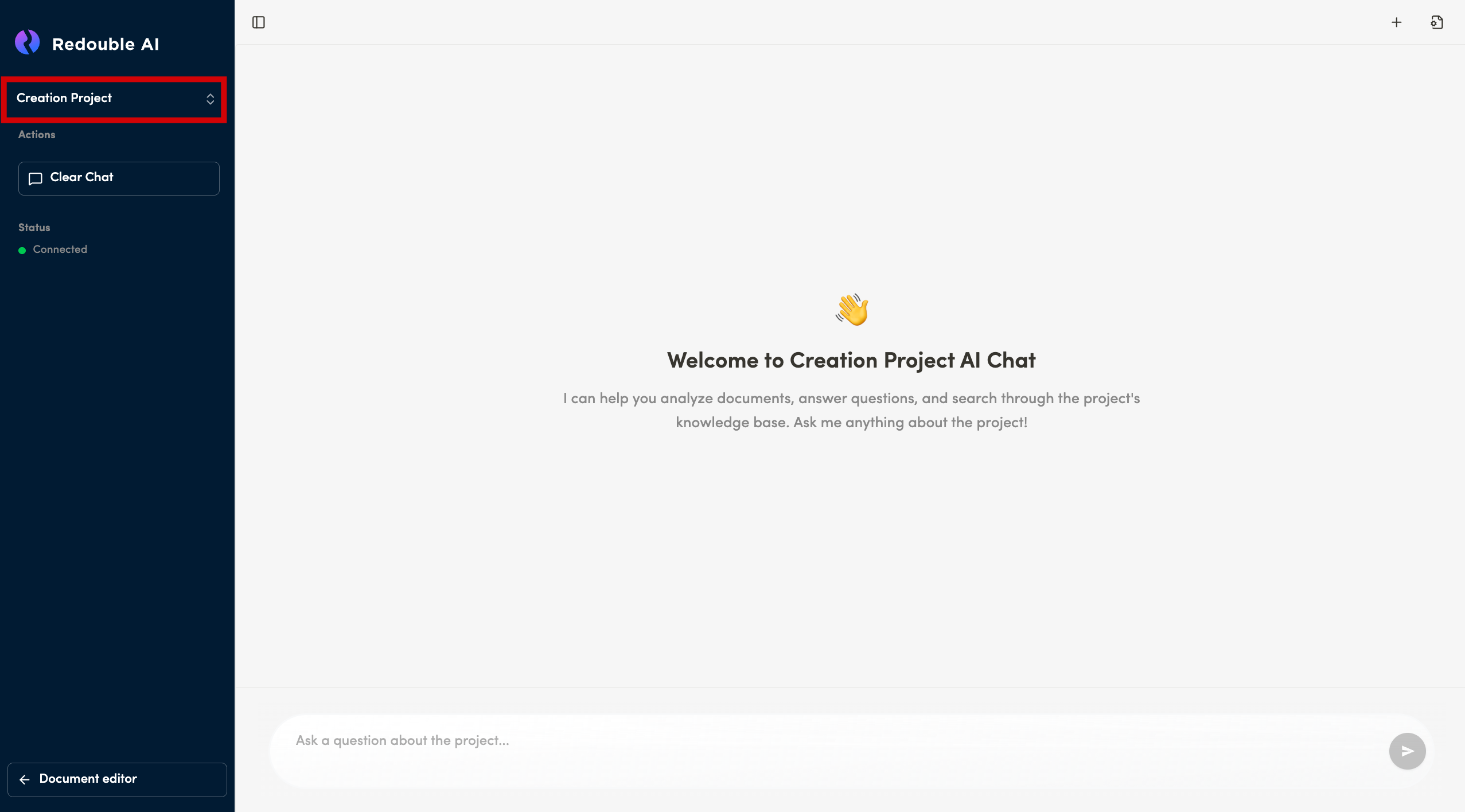
Project Name - displays current project
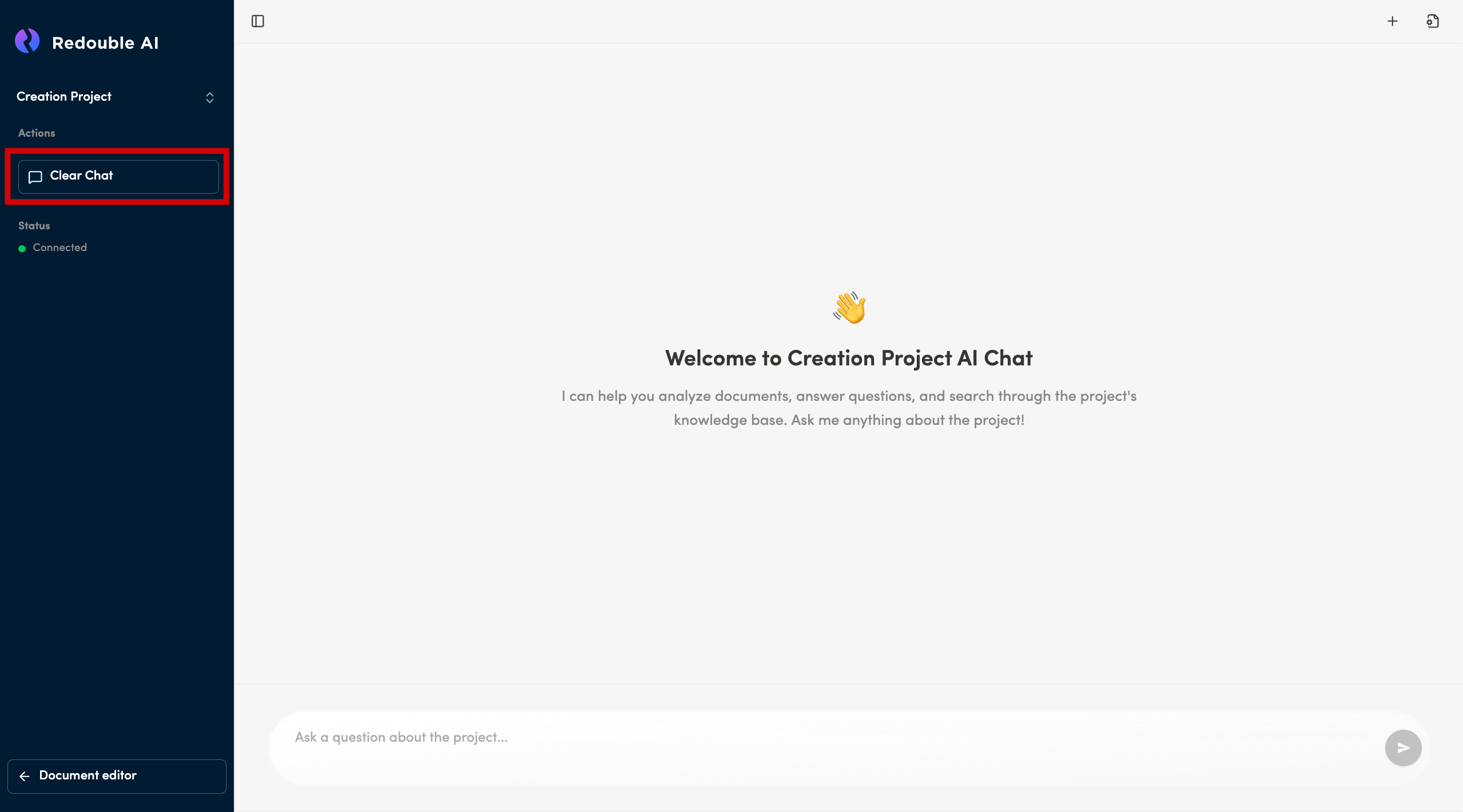
Clear Chat button - removes all messages and starts fresh conversation
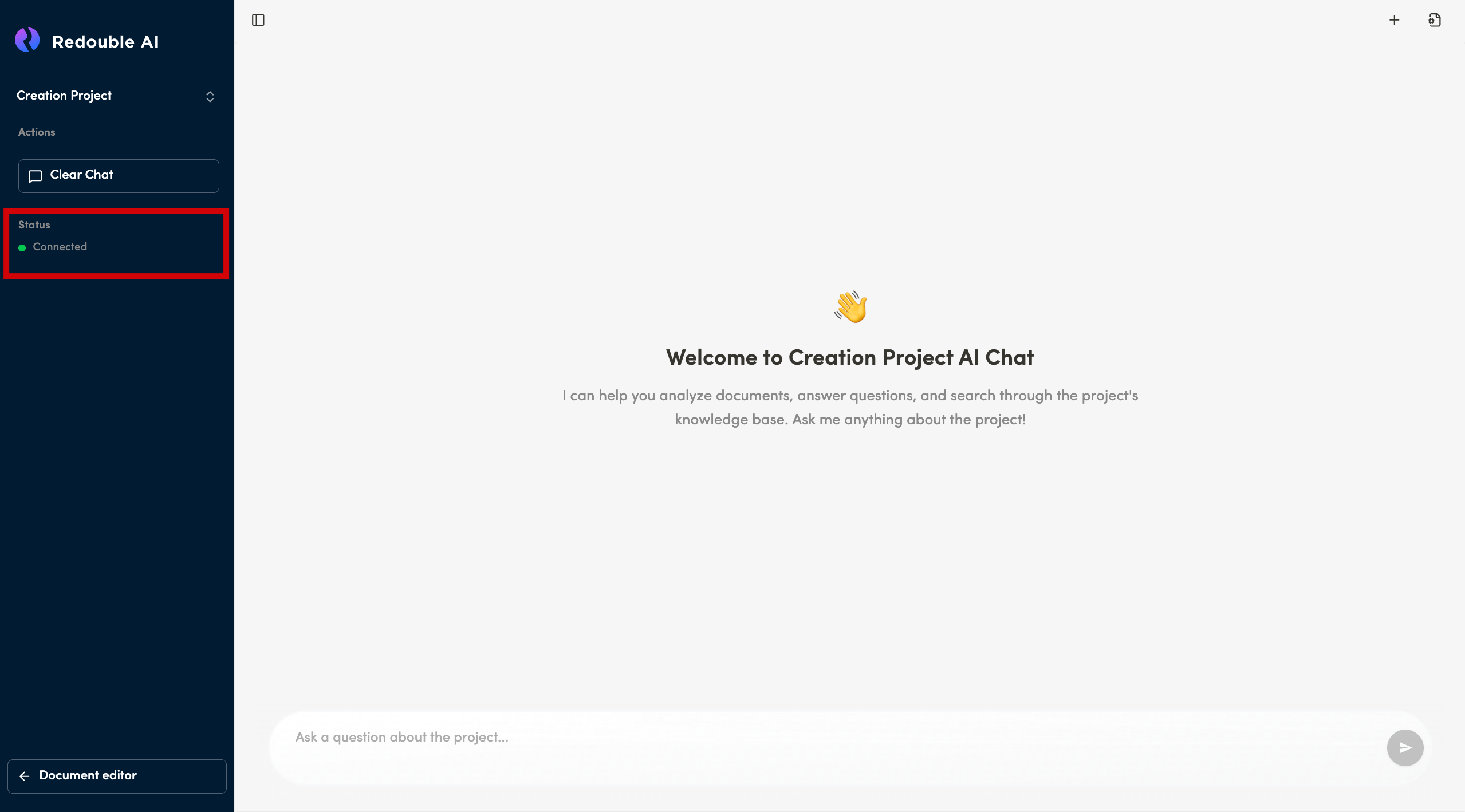
Status Indicator - can show two statuses:
- "Connected" - indicates the active connection status
- "Disconnected" - indicates that the backend is down
Document editor button - Navigate back to document editor
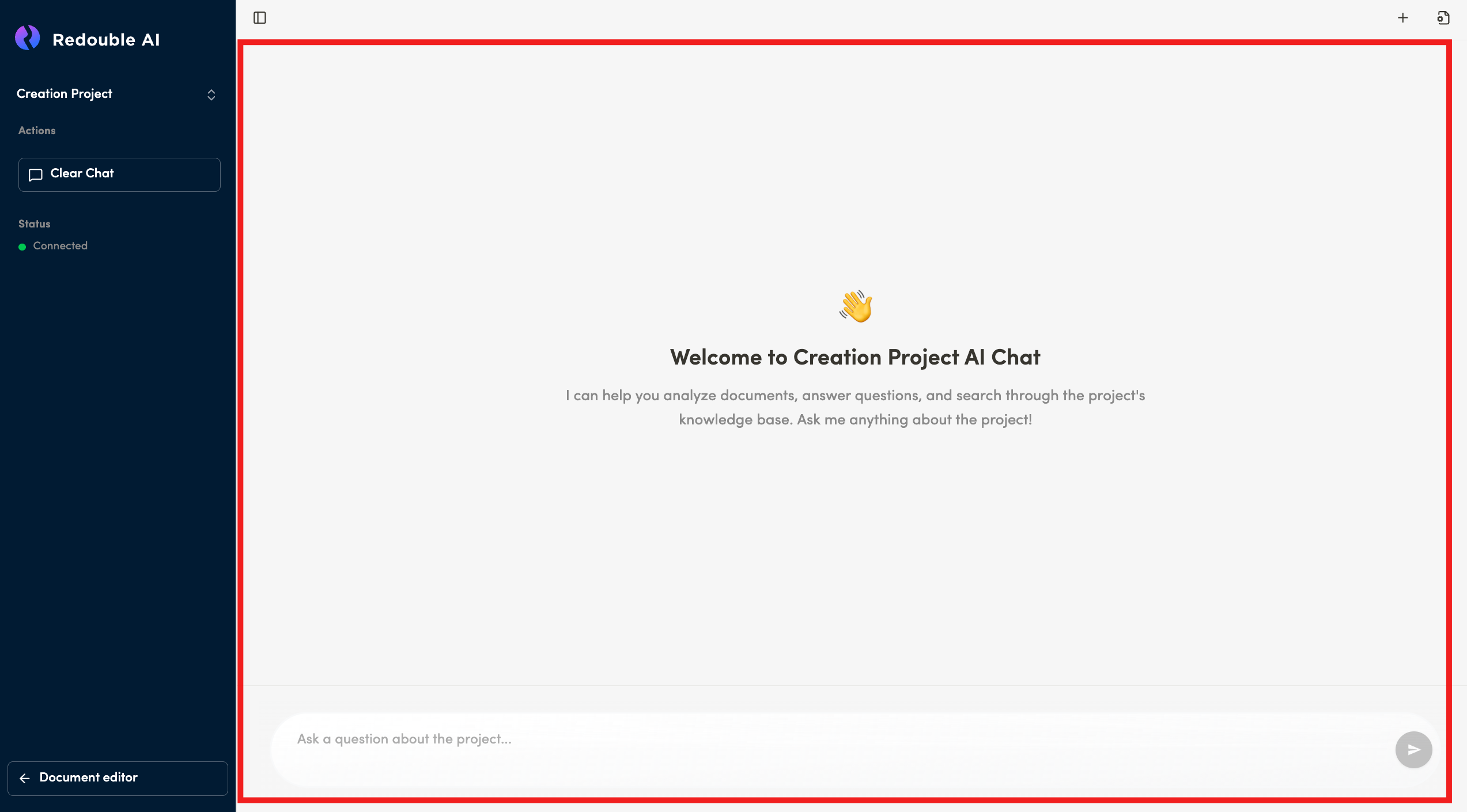
Main Chat Area
Conversation Display - shows messages between user and AI. When there is no messages, it should have text: "Welcome to Documentation Creation AI Chat I can help you analyze documents, answer questions, and search through the project's knowledge base. Ask me anything about the project!"
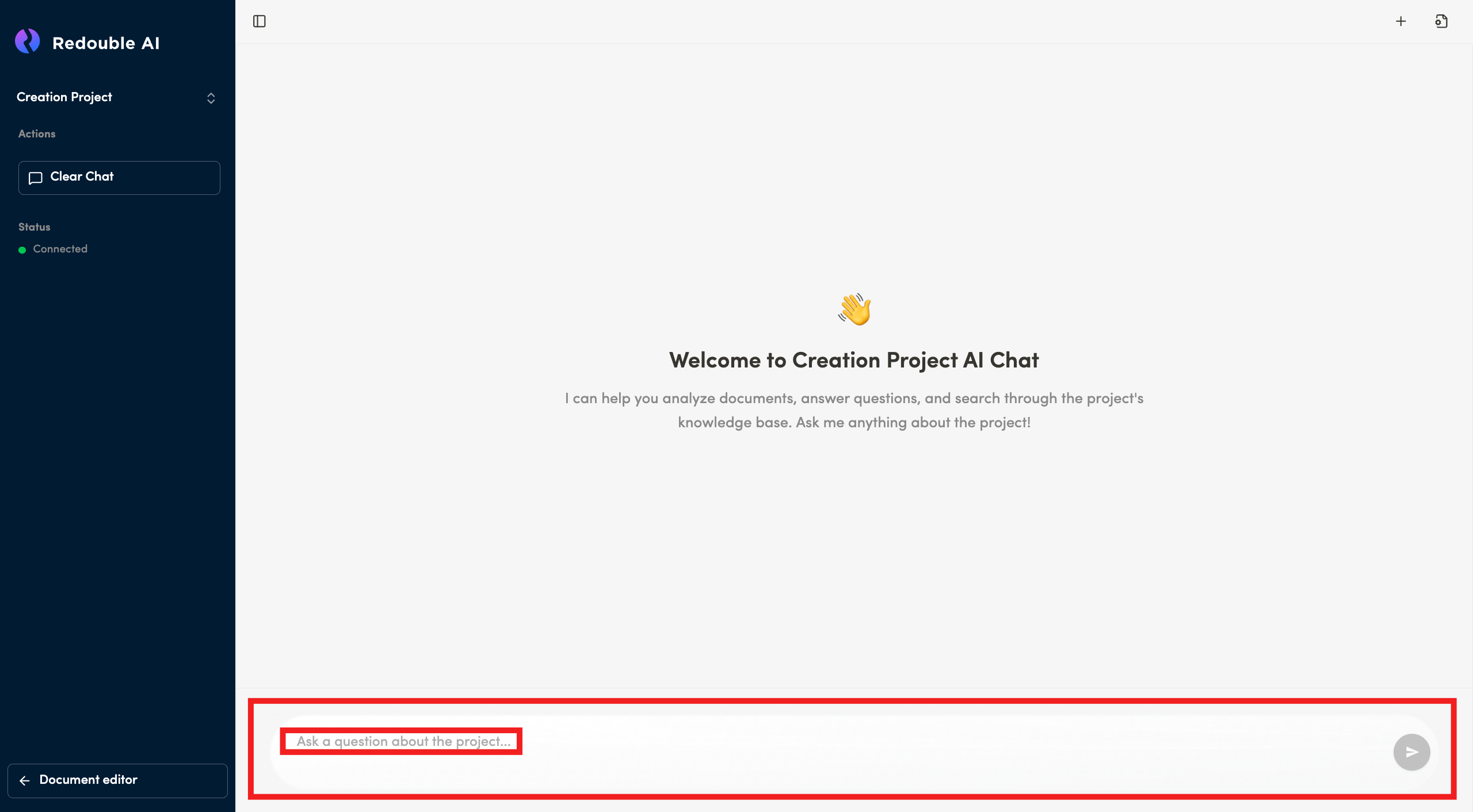
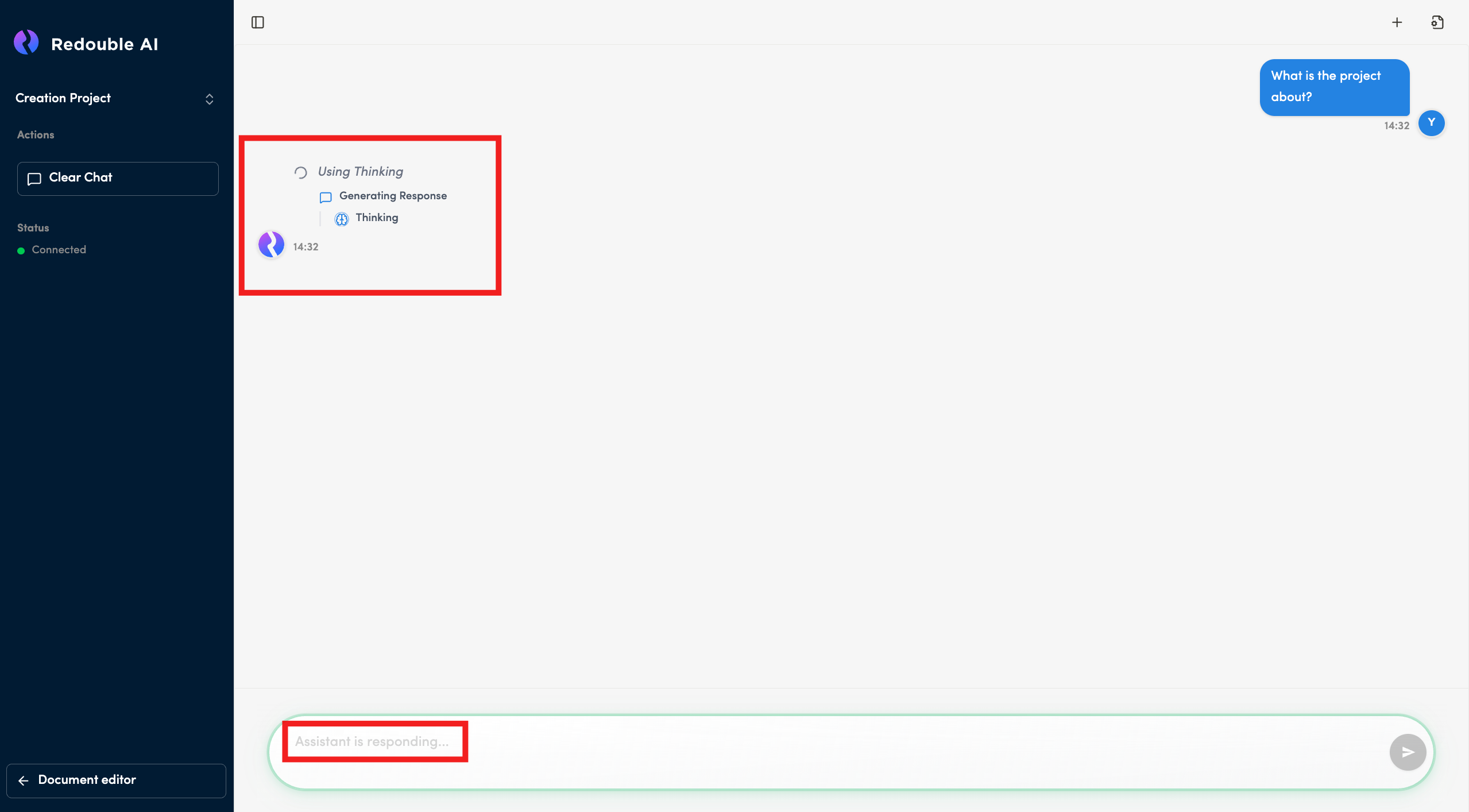
Message Input Box - text input area at bottom. Mint green border highlighting active state. Can contain hints:
- "Assistant is responding..." when AI is active
- "Ask a question about the project..." when there is no questions in query
Functionality:
User Flow:
- User types question in input box
- User clicks send or presses Enter
- Message appears in chat history
- AI shows "thinking" status
- AI generates and displays response
- Conversation continues
Use Cases:
- Ask general questions about the project
- Get quick answers without creating formal Questions
- Exploratory conversations about documents
- Clarifications and follow-up questions