
1.6 Copying a project
Purpose: Create a new project using an existing project as a template, copying the project structure and settings without duplicating input documents or answers.
Steps:
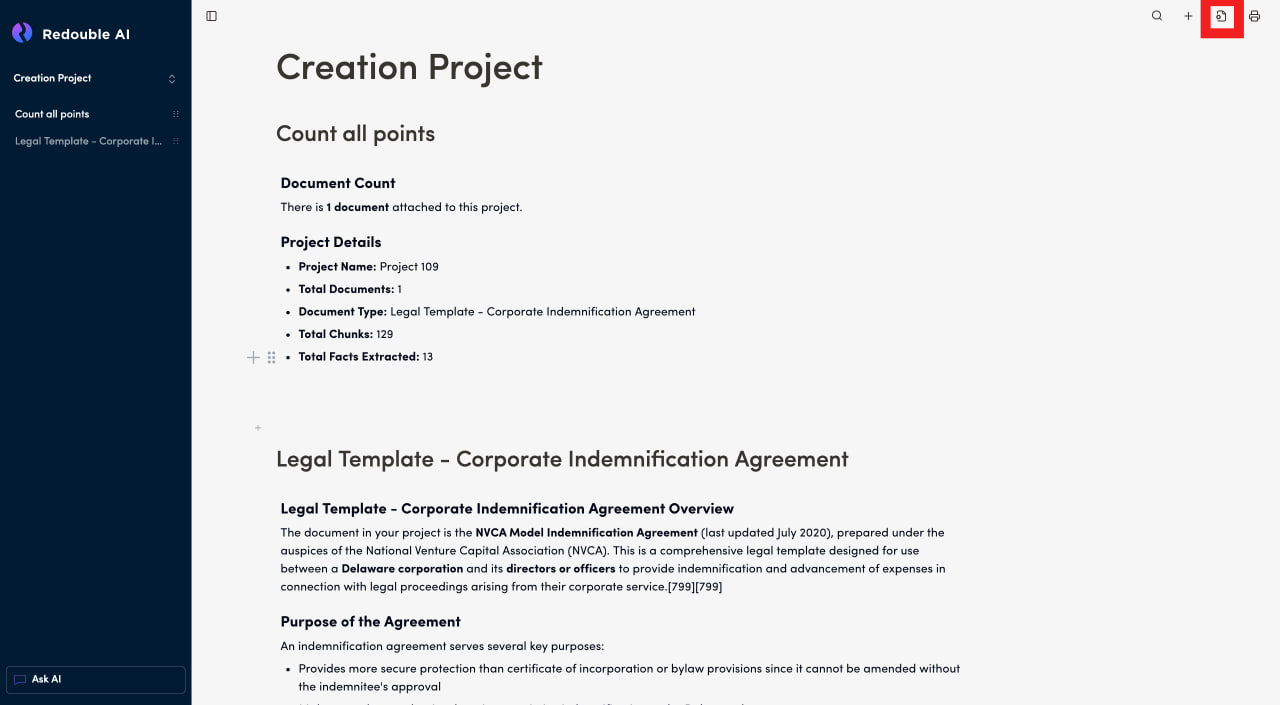
- Click on the "Document Settings" icon in the top toolbar
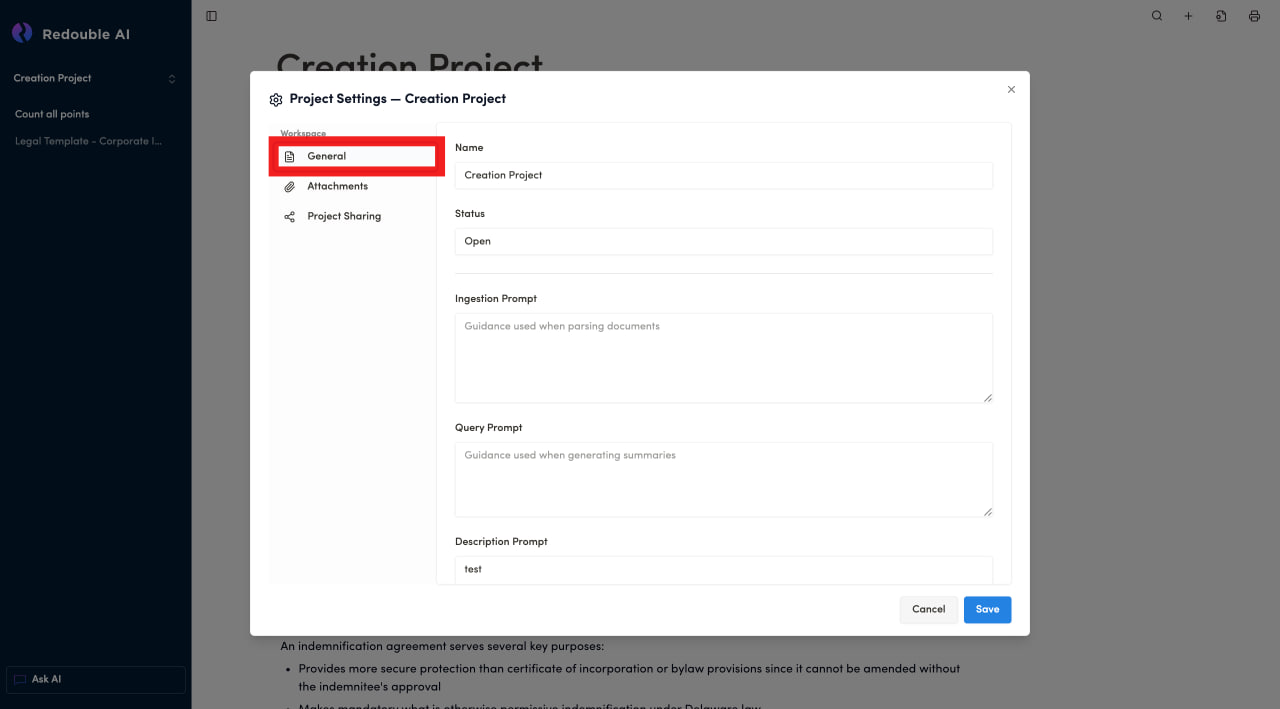
- In the dialog window, select "General" in the "Workspace" list and scroll down to the "Copy Project" section
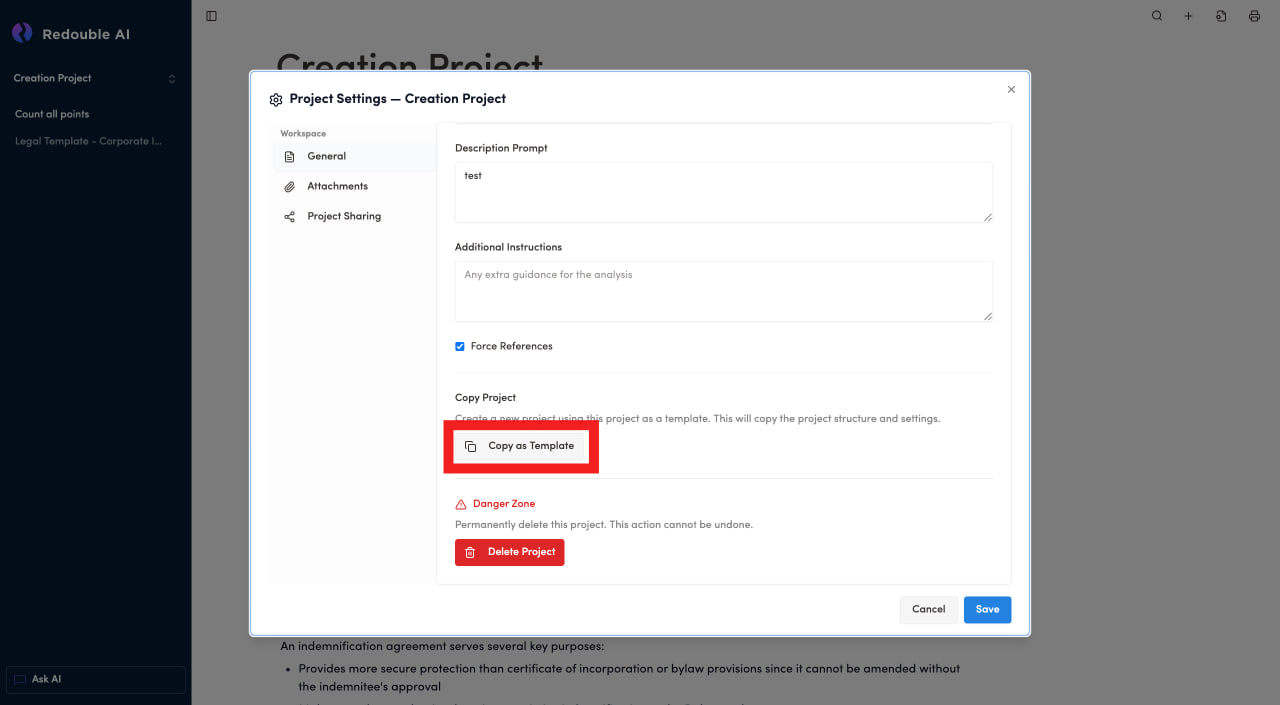
- Click the "Copy as Template" button
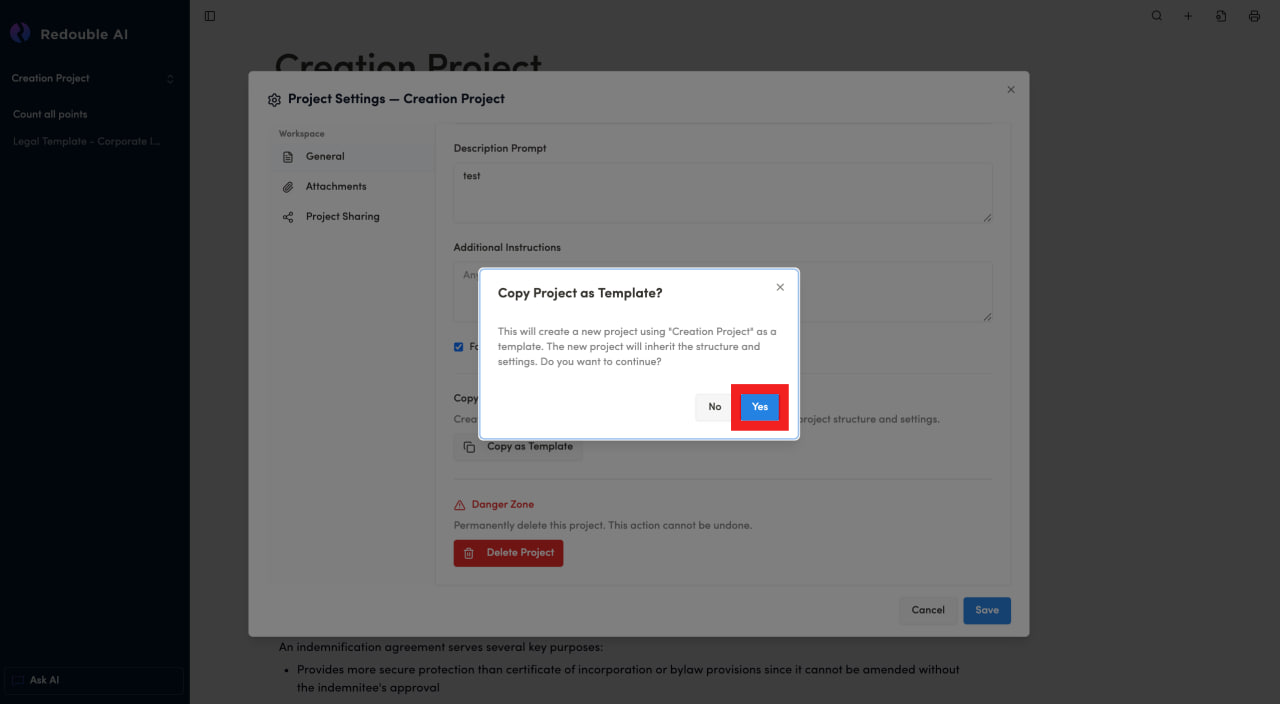
- Confirm that you want to copy the project in the popup
Result: The copy of the project will appear at the bottom of the dropdown list of all projects.
What is being copied
When you copy a project as a template, the following elements are duplicated:
- Ingestion Prompt
- Query Prompt
- Description Prompt
- Additional Instructions
- Force References Setting
- Prompt Templates
What is NOT being copied:
- Documents: Attachments are not copied
- Answers: Existing answers to any questions are not duplicated
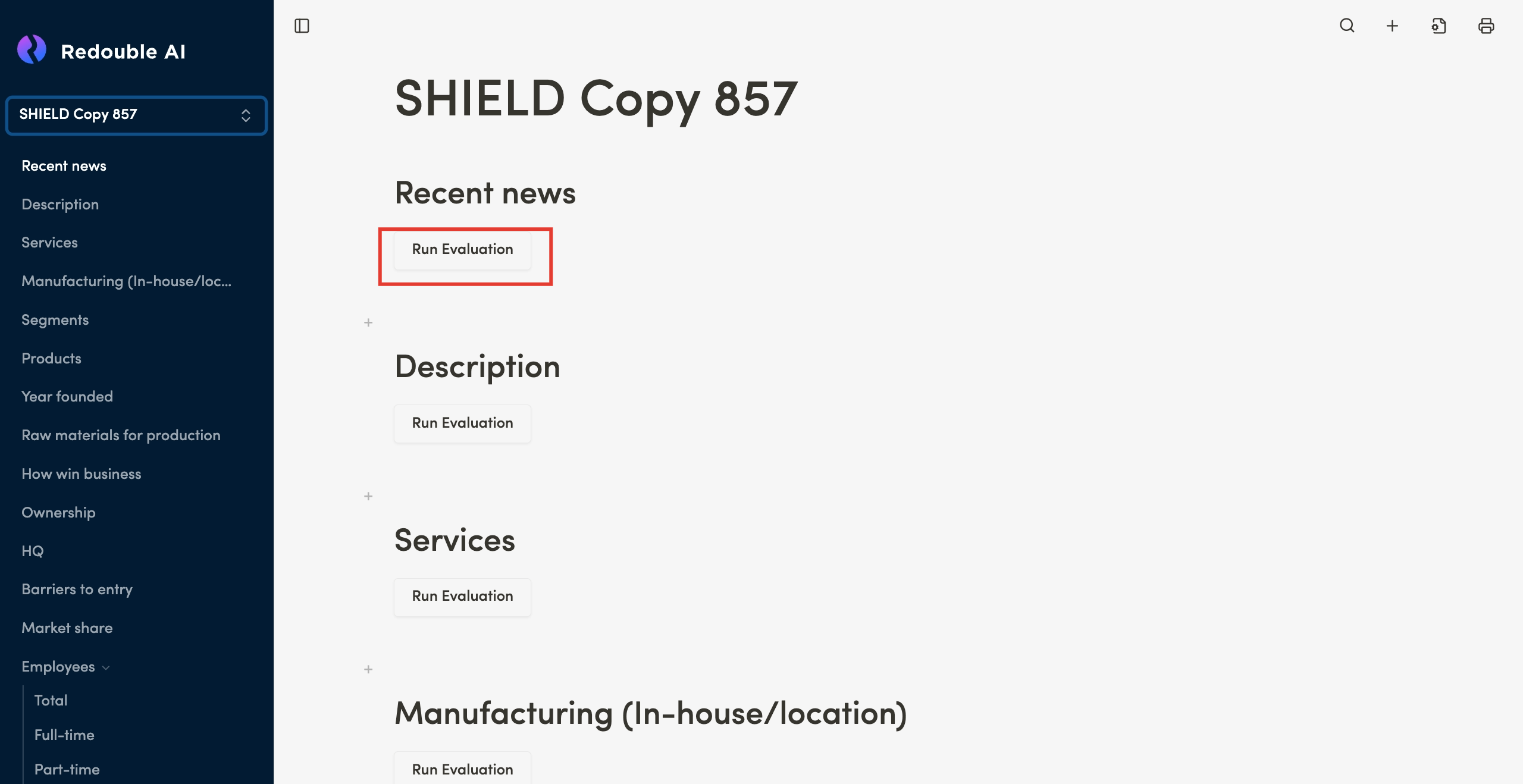
If you want to generate an answer in the copied project, you have to:
- Scroll to the desired question
- Click on the "Run Evaluation" button
No comments to display
No comments to display