
2.3 Question options
Prerequisites:
- You are logged into the Redouble AI system
- You have a project open with at least one question
- Click the three-dot "Document options" button on the left side of the heading/ question you would like to work on
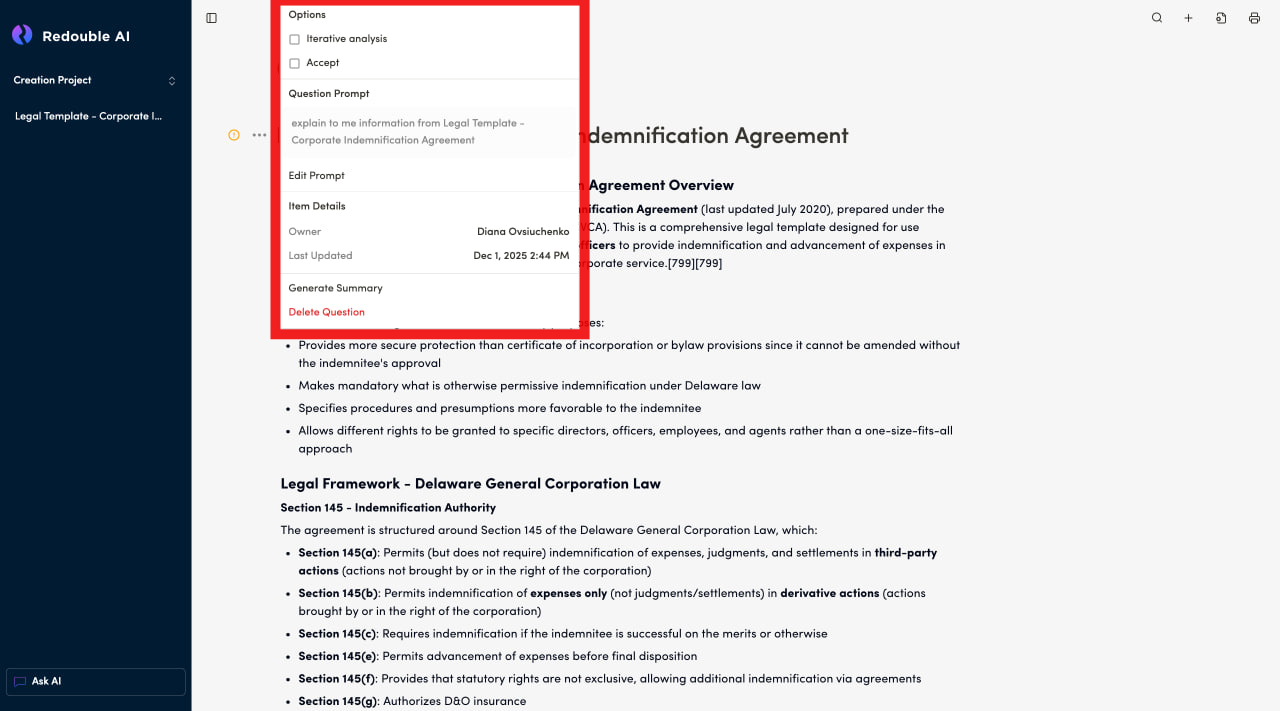
Iterative analysis
- Type: Checkbox
- Purpose: Enables step-by-step document analysis for deeper research
- Default: Disabled
Accept
- Type: Checkbox
- Purpose: Automatically accepts the generated answer without manual confirmation
- Default: Disabled
Prompt display
- Shows the current research prompt text displayed in a gray text block
- Example: "find the sections in documents that mention healthcare and explain them one by one"
Edit Prompt button
- Allows you to modify the prompt text
- When the prompt is changed, the next regeneration will use the new text
- Click to open the prompt editor
Steps to edit:
- Click "Edit Prompt"
- Make necessary changes to the text
- Save the changes
- The updated prompt will be used to generate future answers
Owner
- Displays the name of the user who created the question
- Example: Dr. John Smith
- Purpose: Track question authorship for collaboration and accountability
Last updated
- Shows the date and time of the last update
- Format: MM/DD/YYYY (e.g., 10/14/2025 for October 14th, 2025)
- Updated when:
- An answer is regenerated
- A prompt is edited
- Any options are changed
- The answer is manually edited
Generate summary
How it works:
- Click "Generate Summary"
- The system analyzes the full answer
- The system extracts key points and main conclusions
- And presents a concise summary