3.1 General
Preconditions:
- You are logged into the Redouble AI system
- You have at least one project
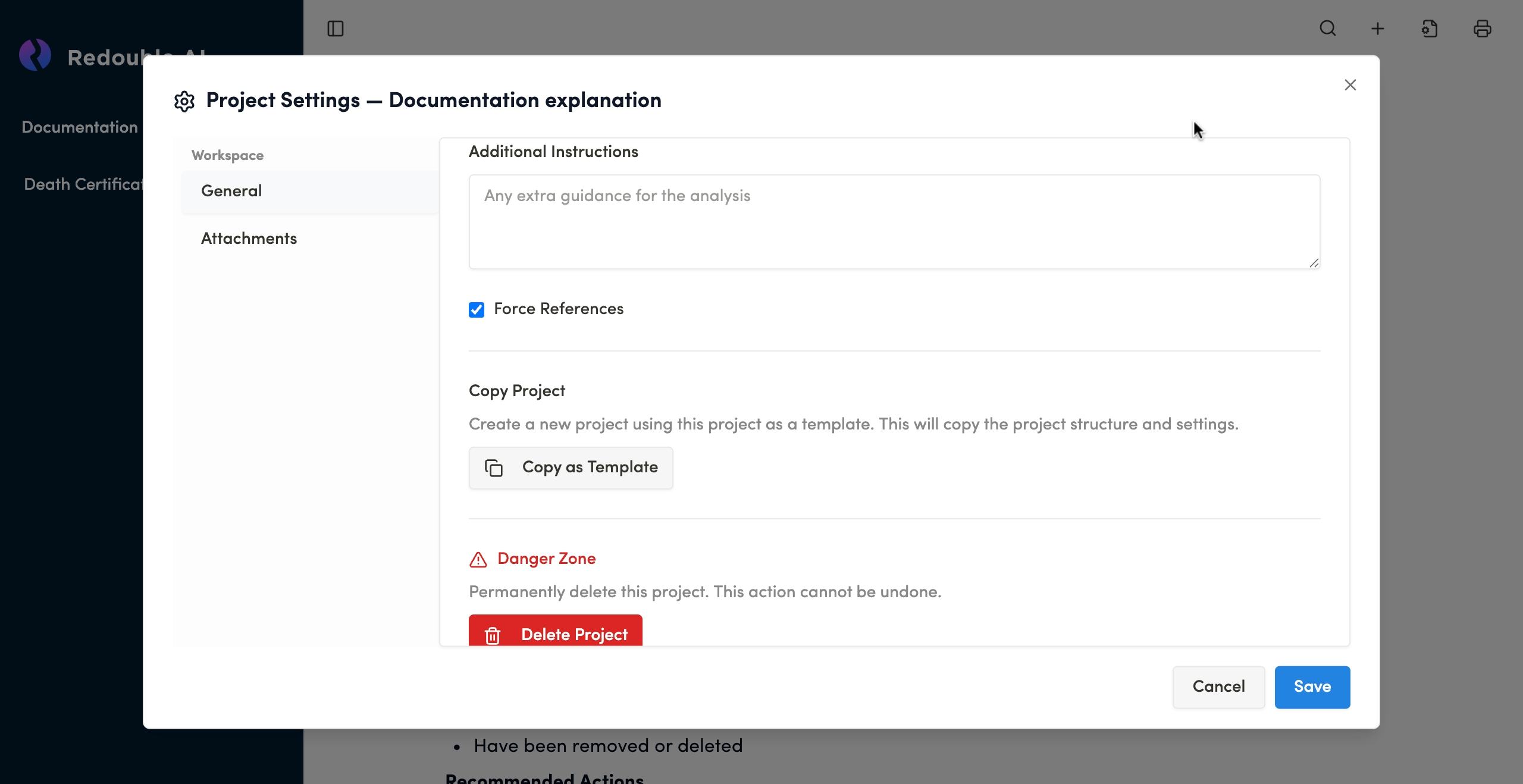
- Click on the "Document settings" icon and select "General" in the "Workspace" list
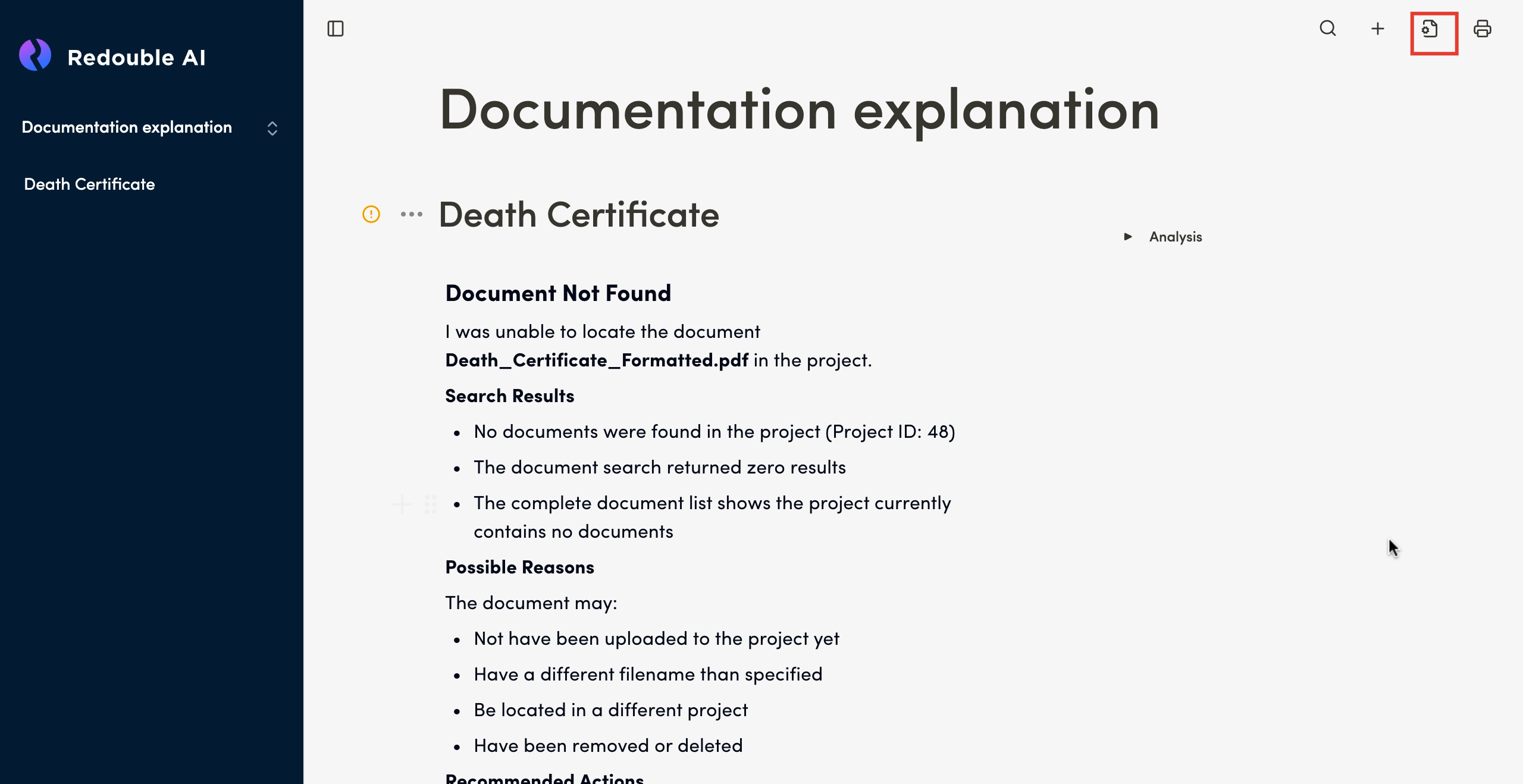
Name
Field Type: Text input
Purpose: Sets the project name for identification and organization
The project name helps you identify and organize multiple projects within your workspace. Choose a unique descriptive name that reflects the project's content or purpose.
Status
Field Type: Text input
Options: Open/Closed
Purpose: Indicates the state of the project
- Open: The project is actively being worked on and available for document uploads and queries
- Closed: The project has been completed or archived (read-only state)
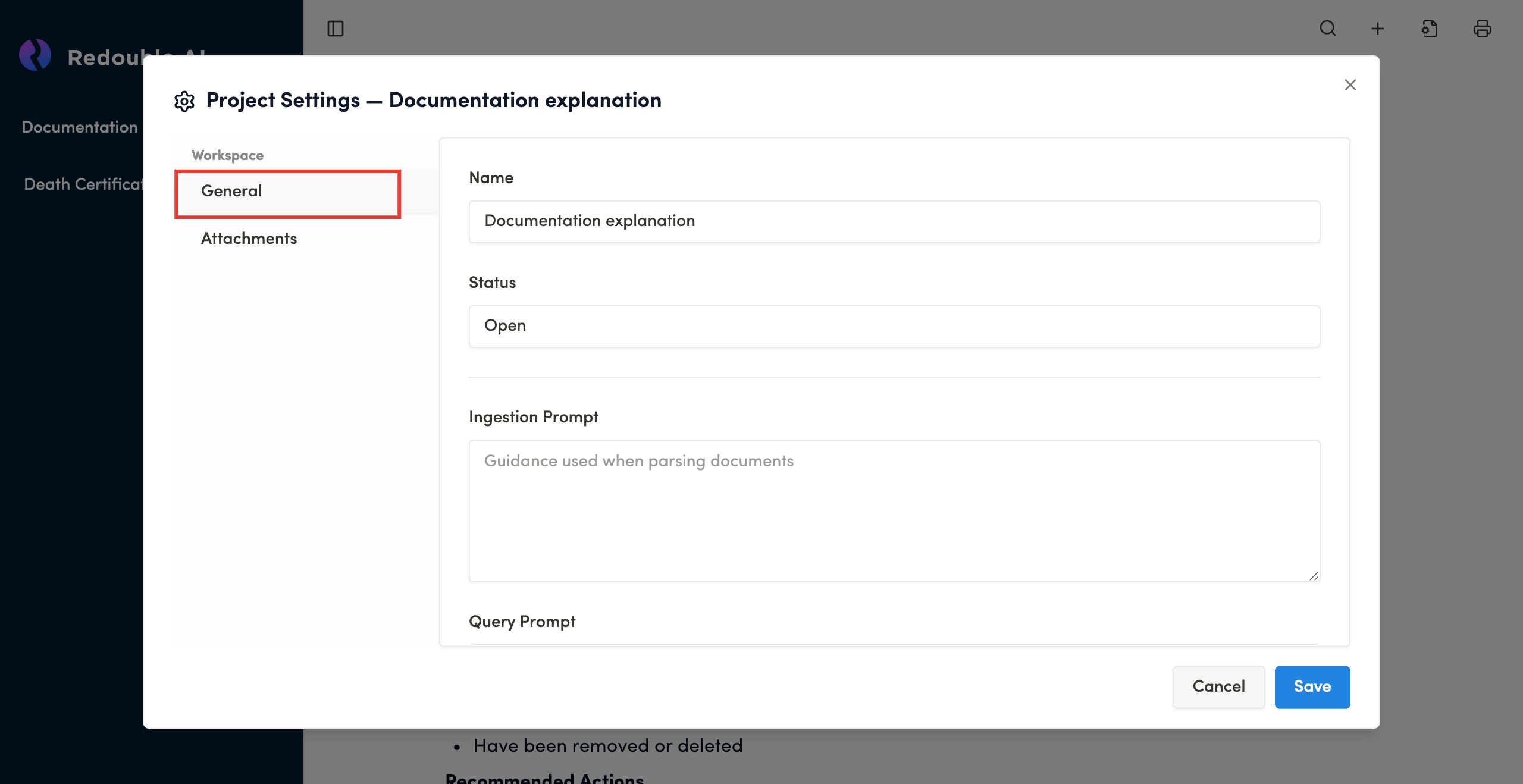
Ingestion Prompt
Field Type: Multi-line text area
Purpose: (?)Provides guidance to the AI when initially parsing and analyzing uploaded documents.
Query Prompt
Field Type: Multi-line text area
Purpose: (?)Guides the AI when generating responses to specific questions or creating document summaries.
Description Prompt
Field Type: Multi-line text area
Purpose: (?)Defines the high-level role and overall instructions for the entire project.
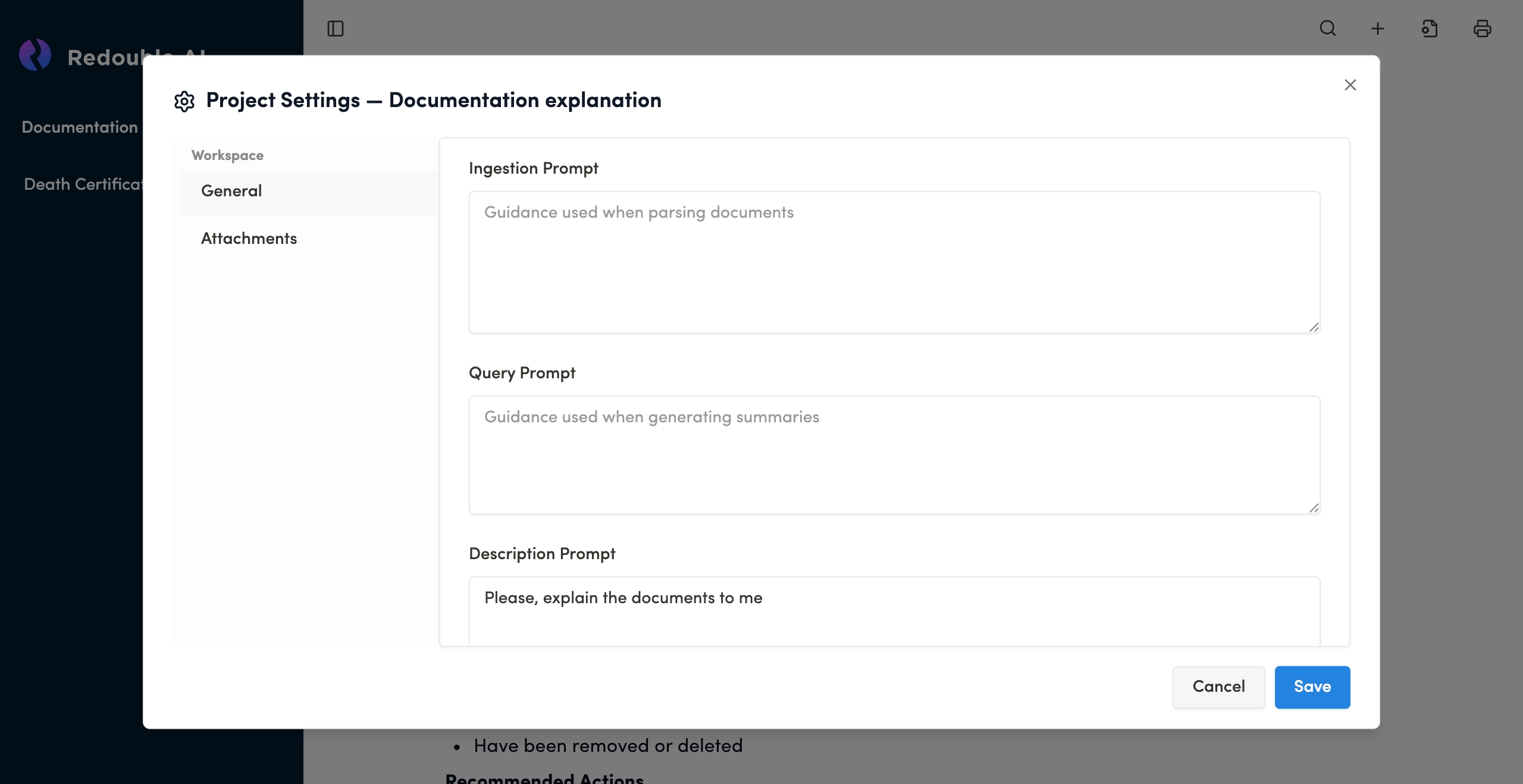
Additional instructions
Field Type: Multi-line text area
Purpose: (?)Provides guidance for specific analysis requirements or edge cases.
Force references
Field Type: Checkbox
Default State: Checked
Purpose: Ensures that all AI-generated responses rely on input document previously uploaded into the project.
Copying a project
For more detailed information view 1.6 Copy Project
Deleting a project
For more detailed information view 1.5 Deleting the project