3.2 Attachments
The Attachments tab manages all documents available for AI analysis within a given project. You can also use this tab to upload new documents.
Preconditions:
- You are logged into the Redouble AI system
- You have at least one project
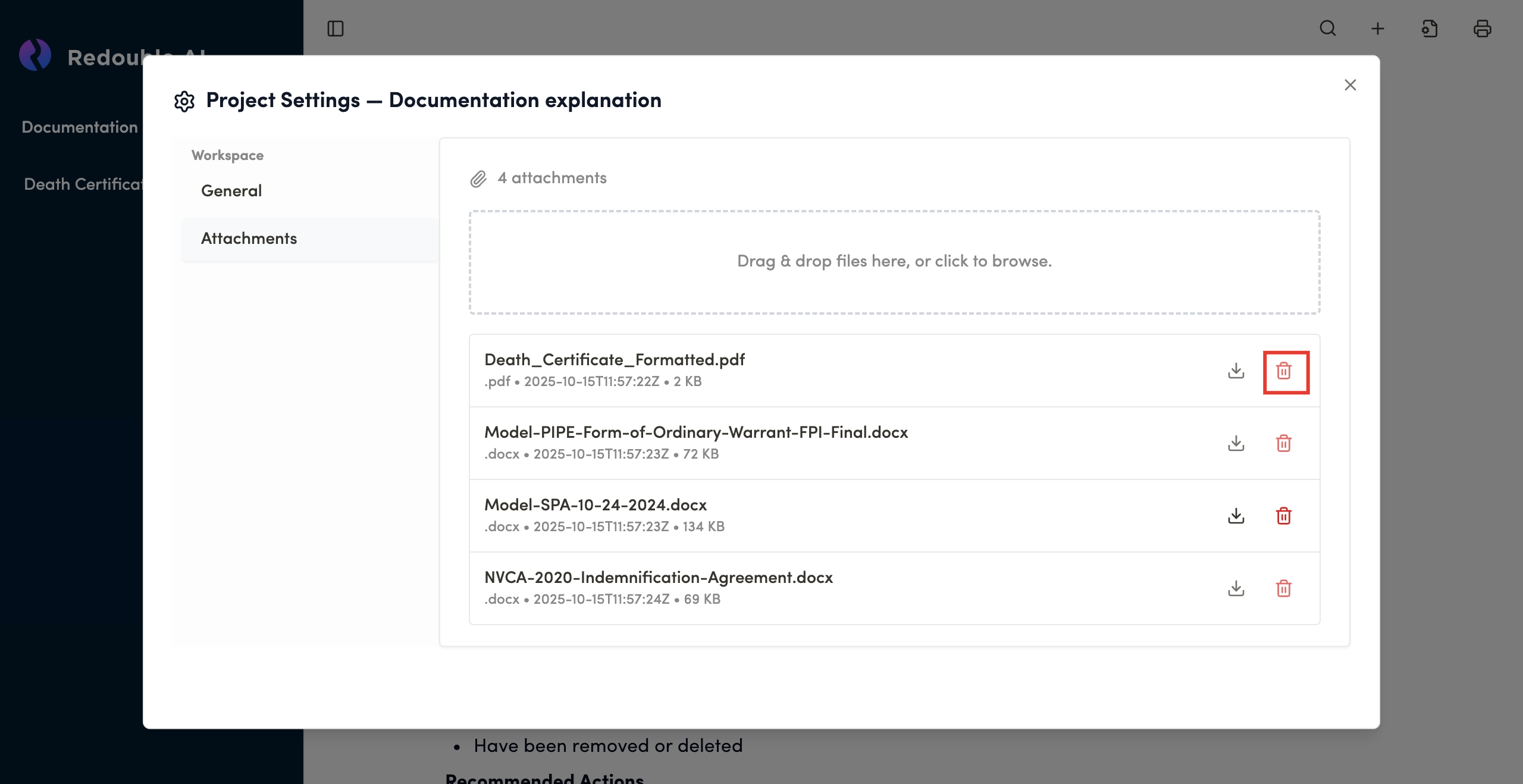
- Click on the "Document settings" icon and select "Attachments" in the "Workspace" list
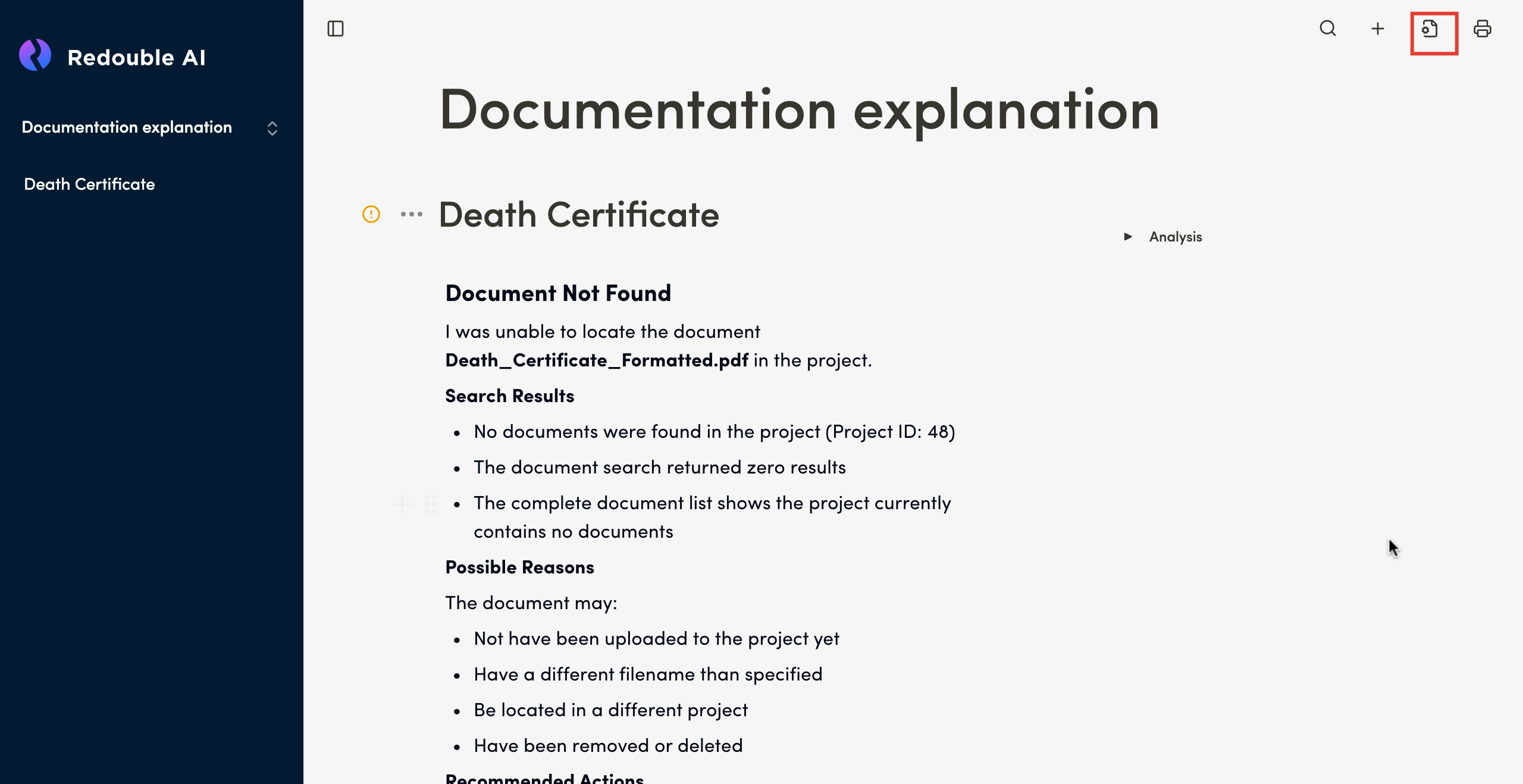
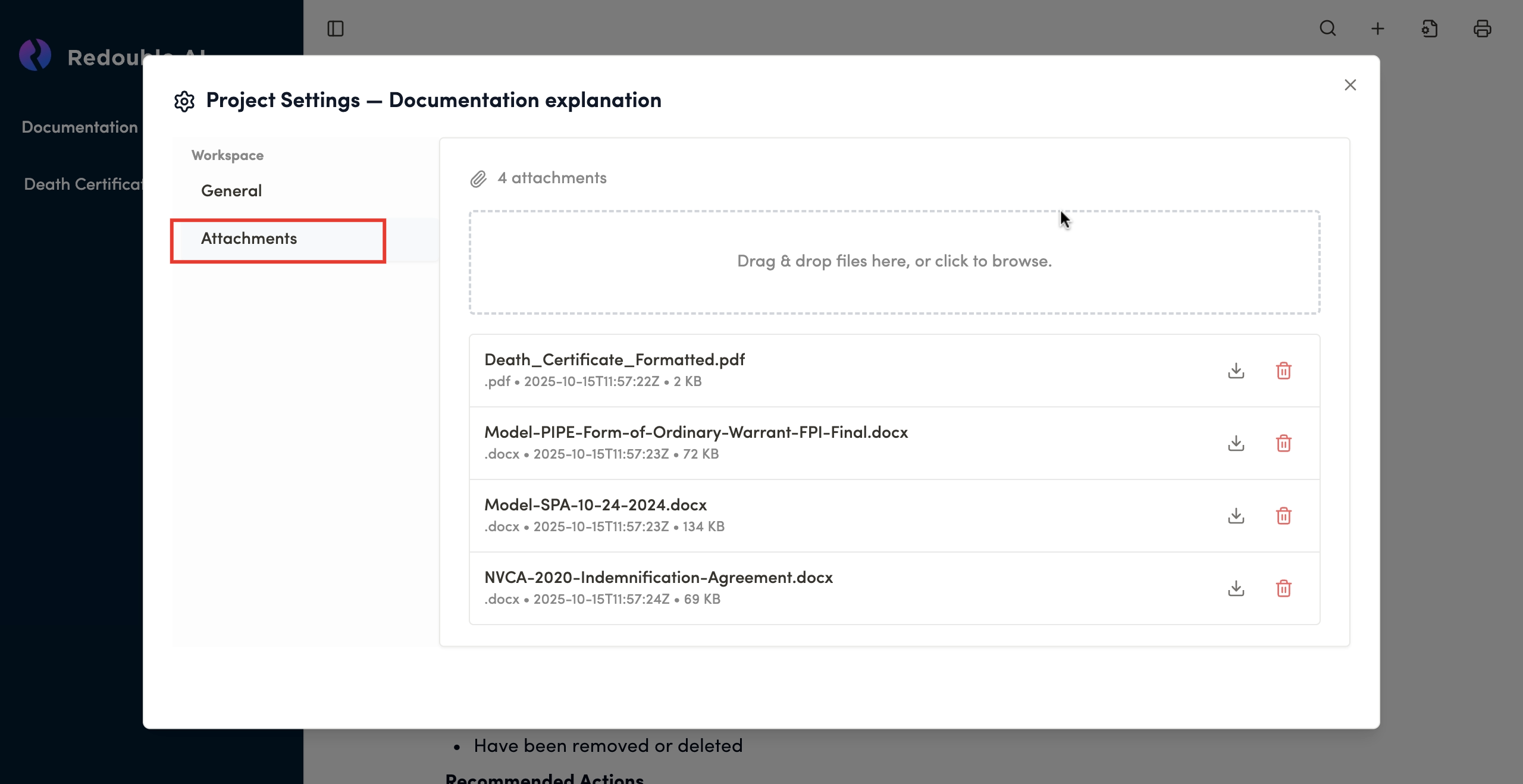
Upload interface
Feature: Drag-and-drop file upload area
Alternative: Click to browse your file system
Visual indicator: Displays the total attachment count
Supported Filefile Formats:formats:
- Microsoft Word documents (.docx)
- PDF files (.pdf)
- Plain text files (.txt)
- Image files (.jpg, .png)
File Sizesize Recommendations:recommendations:
- Individual files: Under 50MB for optimal processing
- Total project size: No hard limit, but larger projects may take longer to process
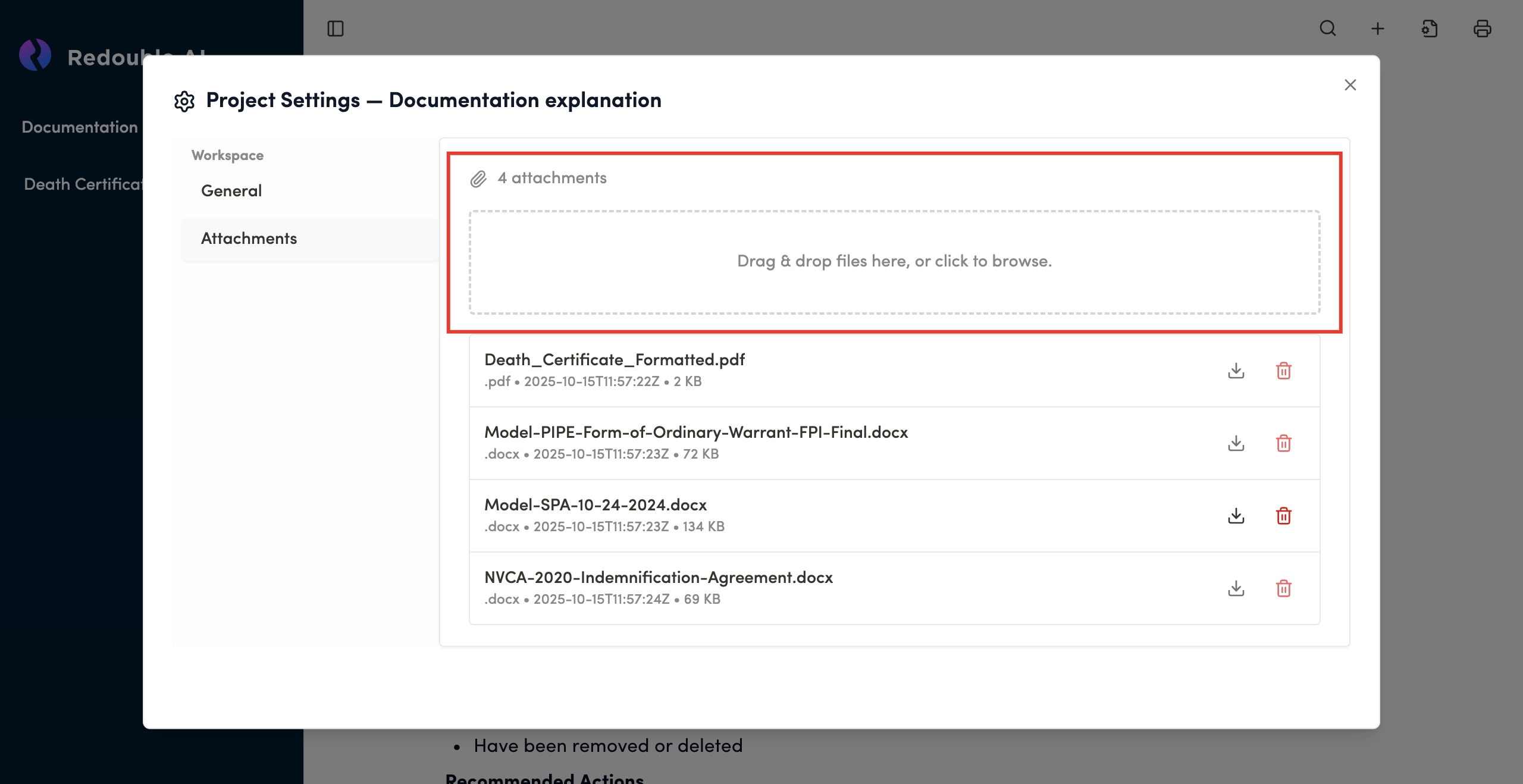
Document list
Each uploaded document is displayed with the following information:
File name: Original filename as uploaded
File type: Extension indicator (.docx, .pdf, etc.)
Upload date: Timestamp of when the file was added
File size: Size in KB or MB
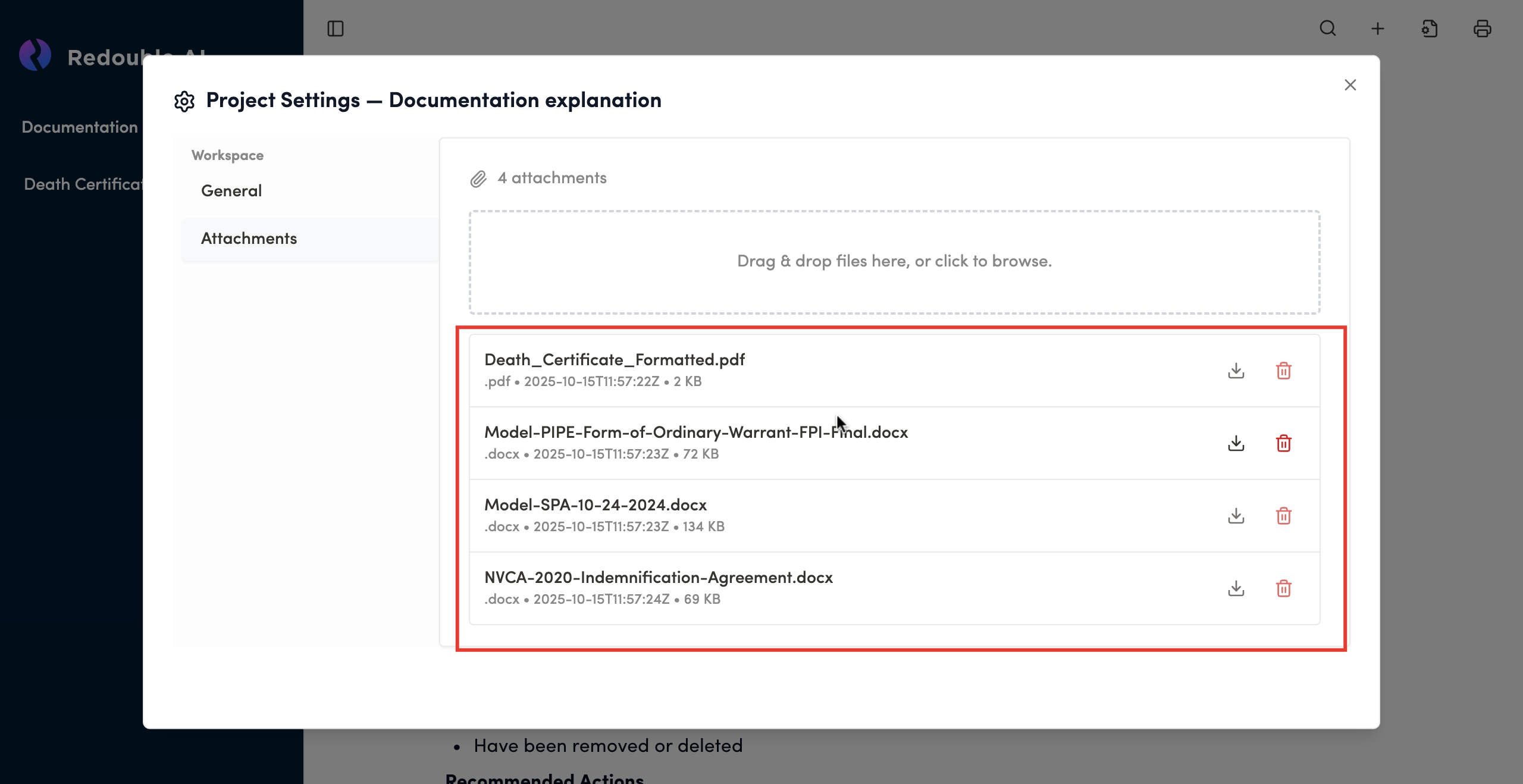
Available Actions:actions:
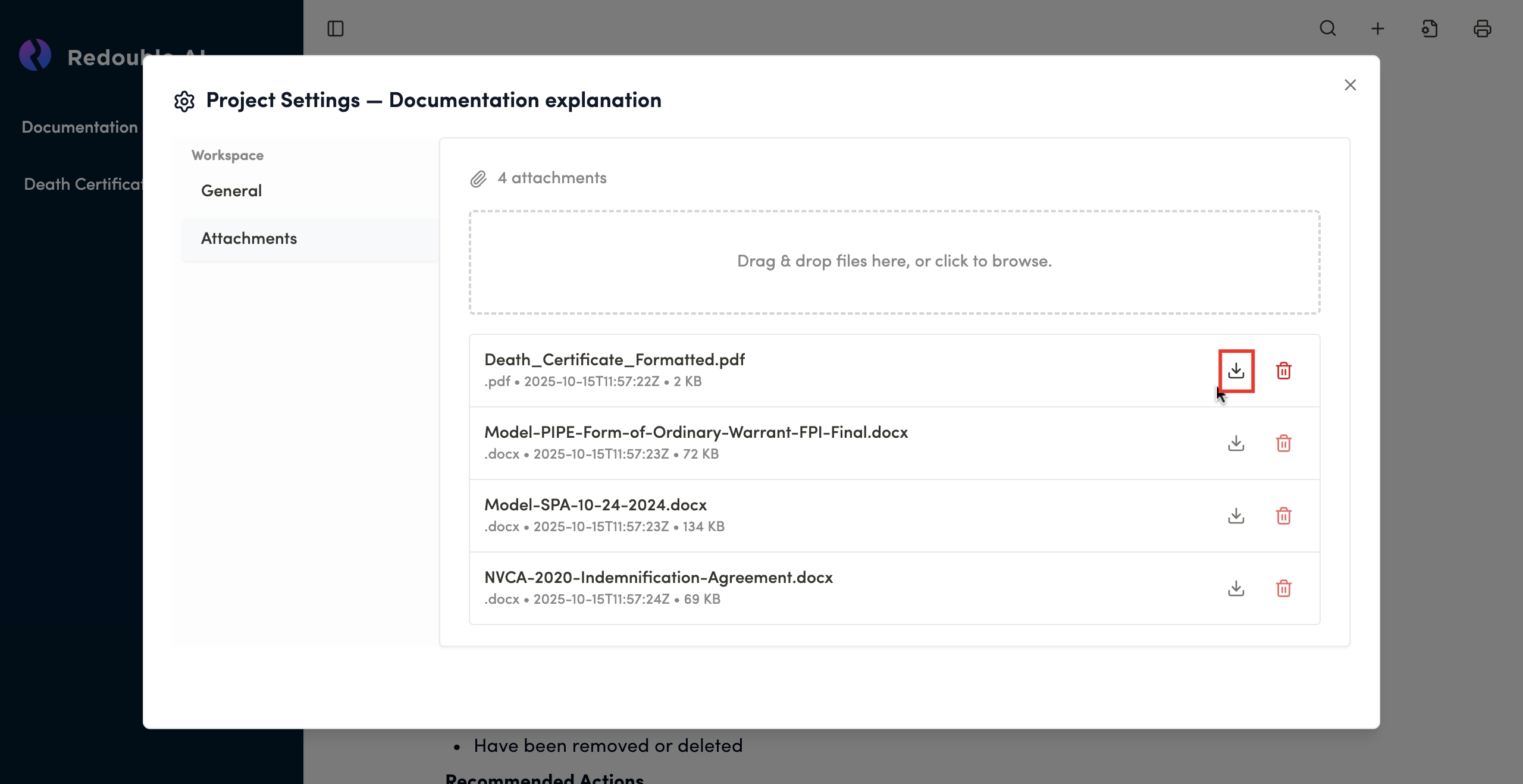
Download button
- Icon: Download arrow
- Function: Downloads a copy of the file to your local system
- Use Case: Retrieve original files for offline review or backup
Delete button
- Icon: Trash can
- Function: Permanently removes the file from the project
- Warning: This action cannot be undone and deleted documents will no longer be available in the project