
3.3 Project Sharing
Preconditions:
- You are logged into the Redouble AI system
- You have at least one project
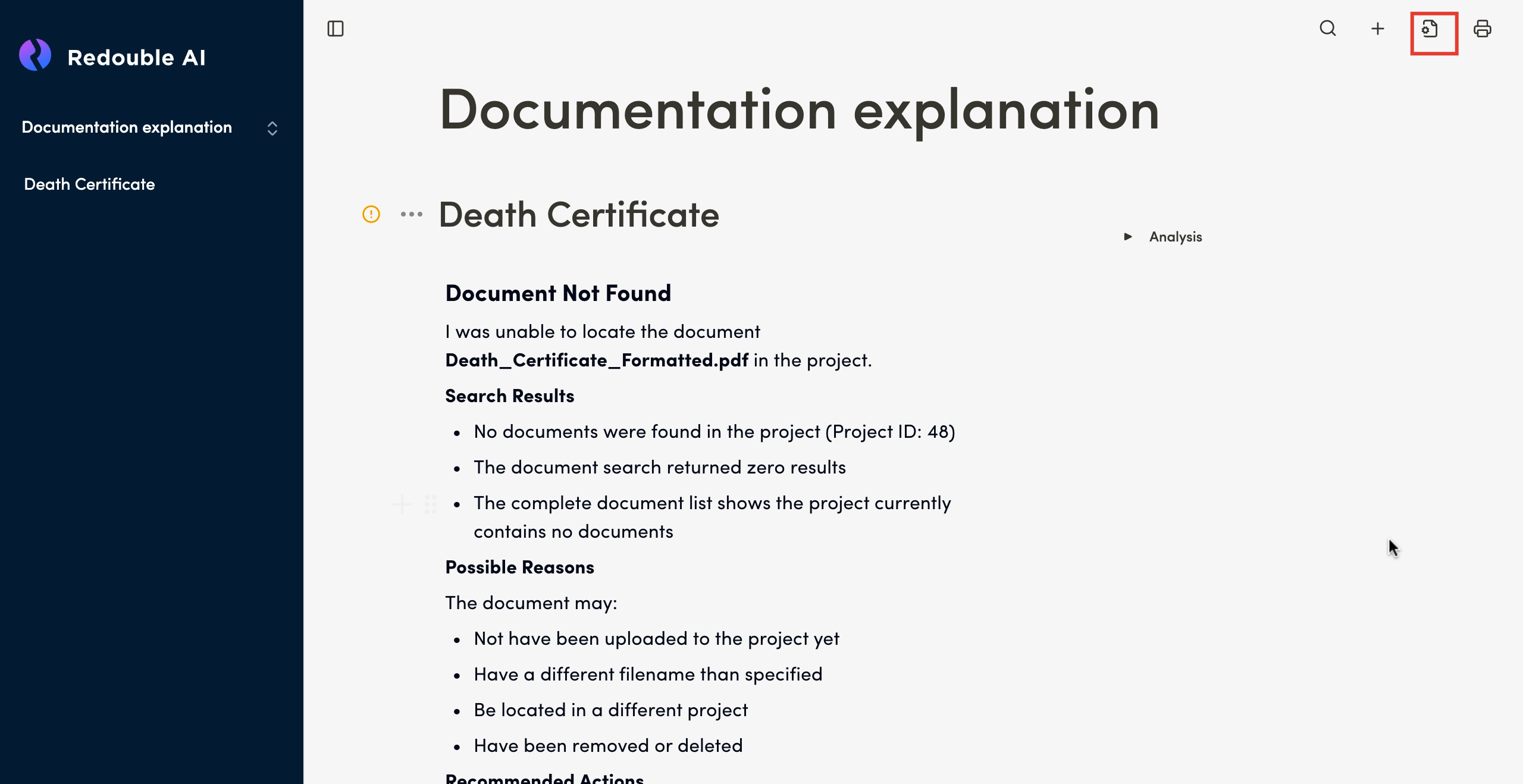
- Click on the "Document settings" icon and select "Project Sharing" in the "Workspace" list
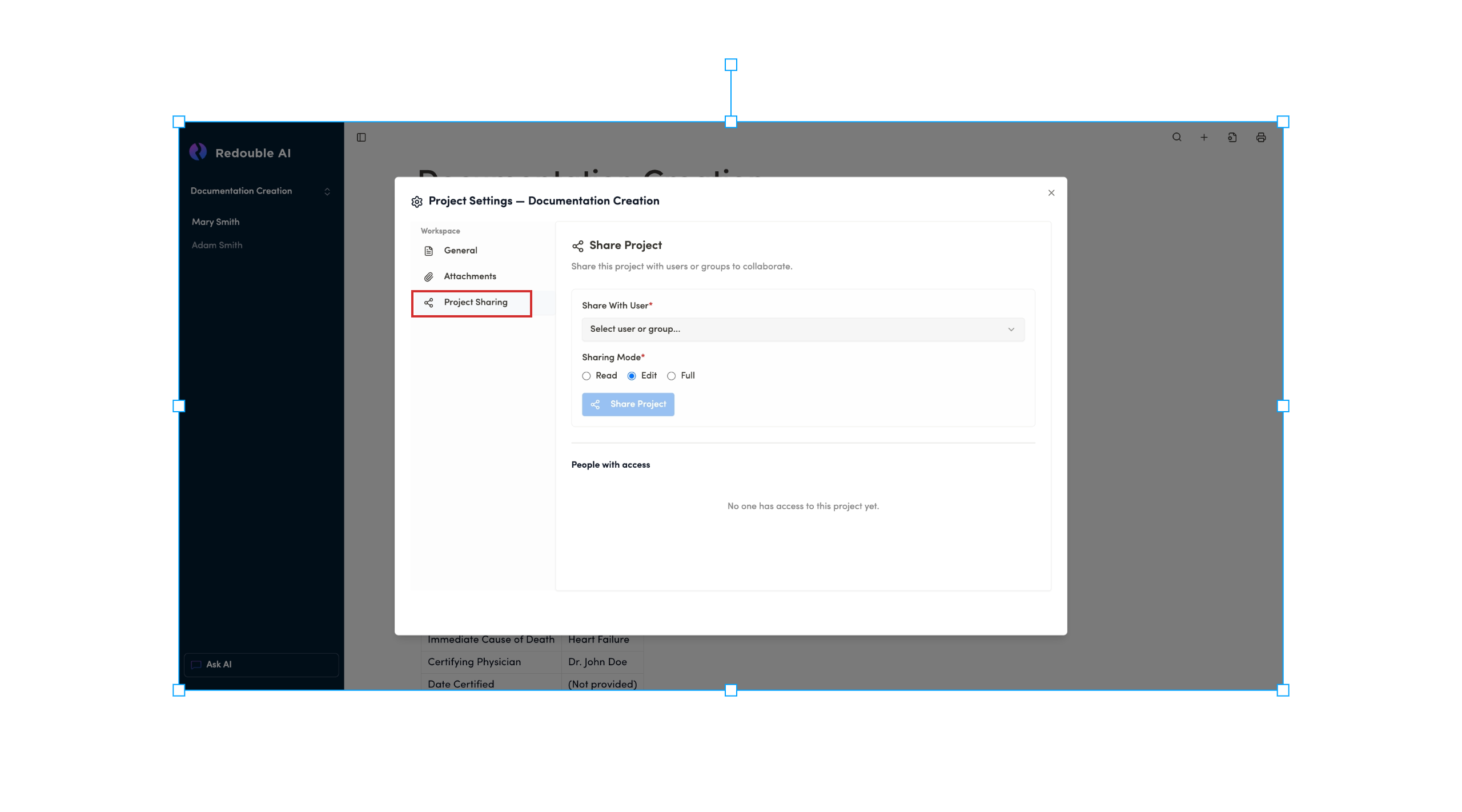
Share With User (Required field)Required)
Field Type: Dropdown selector
Purpose: Choose a specific user or group to share project with
Sharing Mode (Required field)Required)
Field Type: Horizontal list with access level options
Purpose: Allows to chose the level of access to the project:
- Read - View-only access (can see project and documents but cannot edit)
- Edit - Can view and modify project content (currently selected in your screenshot)
- Full - Complete access including project settings and management
Share Project Button
People with access Section
Purpose: Lists all users/groups who currently have access to the project. Shows their permission levels
Default state: "No one has access to this project yet" label