Purpose : A conversational interface to interact with the AI assistant about your project
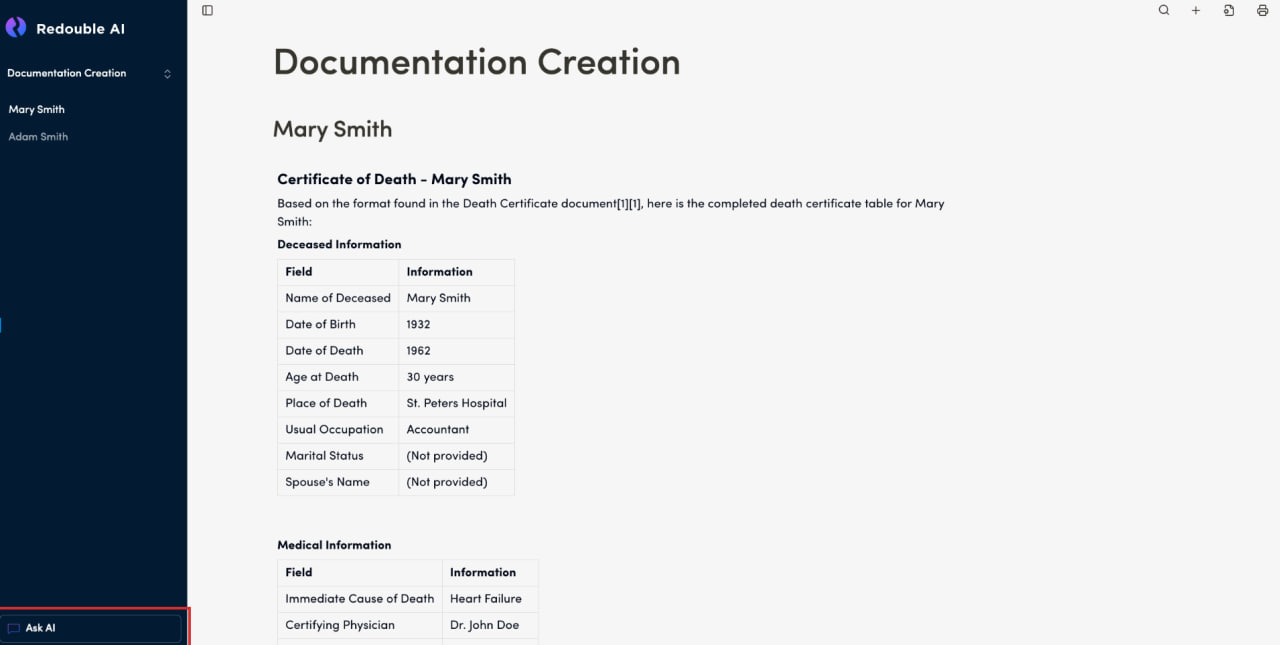
Access: You can access the chat from the project page by clicking "Ask AI" button
Key Components:
Left Sidebar
Project Name - displays current project
Actions Section:
Clear Chat button - Removes all messages and starts fresh conversation
Status Indicator - Shows "Connected" (real-time connection status)
Document editor button - Navigate back to document editor
Main Chat Area
Conversation Display - Shows threaded messages between user and AI
Message Bubbles:
User messages appear on the right (blue bubbles)
AI responses appear on the left with AI avatar
Timestamps displayed (e.g., "17:50")
AI Status Indicators
"Assistant is thinking..." - AI is processing your question
"Assistant is responding..." - AI is generating/typing response
Message Input Box
Large text input area at bottom
Placeholder text: "Assistant is responding..." (when AI is active)
Send button (arrow icon) on the right
Mint green border highlighting active state
Functionality:
Chat Flow:
User types question in input box
User clicks send or presses Enter
Message appears in chat history
AI shows "thinking" status
AI generates and displays response
Conversation continues
Use Cases:
Ask general questions about the project
Get quick answers without creating formal Questions
Exploratory conversations about documents
Clarifications and follow-up questions