
Workflow runs
Preconditions:
- You are logged into Retrax and on the home screen
This page lists every workflow run and lets you search and page through them.
- Header:
- Filter field
- Rows per page selector — 20 / 40 / 80 / 120.
- Refresh button and page navigation
- Run cards — each shows the process name, status badge, executor , duration, relative time, update date, author/owner and a unique ID.
User can perform several actions:
Viewing the Runs List
What a run card shows:
- Process name The workflow that ran (e.g. Project Chat, Document Ingestion, Template-Guided Analysis).
- Status badge (Completed, Running, Pending or Failed, each with its own icon/colour.)
- Description Short text for some processes
- Executor The agent / job / tool that performed the run.
- Duration
- Time Relative and absolute.
- Author / owner Who created or owns the run.
- ID The unique run identifier.
Notes:
- Failed runs show the error text right on the card, so you can triage without opening the trace.
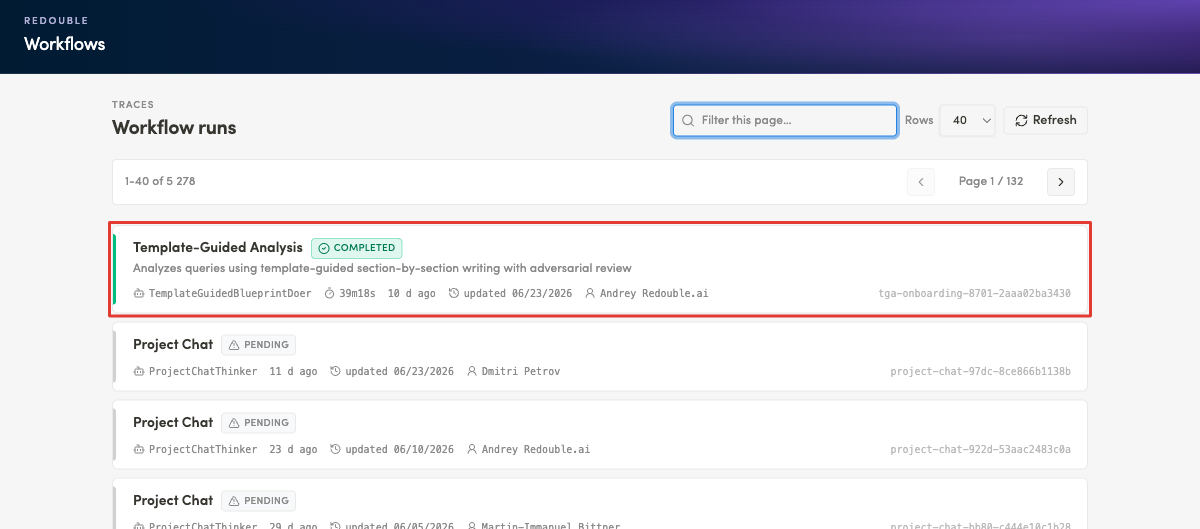
Filtering Runs
Steps:
- Click the filter field at the top of the list ("Filter this page…").
- Type any of the following to narrow the list:
- Process name
- Executor
- Author
- ID fragment
- The list updates as you type, keeping only matching cards.
- To clear the filter, empty the field — and the full list will be shown again.
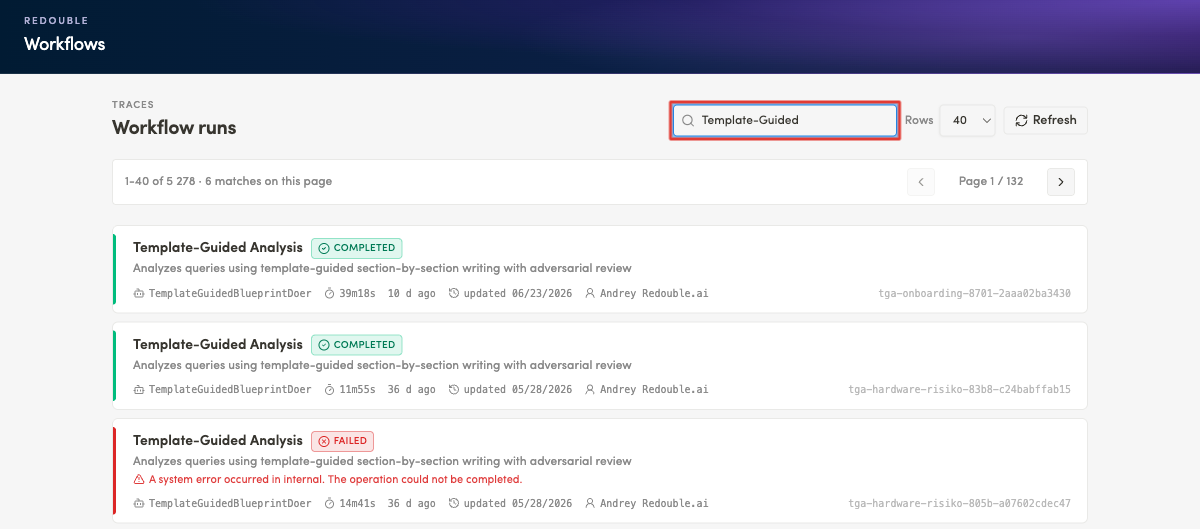
Pagination & Rows per Page
Paging through runs
- Use Next ("Next workflow page") to move to the following page — the counter updates
- Use Previous to go back one page.
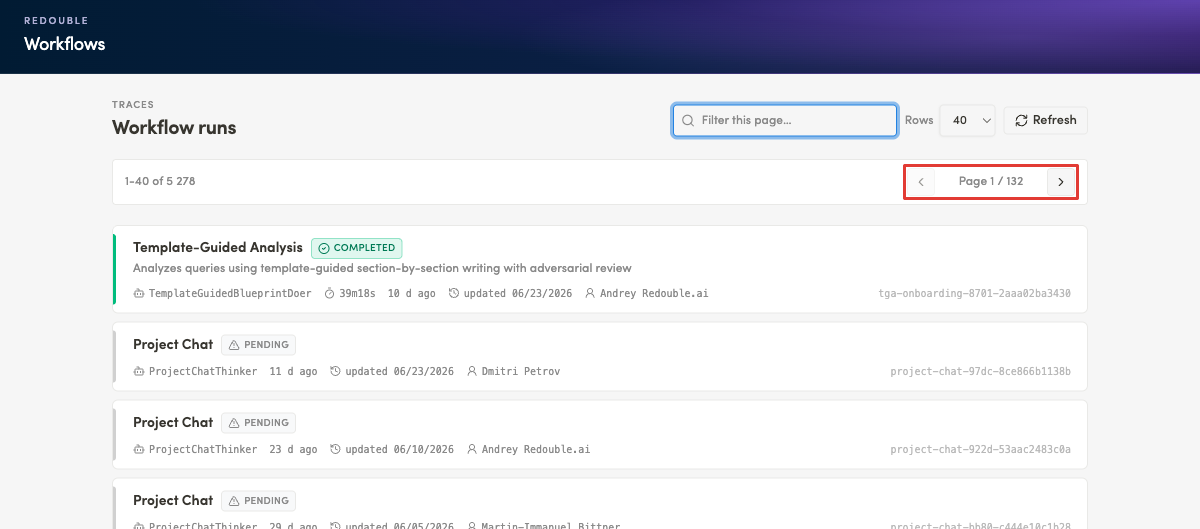
Rows per page
- Open the Rows per page selector
- Choose 20, 40, 80 or 120. The default value is 40.
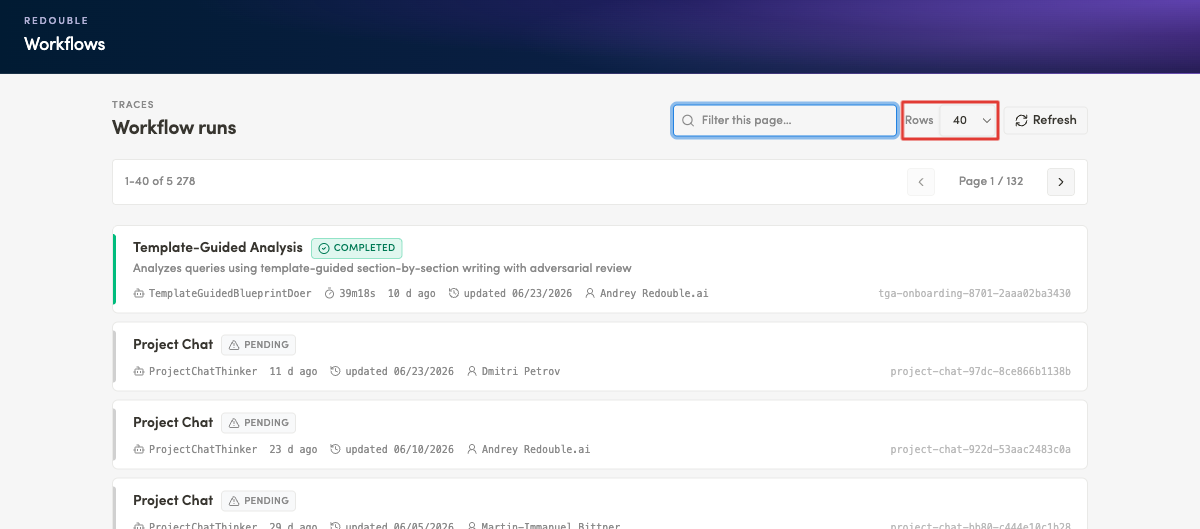
Opening a Trace
- Click any run card.
- See the selected trace being opened.
- User can also refresh the page by clicking *Refresh button
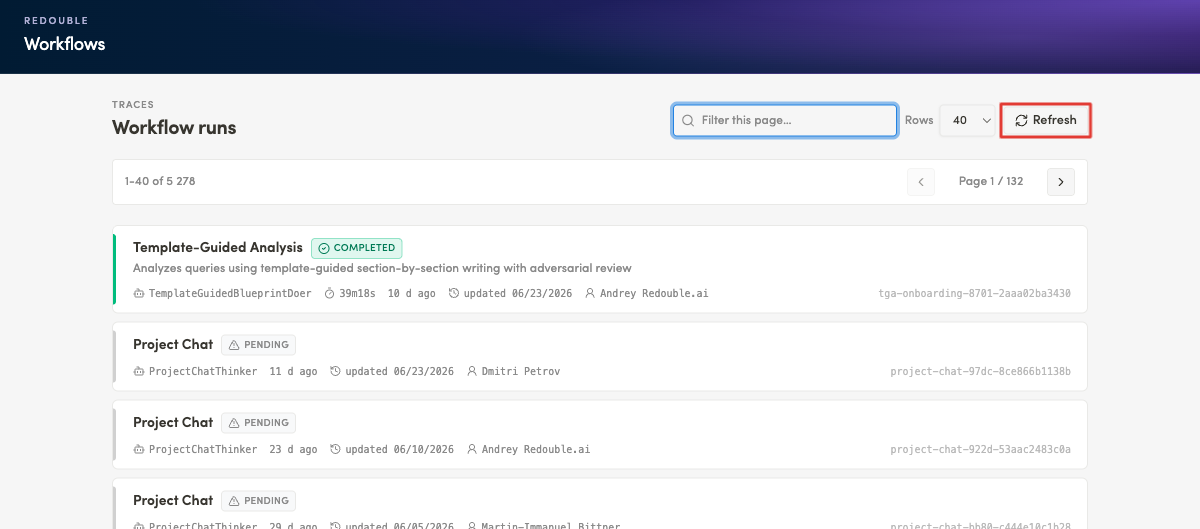
Result: User can successfully change the appearence of the list and move from the high-level list into the detailed breakdown of a single run.